010-6097 4119Book a Demo


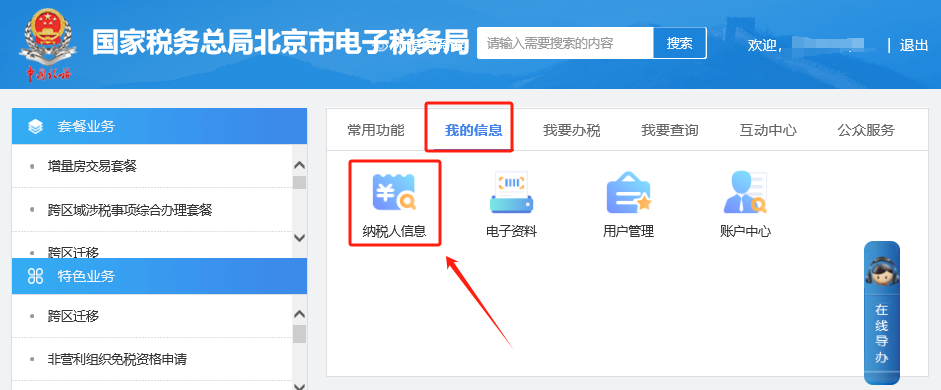
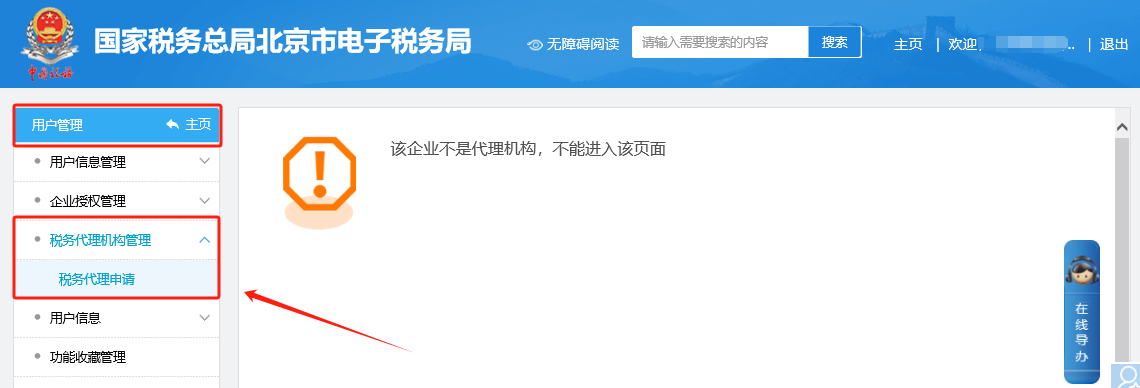
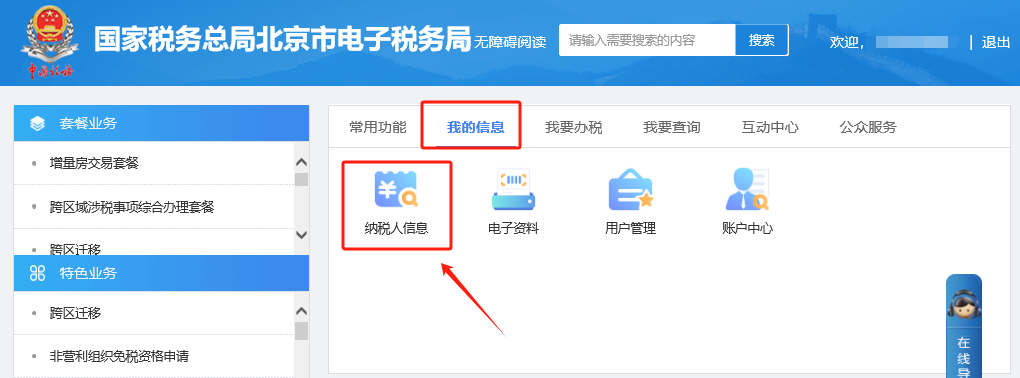
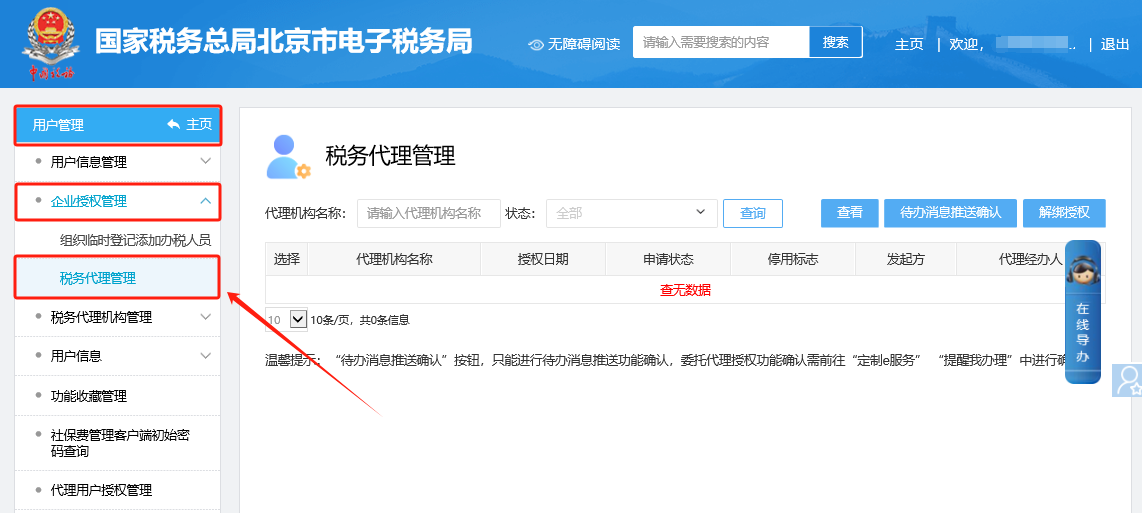
Electronic Tax Bureau operation guide | When issuing a blue-letter invoice on the electronic invoice service platform, how do I fill in/modify the seller information?Published: 2023-12-15 15:53 1.On the E-Tax Bureau, go to [I Want to Handle Taxes] — [General Tax Refund and Offset Management] — [Tax Refund and Offset for Treasury Deposits]. When clicking the drop-down menu for "Tax Refund and Offset (Fee) Basis Document Number," there are no options (only the three words "Please select")? Answer: Hello, please click the [Reset] button in the upper right corner of the tax refund application form interface to refresh and check. If there are still no options, please move the mouse and click elsewhere, position the mouse elsewhere, and then click the "Tax Refund (Fee) Basis Document Number" Please Select text to check whether there are selectable options. 2.On the electronic tax bureau, when using the new login interface to log in with newly added personnel information through agency business, it prompts: No association relationship information between you and this agency enterprise was found. Please confirm whether the entered information is correct! Answer: Hello, the specific operations are as follows: Step 1: The agency clicks [My Information] — [Taxpayer Information] — [Tax Agency Management] — [Tax Agency Application], then clicks "Agency User Authorization Application" in the upper right corner to initiate the application; Step 2: After the agency initiates the application, the represented enterprise clicks [My Information] — [Taxpayer Information] — [Enterprise Authorization Management] — [Tax Agency Management] to confirm. Note: Currently, only the agency can initiate an application to the represented enterprise, and the represented enterprise confirms it. An enterprise cannot initiate an application to an agency. Step 1: I. My Information—Taxpayer Information.
II. User Management—Tax Agency Management—Tax Agency Application. After entering, click "Agent User Authorization Application" in the upper right corner to initiate an application.
Step 2: I. My Information—Taxpayer Information.
II. User Management—Enterprise Authorization Management—Tax Agent Management for confirmation.
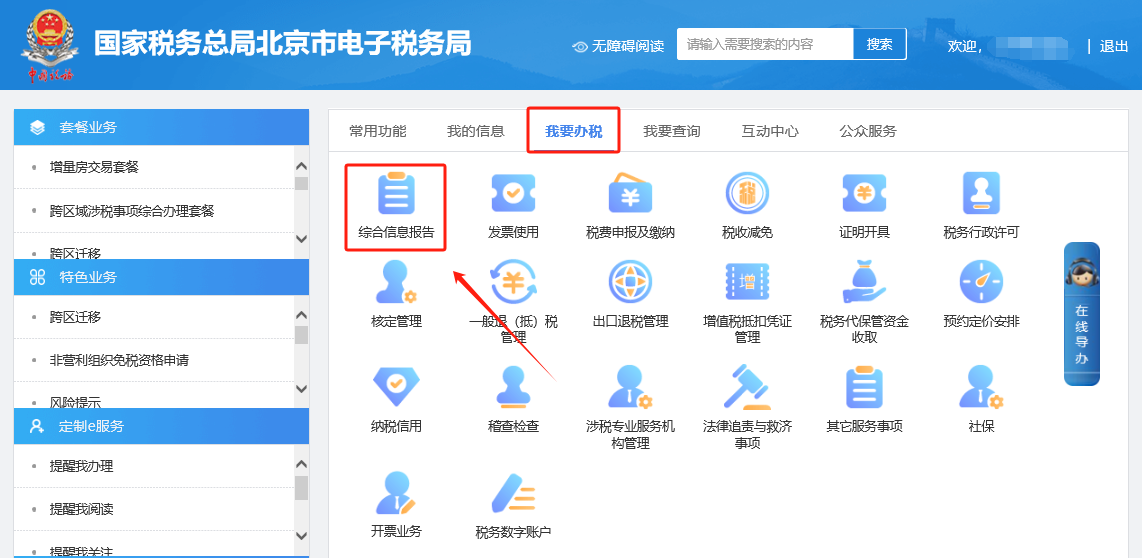
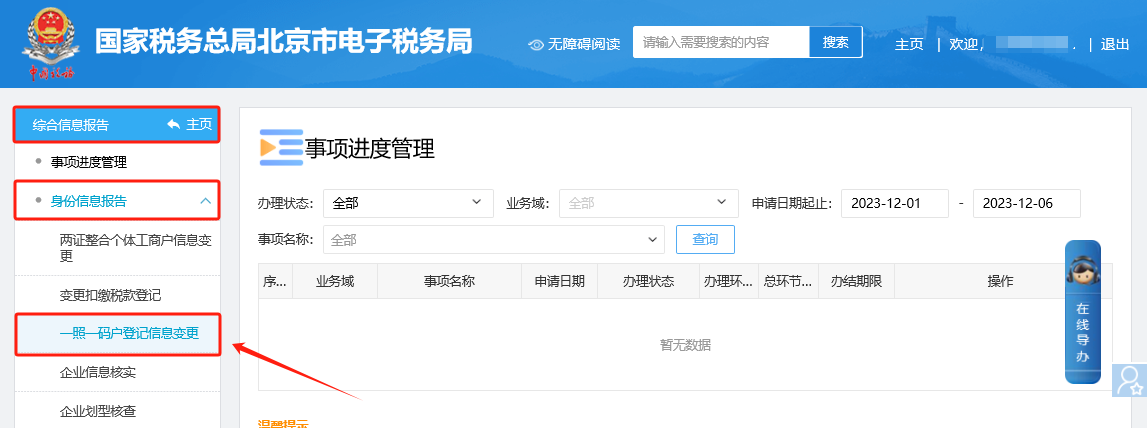
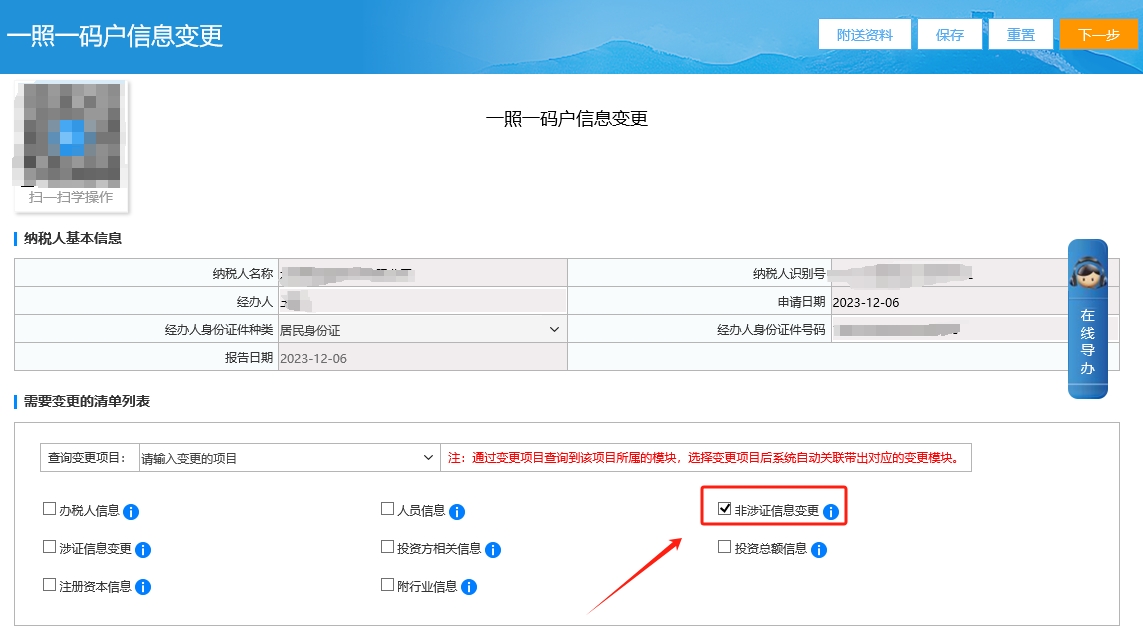
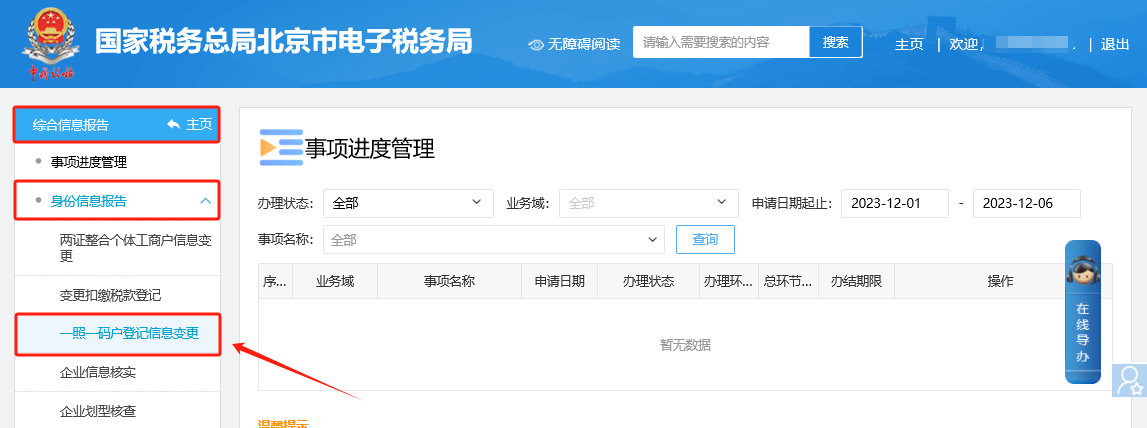
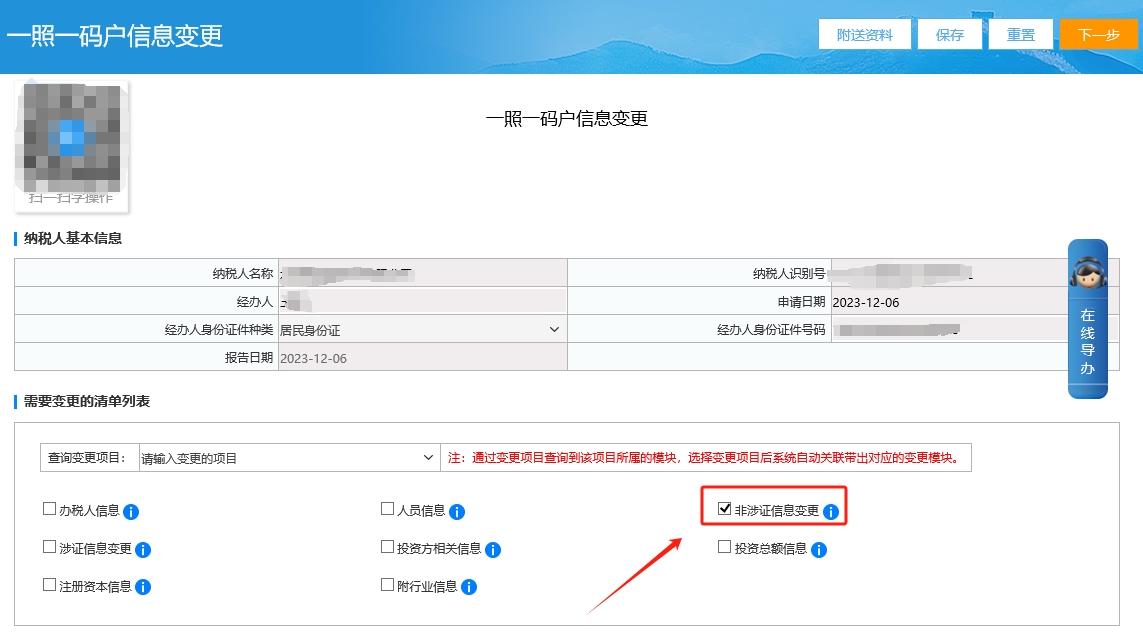
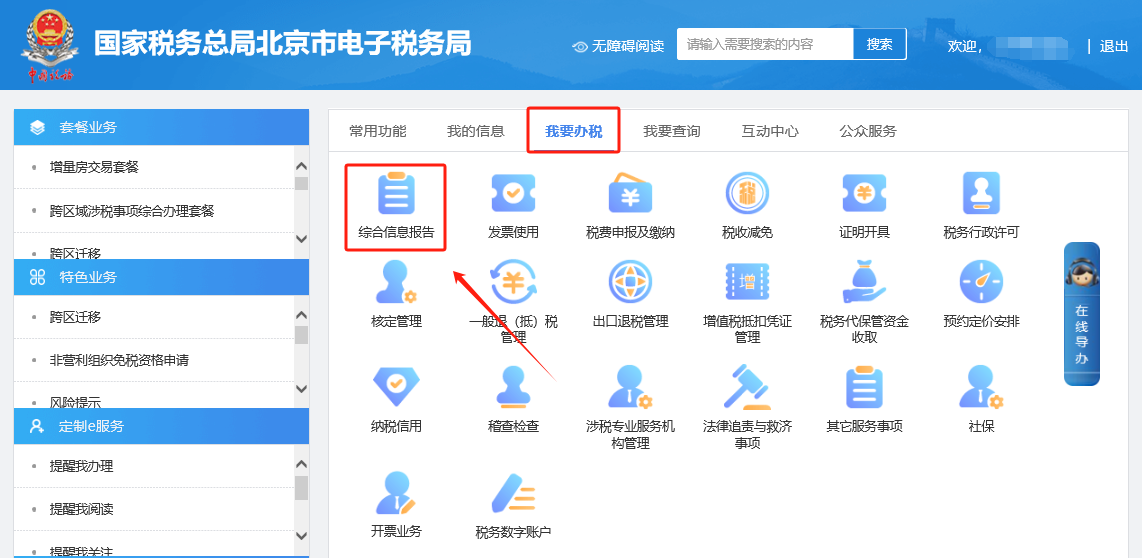
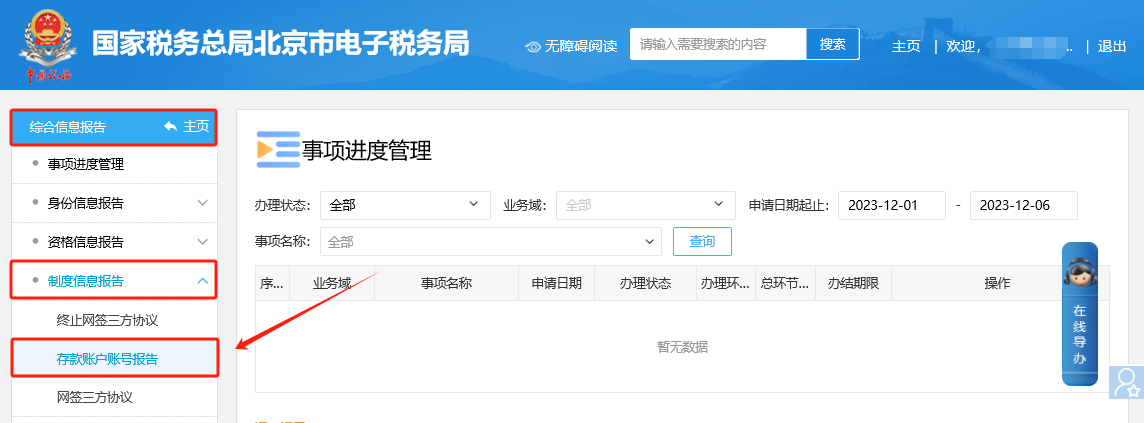
3.When issuing a blue invoice on the electronic invoice service platform, how do you fill in/modify the seller information? Answer: Hello, the specific operations are as follows: 1) Name and unified social credit code/taxpayer identification number: brought out based on Market Supervision Administration information; 2) Seller address: clicking the drop-down option on the interface can automatically bring up the registered address or production and operation address. The registered address is brought up according to the information of the Market Supervision Administration. The "production and operation address" can be modified in the Electronic Tax Bureau under [I Want to Handle Taxes] — [Comprehensive Information Report] — [Identity Information Report] — [One License One Code Household Information Change] by selecting non-license-related information; 3) Telephone: automatically populated based on the "production and operation address contact phone" in the registration information, and can be modified in the Electronic Tax Bureau under [I Want to Handle Taxes] — [Comprehensive Information Report] — [Identity Information Report] — [One License One Code Household Information Change] by selecting non-license-related information; 4) Seller's bank and bank account number: can be selected from the deposit account numbers already collected. If modification or addition is needed, it can be handled at the Electronic Tax Bureau under [I Want to Pay Taxes] — [Comprehensive Information Report] — [System Information Report] — [Deposit Account Number Report]. Note: The "seller information" on the face of a fully digitalized e-invoice shows the seller's name and the seller's unified social credit code/taxpayer identification number, and does not show the seller's bank, bank account, address, telephone, and other information. If the "whether to display" option after the bank information is checked, the bank and bank account will be displayed in the remarks column. Seller address: I. I Want to Handle Taxes—Comprehensive Information Report.
II. Comprehensive Information Report—Identity Information Report—One-License-One-Code Household Information Change.
III. For one-license-one-code household information changes, select non-license-related information for modification.
Phone: I. I Want to Handle Taxes—Comprehensive Information Report.
II. Comprehensive Information Report—Identity Information Report—One-License-One-Code Household Information Change.
III. For one-license-one-code household information changes, select non-license-related information for modification.
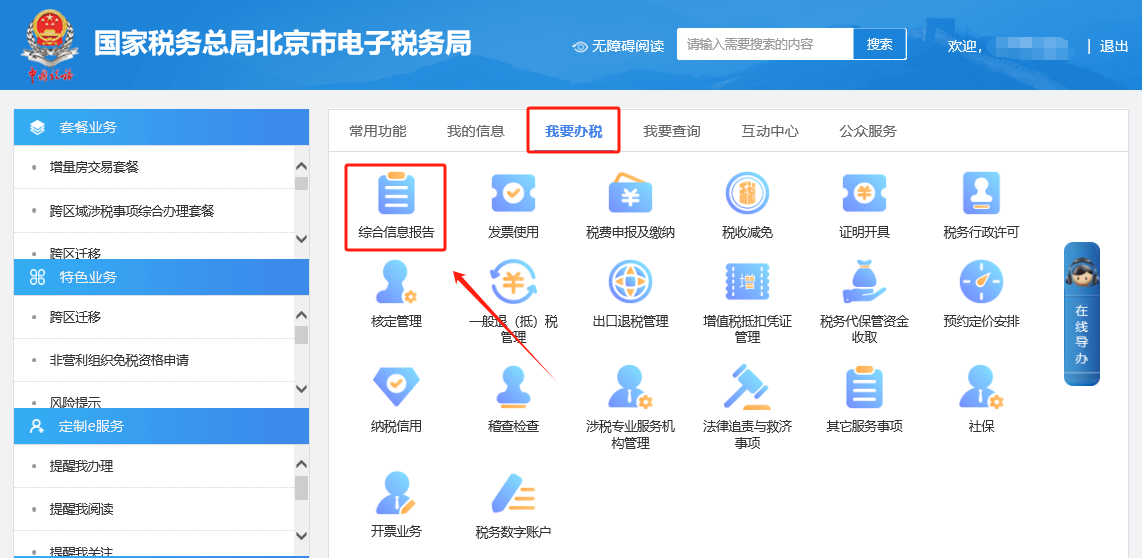
Seller's bank and bank account number: I. I Want to Handle Taxes—Comprehensive Information Report.
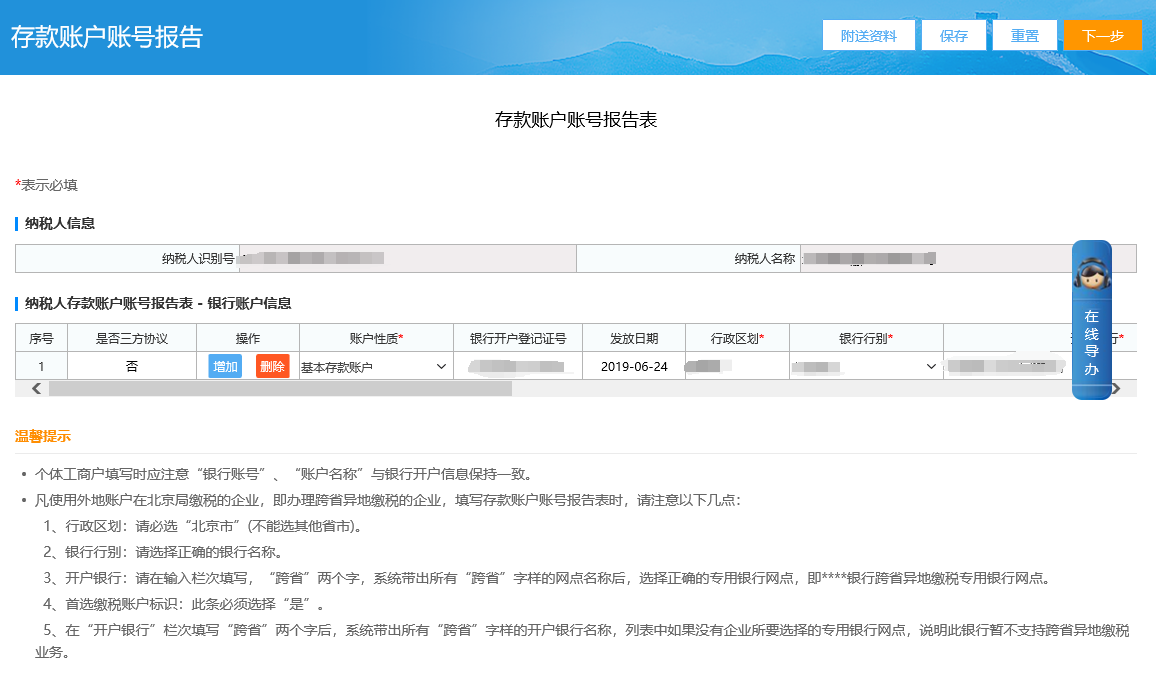
II. Comprehensive Information Report—System Information Report—Deposit Account Number Report.
III. Deposit account number report handling.
Source: Beijing Tax official account Beijing Kailing Technology Co., Ltd.——an enterprise business-finance-tax digitalization solution service provider. Kailing Technology provides solutions for sales management systems, procurement management systems, output invoicing systems, input invoice collection systems, imaging management systems, financial posting systems, electronic accounting archives and other businesses according to enterprise needs, professionally and efficiently helping enterprises transform and upgrade their business-finance-tax digital management. If you have any business-finance-tax digital transformation needs, welcome to contact us. Beijing Kailing Technology will serve you wholeheartedly.
|