010-6097 4119Book a Demo


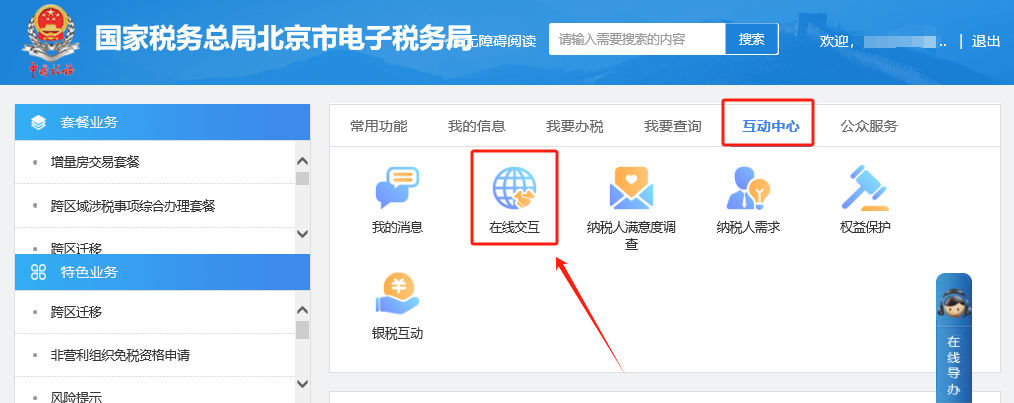
E-Tax Bureau Operation Guide | How to red-reverse an issued fully digitalized e-invoicePublished: 2024-01-05 16:42 1.How do you query warning information on the electronic tax bureau? Hello, please click [Interaction Center] — [Online Interaction] — [Grid-Based Coaching Message Push] or [Grid-Based Reminder-Type Matter Message Push] to view. I. Interaction Center—Online Interaction.
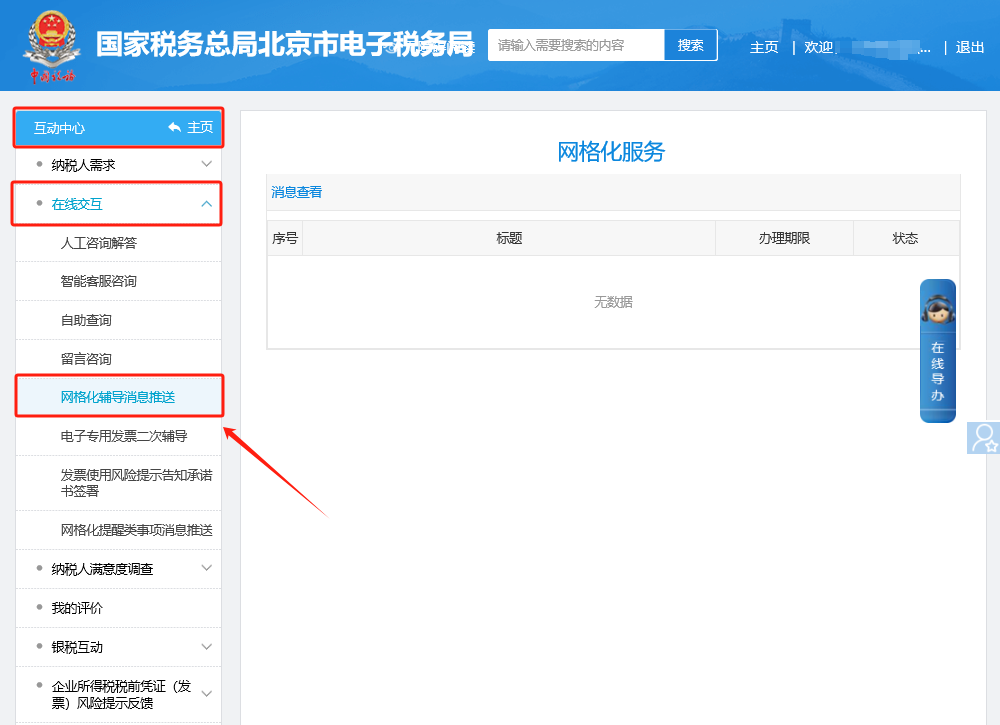
II. Interaction Center - Online Interaction - Grid-based coaching message push.
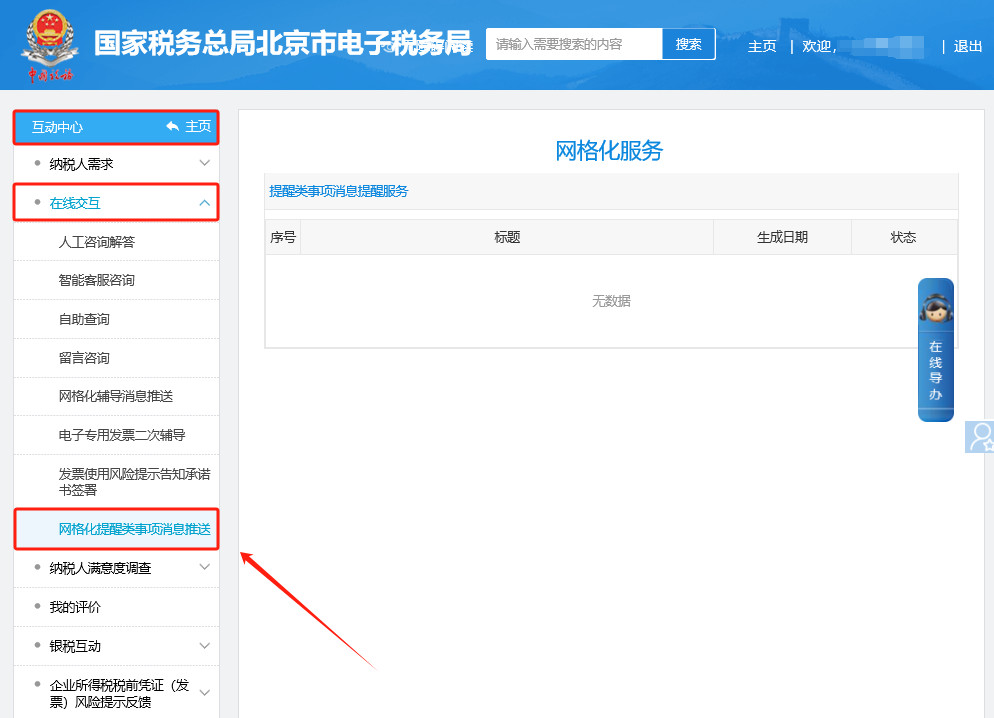
III. Or view via Interaction Center—Online Interaction—Grid-Based Reminder Message Push.
2.When issuing a fully digitalized e-invoice on the Electronic Tax Bureau, how do I add product information on the invoice issuance screen? Can I enter the issuance screen, add products, and then select them, just like in the tax control system? Hello, this issue can be handled as follows: (1) [I Want to Handle Taxes] — [Invoicing Business] — [Blue-Letter Invoice Issuance] to enter the immediate invoicing interface. Enter information in the "Item Name" field, and the system will automatically and intelligently match and provide similar options for selection according to the actual situation; (2) If there is no matching item, click [Select Commodity Code Yourself] at the bottom of the smart matching box. The self-select commodity code screen will appear on the right. After completing the relevant information, click [Save and Bring into Current Line] to bring the self-added information into the item name field; (3) Click the icon after the item name. In the item information query page that pops up on the right, you can only select maintained item information and cannot add new items. To add, you can only do so in [I Want to Handle Taxes] — [Invoicing Business] — [Invoicing Information Maintenance] — [Item Information Maintenance]. You can enter it manually or download a template, fill it in, and import it. 3.How do you issue a red-letter reversal for an issued fully digitalized e-invoice on the electronic tax bureau? After a taxpayer issues a blue-letter invoice, if a sales return (including full return and partial return), invoicing error, service termination (including full termination and partial termination), sales allowance, or other such situation occurs, a red-letter invoice shall be issued in accordance with regulations. The taxpayer may successively enter the [I Want to Handle Tax] - [Invoicing Business] - [Red-Letter Invoice Issuance] page, click "Red-Letter Information Confirmation Form Entry", and enter the red-letter information confirmation form entry interface. Enter the query conditions, click the [Query] button, and query the blue-letter invoice information to be reversed. In the query results, click "Select" to enter the [Red-Letter Information Confirmation Form Entry Page]. On this page, if the fully digitalized e-invoice type selected is "electronic invoice", click the [Submit] button, and the prompt appears: "Dear taxpayer, the red-letter invoice type you selected is 'electronic invoice'. After confirmation by the confirming party, the system will directly generate a red-letter invoice. Please confirm whether to continue submitting?" Click [Confirm], and the red-letter invoice is successfully issued; if the fully digitalized e-invoice type selected is "paper invoice of the same type as the original blue invoice", click [Confirm], and it jumps to the "Submission Successful" interface, prompting that the red-letter information confirmation form has been submitted successfully. If the situation requires confirmation by the other party, after logging in, the other taxpayer can handle it on the [I Want to Handle Taxes]—[Invoicing Business]—[Red-Letter Invoice Issuance]—[Red-Letter Information Confirmation Form Processing] page. To agree to the red-letter reversal, select "Confirm"; to disagree, select "Reject"; the red-letter information confirmation form can also be revoked. When the status of the red-letter information confirmation form is confirmed by both buyer and seller or confirmation is not required, the taxpayer may successively enter the [I Want to Handle Taxes]—[Invoicing Business]—[Red-Letter Invoice Issuance] page, click "Red-Letter Invoice Issuance" in the common functions module, enter query conditions to find the previously issued red-letter information confirmation form, click "Go to Invoice" on the right, enter the red-letter invoice issuance page, and then issue the red-letter invoice normally. Source: Beijing Tax official account Beijing Kailing Technology Co., Ltd.——an enterprise business-finance-tax digitalization solution service provider. Kailing Technology provides solutions for sales management systems, procurement management systems, output invoicing systems, input invoice collection systems, imaging management systems, financial posting systems, electronic accounting archives and other businesses according to enterprise needs, professionally and efficiently helping enterprises transform and upgrade their business-finance-tax digital management. If you have any business-finance-tax digital transformation needs, welcome to contact us. Beijing Kailing Technology will serve you wholeheartedly.
|