News Details

Electronic Tax Bureau operation guide | How do I confirm a received red-letter information confirmation form on the Electronic Tax Bureau?

Published: 2024-01-03 16:20

1.How do you query approved tax types on the electronic tax bureau?

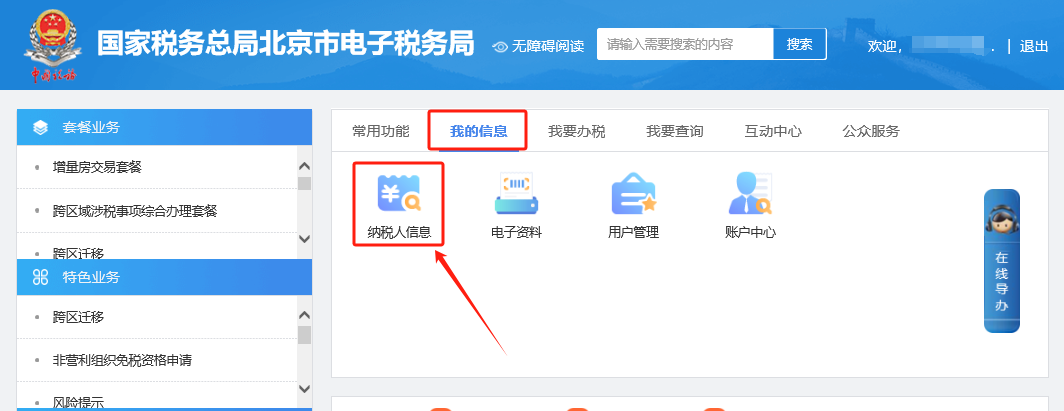
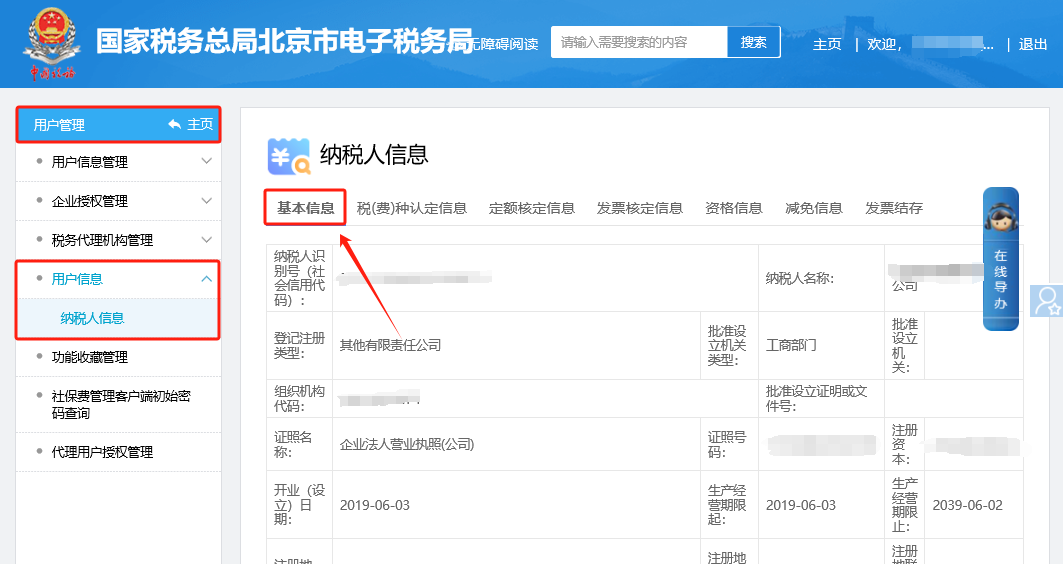
Answer: Hello, please click [My Information] — [Taxpayer Information] — [Basic Information] to view.


I. My Information—Taxpayer Information.

Electronic Tax Bureau operation guide | How do I confirm a received red-letter information confirmation form on the Electronic Tax Bureau?


II. Taxpayer Information—Basic Information View.

Electronic Tax Bureau operation guide | How do I confirm a received red-letter information confirmation form on the Electronic Tax Bureau?


2. Where do you choose to enjoy the "six taxes and two fees" reduction and exemption when filing stamp tax on the Electronic Tax Bureau?

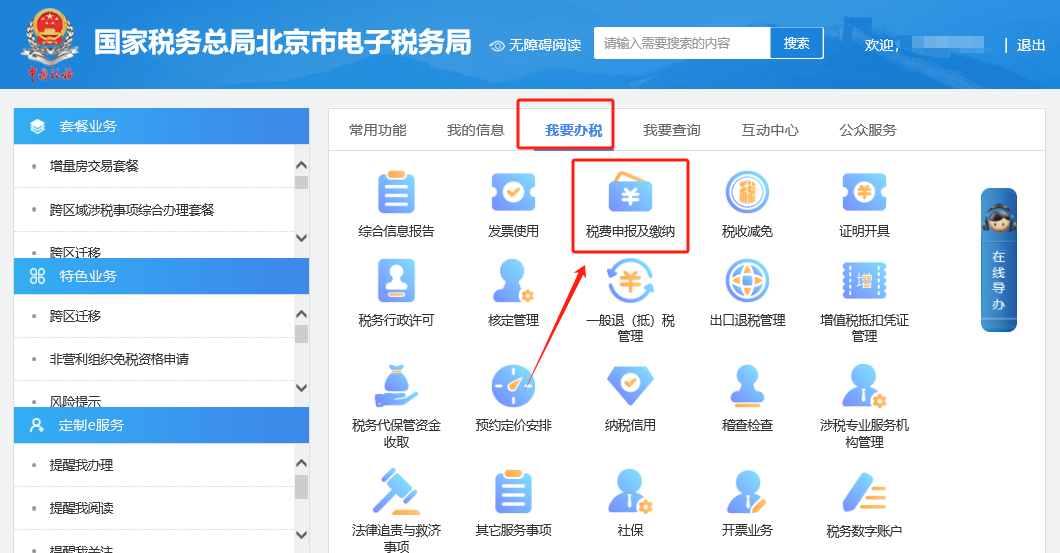
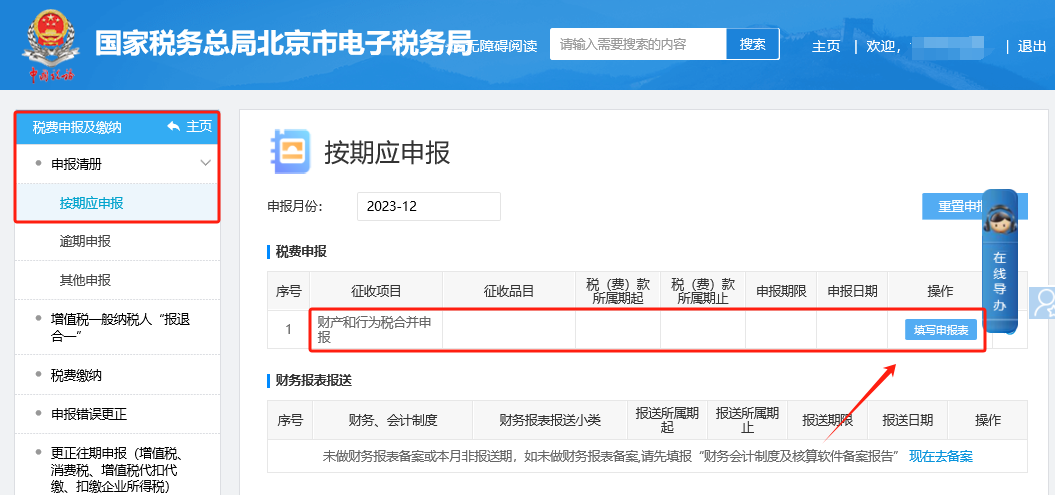
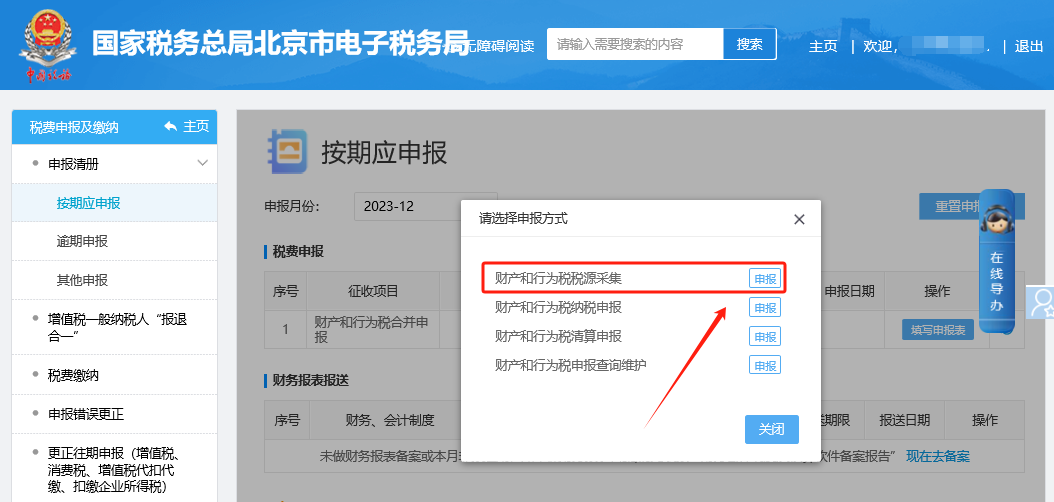
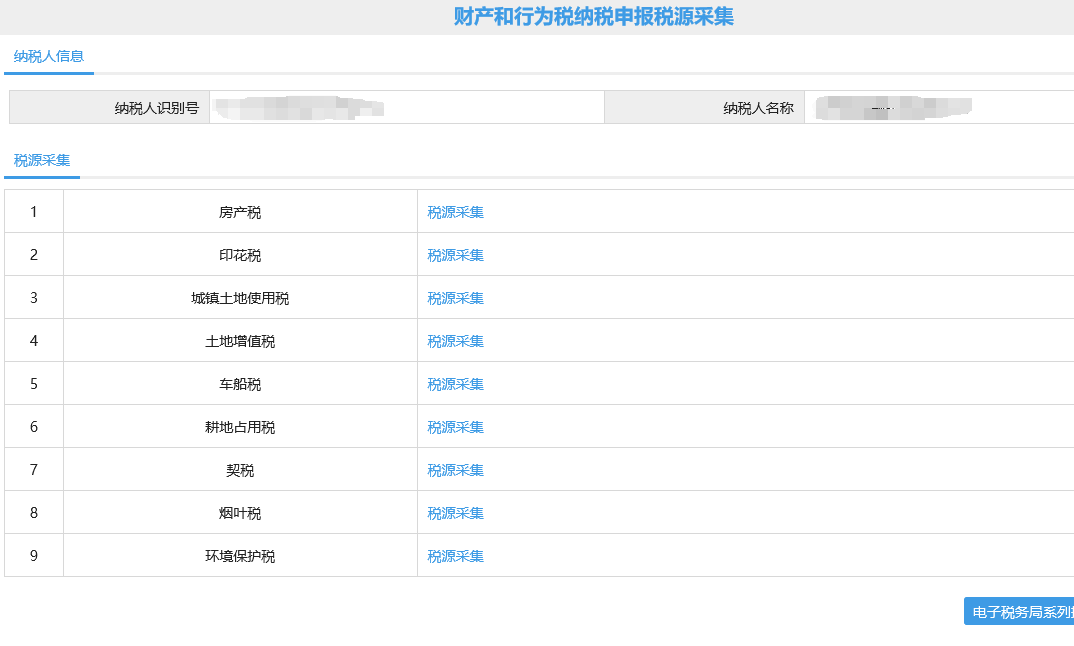
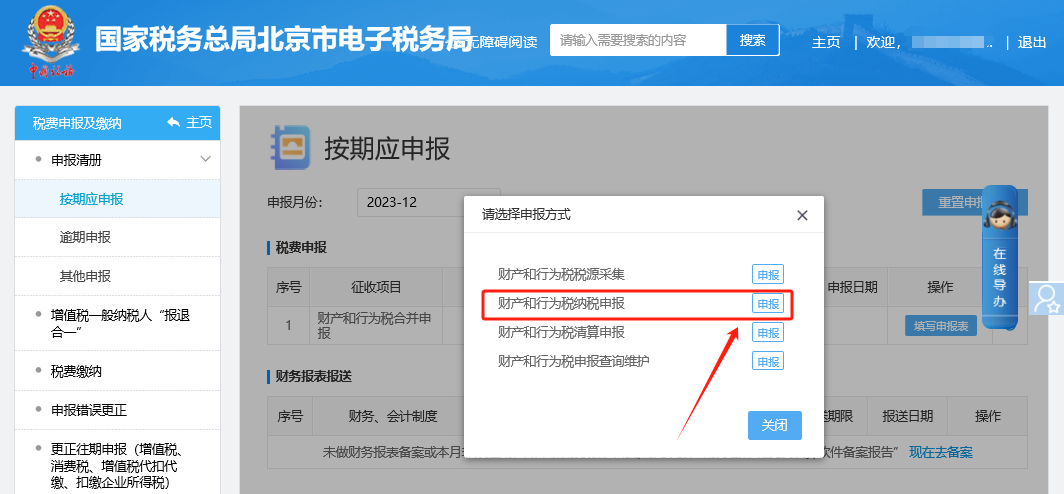
Answer: Hello, please go to [I Want to Handle Taxes] — [Tax and Fee Filing and Payment] — [Combined Filing of Property and Behavior Taxes] — [Property and Behavior Tax Source Collection]. After saving the tax source information on the interface, click [Jump to Filing]. On the [Property and Behavior Tax Filing] interface, select "Yes" for "Whether this period enjoys the 'six taxes and two fees' reduction and exemption policy for small and micro enterprises," check stamp duty, and click File. The report data brought out will be halved; just file directly.


I. I Want to Handle Taxes—Tax and Fee Filing and Payment.

Electronic Tax Bureau operation guide | How do I confirm a received red-letter information confirmation form on the Electronic Tax Bureau?


II. Tax and fee filing and payment—Filing list—Periodic filing—Combined filing of property and behavior taxes.

Electronic Tax Bureau operation guide | How do I confirm a received red-letter information confirmation form on the Electronic Tax Bureau?


III. Property and Behavior Tax Tax Source Collection.

Electronic Tax Bureau operation guide | How do I confirm a received red-letter information confirmation form on the Electronic Tax Bureau?


IV. On the property and behavior tax tax source collection screen, after saving the tax source information, click [Redirect to Filing].

Electronic Tax Bureau operation guide | How do I confirm a received red-letter information confirmation form on the Electronic Tax Bureau?


V. Property and behavior tax filing.

Electronic Tax Bureau operation guide | How do I confirm a received red-letter information confirmation form on the Electronic Tax Bureau?


VI. On the [Property and Behavior Tax Filing] interface, select "Yes" for "Whether this period enjoys the small and micro enterprise 'six taxes and two fees' reduction and exemption policy", check stamp tax and click to file. The report data brought out will be halved, and you can file directly.

Electronic Tax Bureau operation guide | How do I confirm a received red-letter information confirmation form on the Electronic Tax Bureau?


3.How do you confirm a received red-letter information confirmation form on the electronic tax bureau?

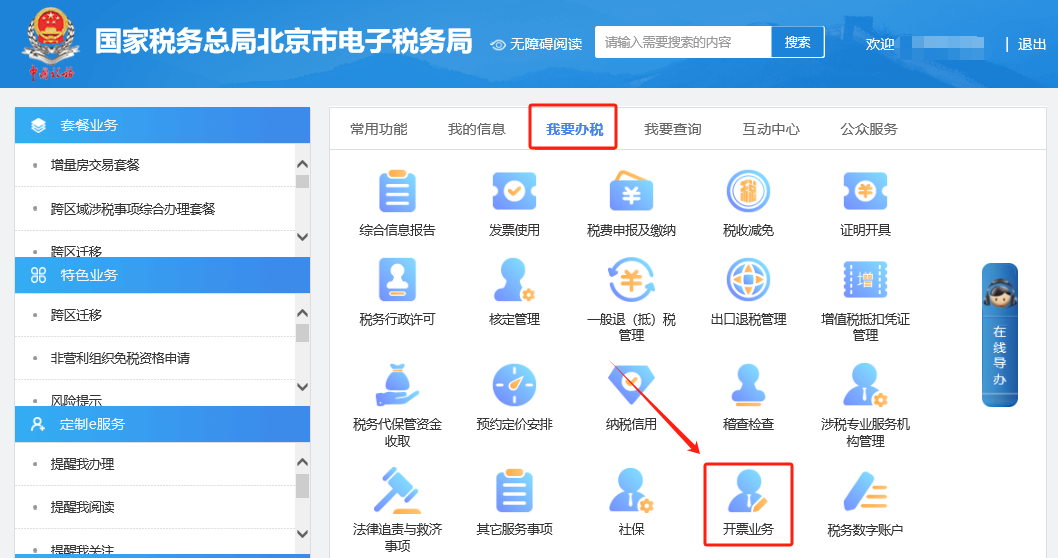
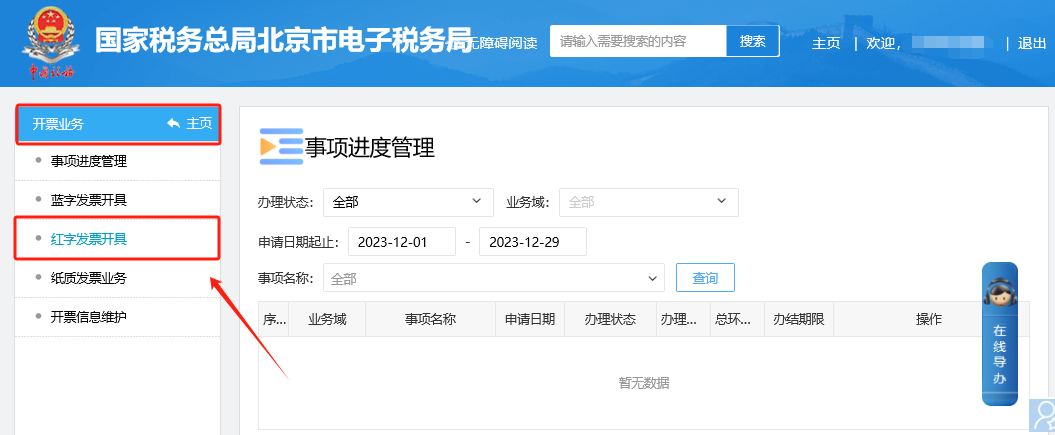
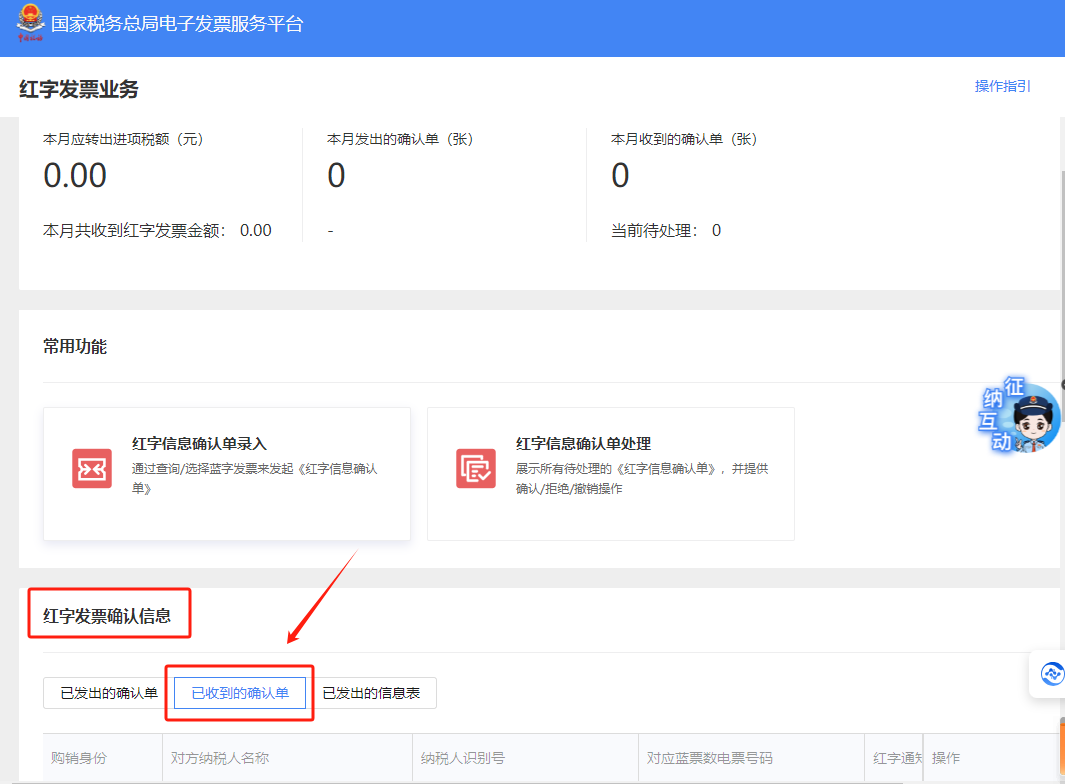
Answer:Taxpayers may enter in sequence the [I Want to Handle Taxes] — [Invoicing Business] — [Red-Letter Invoice Issuance] function. Select the "Red-Letter Invoice Confirmation Information" module, click "Received Confirmation Forms", and the system will display the received red-letter information confirmation forms. Select the red-letter information confirmation form to be processed, click the "View" button to enter the information confirmation page, click the "Confirm" button, a prompt box will pop up, and click "Confirm" again to complete the processing of the red-letter information confirmation form.


I. I Want to Handle Taxes—Invoicing Business.

Electronic Tax Bureau operation guide | How do I confirm a received red-letter information confirmation form on the Electronic Tax Bureau?


II. Invoicing Business - Red-letter Invoice Issuance.

Electronic Tax Bureau operation guide | How do I confirm a received red-letter information confirmation form on the Electronic Tax Bureau?


III. Select the "Red-Letter Invoice Confirmation Information" module and click "Received Confirmation Slips"; the system will display the received red-letter information confirmation slips. Select the red-letter information confirmation slip to be processed, click the "View" button to enter the information confirmation page, click the "Confirm" button, and a prompt box will pop up. Click "Confirm" again to complete the processing of the red-letter information confirmation slip.

Electronic Tax Bureau operation guide | How do I confirm a received red-letter information confirmation form on the Electronic Tax Bureau?


Source: Beijing Tax official account


Beijing Kailing Technology Co., Ltd.——an enterprise business-finance-tax digitalization solution service provider.

Kailing Technology provides solutions for sales management systems, procurement management systems, output invoicing systems, input invoice collection systems, imaging management systems, financial posting systems, electronic accounting archives and other businesses according to enterprise needs, professionally and efficiently helping enterprises transform and upgrade their business-finance-tax digital management.

If you have any business-finance-tax digital transformation needs, welcome to contact us. Beijing Kailing Technology will serve you wholeheartedly.

Electronic Tax Bureau operation guide | How do I confirm a received red-letter information confirmation form on the Electronic Tax Bureau?


Share to:
Contact Us

Contact: 010-60974119

VIP Dedicated Consultant: 185-1389-5936

Address: Room 410, 4th Floor, Jianjin Center, No. Jia 1 Yongtaiyuan, Qinghe, Haidian District, Beijing
Scan to add customer service on WeChat
Industry Websites
Scan to follow our WeChat official account
Scan to view our video account
Scan to follow our Douyin account
Common Questions
How do you confirm a received red-letter information confirmation form on the electronic tax bureau?
Log in to the Electronic Tax Bureau and go to [I Want to Handle Taxes] - [Invoicing Business] - [Red Invoice Issuance] in sequence, select the "Red Invoice Confirmation Information" module, click "Received Confirmation Sheets", view it and click the "Confirm" button, then click "Confirm" again to complete the processing.
How do I check the approved tax types on the Electronic Tax Bureau?
On the homepage of the electronic tax bureau, click [My Information] - [Taxpayer Information] - [Basic Information] to view the approved tax types.
How to enjoy the reduction and exemption of six taxes and two fees when filing stamp tax?
In [I Want to Handle Taxes]-[Tax Declaration and Payment]-[Combined Declaration of Property and Behavior Taxes], collect the tax source and jump to the declaration. On the declaration interface, select "Yes" for "Whether this period enjoys the 'six taxes and two fees' reduction and exemption policy for small and micro enterprises," check the stamp tax declaration, and the system will automatically calculate at half rate.
Related solutions
Output Invoicing Management Platform
As soon as business occurs, invoices are automatically issued, automatically delivered, and automatically returned →
Electronic Accounting Archive Management
Electronic voucher archiving, single-set system, compliant and auditable →
Input invoice collection management platform
Full-process control of intelligent collection, check-and-authenticate, and risk interception →
Further Reading
[Bookmark] Railway Electronic Invoice Operation Guide
Tax authorities, through the tax digital account of the e-invoice service platform (hereinafter referred to as the tax digital acc… →
Operation Guide | How to add a new tax handler in the electronic tax bureau?
The enterprise added a tax handler, which can be added by itself in the electronic tax bureau. Personal accounts and enterprise... →
E-Tax Bureau Operation Guide | How to check whether there are penalties and...
② You can click [I Want to Query]—[One-Household Query]—[Illegal and Violation Query] to view… →