010-6097 4119Book a Demo


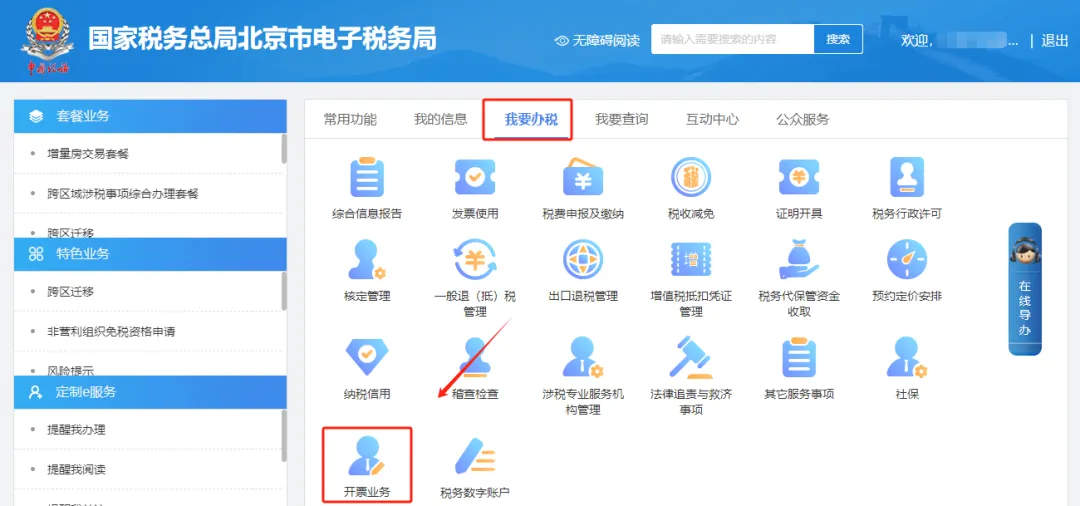
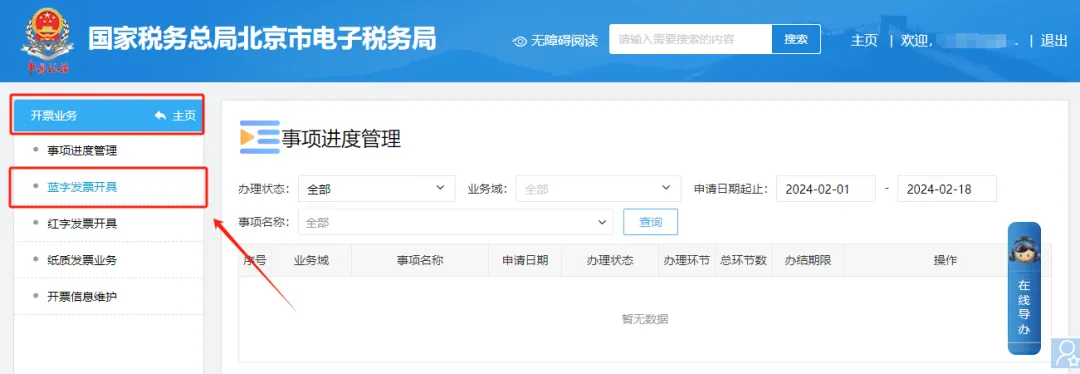
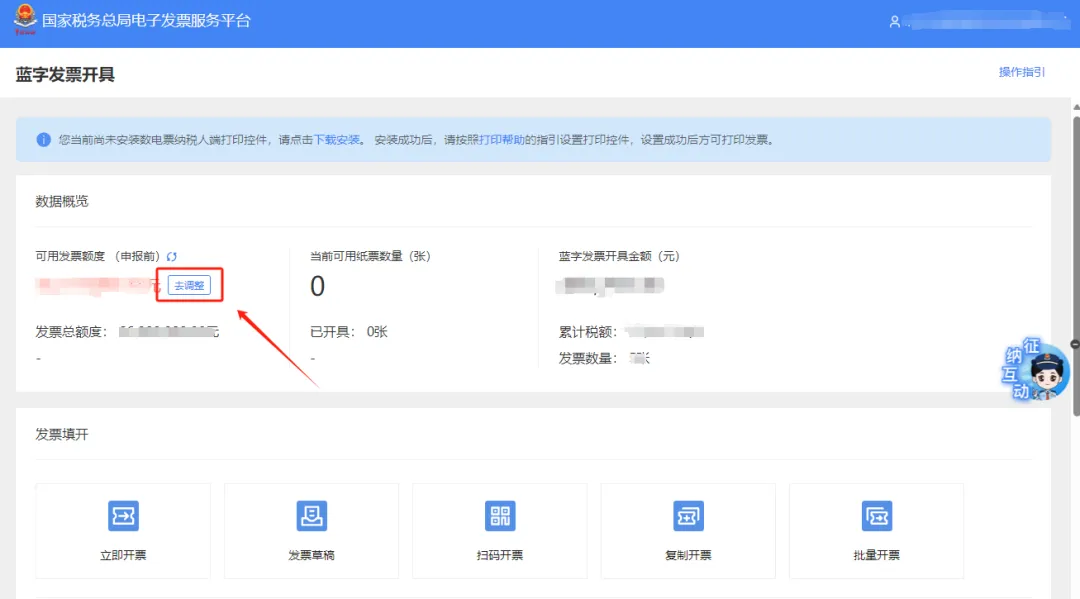
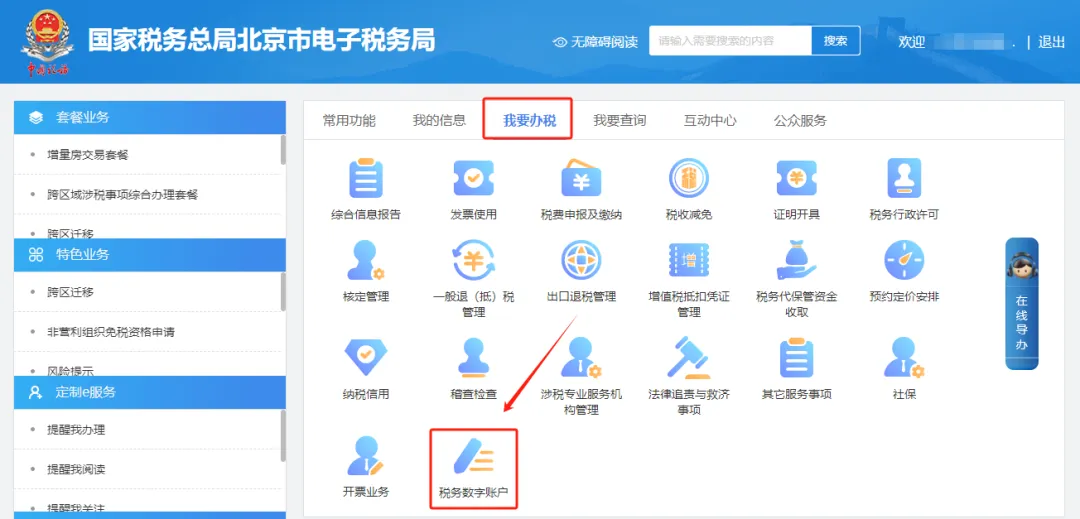
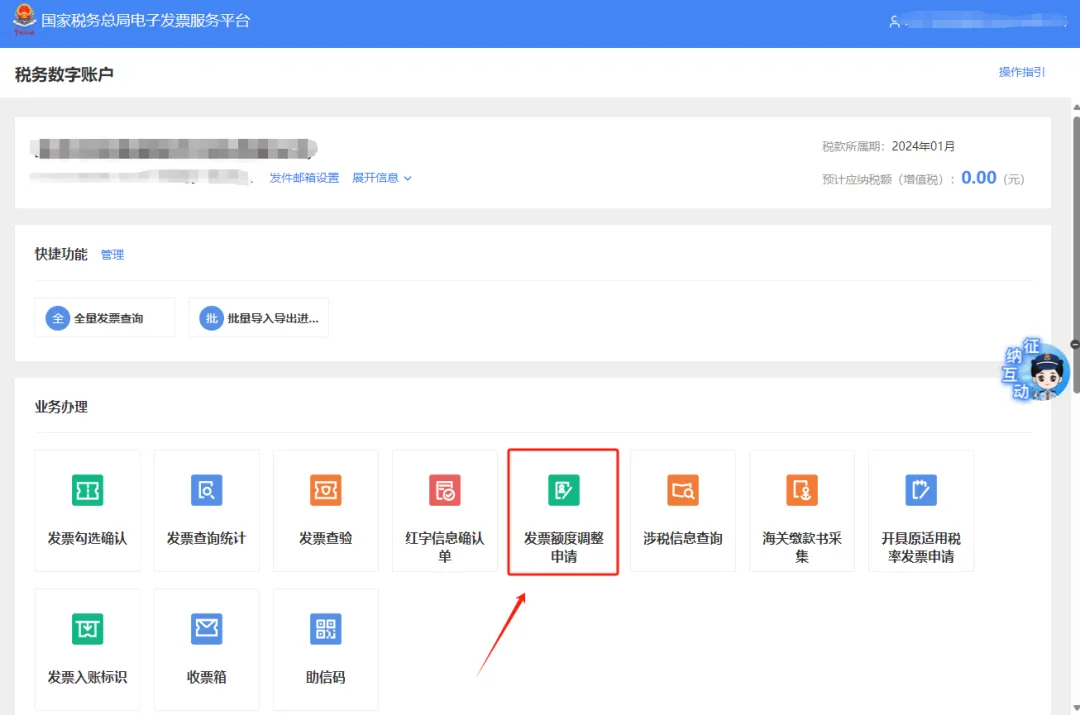
Can the fully digitalized e-invoice quota be adjusted, and how?Published: 2024-08-19 17:25 1. Can the fully digitalized e-invoice quota on the electronic tax bureau be adjusted upon application, and how?Answer:Hello, it can be adjusted. The specific quota adjustment process is as follows: After logging in to the Electronic Tax Bureau, click [I Want to Handle Taxes] — [Invoicing Business] — [Blue Invoice Issuance], and click the [Adjust] button next to "Available Invoice Quota" to enter the invoice quota adjustment application interface. You can also enter this interface via [I Want to Handle Taxes] — [Tax Digital Account] — [Invoice Quota Adjustment Application]; On the invoice quota adjustment application page, click "New Application," fill in and upload relevant materials as required, and after completion, click the "Apply" button at the bottom of the page to complete the application. The illustrated guidance is as follows: Method 1: I. I Want to Handle Taxes—Invoicing Business.
II. Invoicing Business - Blue-letter Invoice Issuance.
III. On the Blue-Letter Invoice Issuance page, click the [Adjust] button next to "Available Invoice Quota" to enter the invoice quota adjustment application interface.
Method 2: I. I Want to Handle Taxes—Tax Digital Account.
II. Tax digital account—invoice quota adjustment application.
III. On the invoice quota adjustment application interface, click "New application", fill in and upload relevant materials as required, and after completion click the "Apply" button at the bottom of the page to complete the application.
2.After successfully issuing a fully digitalized paper invoice on the Electronic Tax Bureau, how do I print it? Answer:Hello, after a taxpayer successfully issues a fully digitalized paper invoice in the [Blue-Letter Invoice Issuance] module, they can click the "Invoice Print" button on the pop-up page and connect a printer to print the invoice. If printing was not possible at that time, the taxpayer can subsequently also use the "Recent Invoicing" function in the [Blue-Letter Invoice Issuance] module or [Full VolumeInvoice query] Find the corresponding invoice in the module, click the "Preview" button to enter the invoice preview interface, and click "Print Invoice". (Please test with blank paper before printing for the first time) The illustrated guidance is as follows: Step 1: I. I Want to Handle Taxes—Invoicing Business.
II. In the Invoicing Business - Blue-letter Invoice Issuance module, after successfully issuing a fully digitalized e-paper invoice, you can click the "Invoice Print" button on the pop-up page and connect a printer to print the invoice.
Step 2: I. I Want to Handle Taxes—Invoicing Business.
II. The "Recent Invoicing" function in the Invoicing Business - Blue-letter Invoice Issuance module.
III. I Want to Handle Tax—Tax Digital Account.
IV. Tax digital account — full invoice query.
V. Find the corresponding invoice in the Full Invoice Query module, click the "Preview" button to enter the invoice preview interface, and click "Print Invoice". (Before printing for the first time, please test with blank paper first.)
3.When filing VAT for general taxpayers, after clicking file, it prompts: submitting, keeps spinning, then returns to the filing interface? Answer:Hello, if this issue occurs, please click the "Reset" button in the upper right corner of the VAT return form filling page (the manually filled data of the entire set of forms will be cleared and needs to be refilled) and fill it in again. After filling it in, confirm the data is correct and click the "File" button in the upper right corner again to file successfully. Content source: Internet Kailing Technology provides enterprise business-finance-tax digital product lines according to enterprise needs: Solutions for businesses including sales contract management system, procurement contract management system, fully digitalized Leqi interface project, output automatic invoicing system, employee expense control and reimbursement system, input VAT invoice management system, supply chain collaborative reconciliation system, image OCR recognition system, automatic financial bookkeeping system, and electronic accounting archives system, professionally and efficiently supporting the transformation and upgrading of enterprise business-finance-tax digital management. If you have any business-finance-tax digital transformation needs, welcome to contact us. Beijing Kailing Technology will serve you wholeheartedly.
|