010-6097 4119Book a Demo


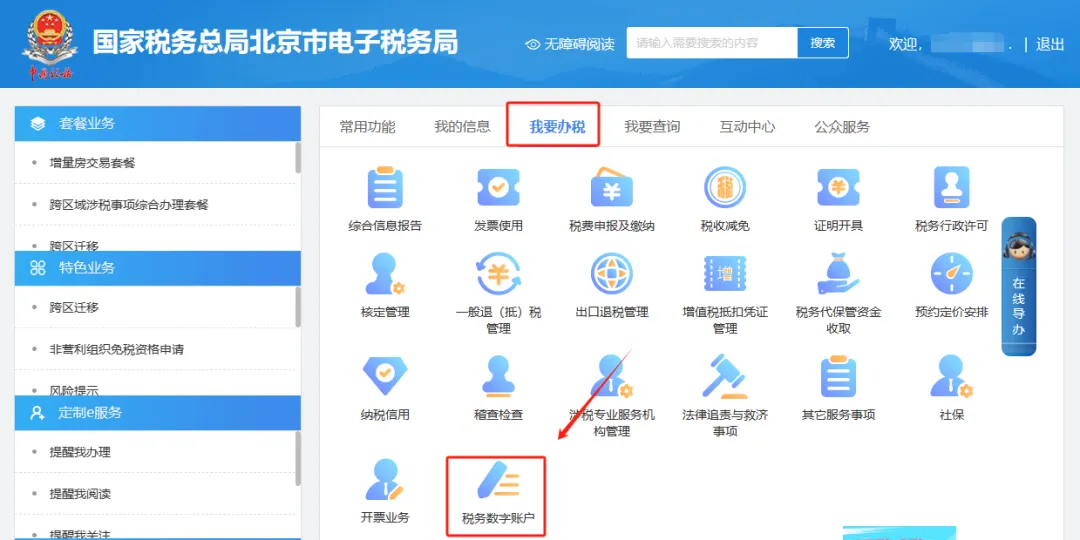
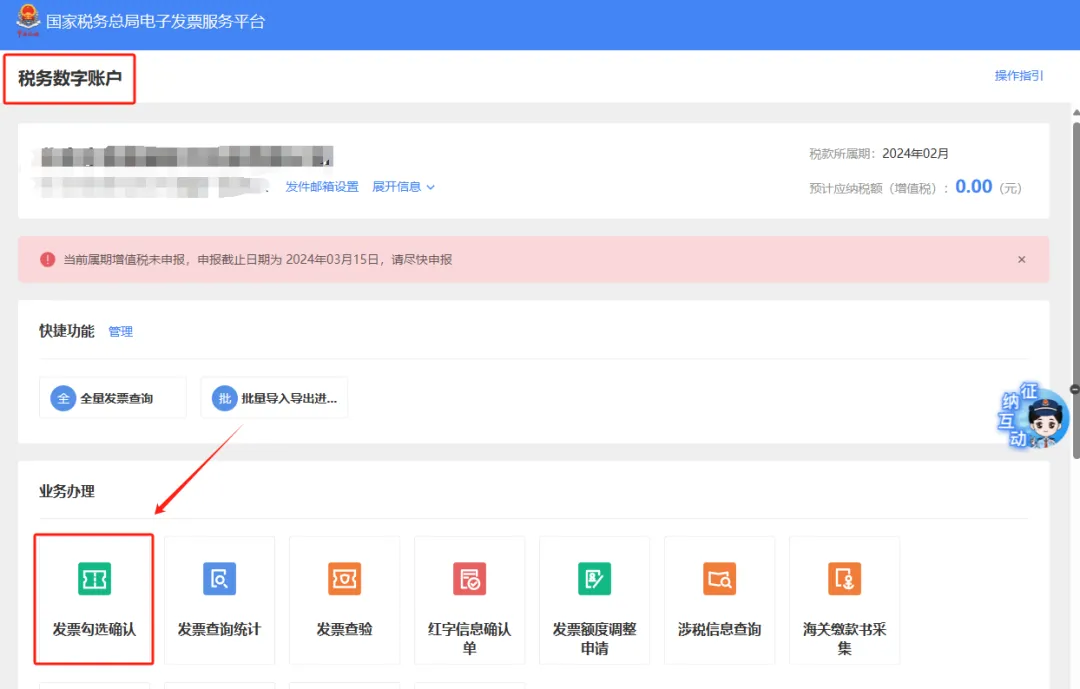
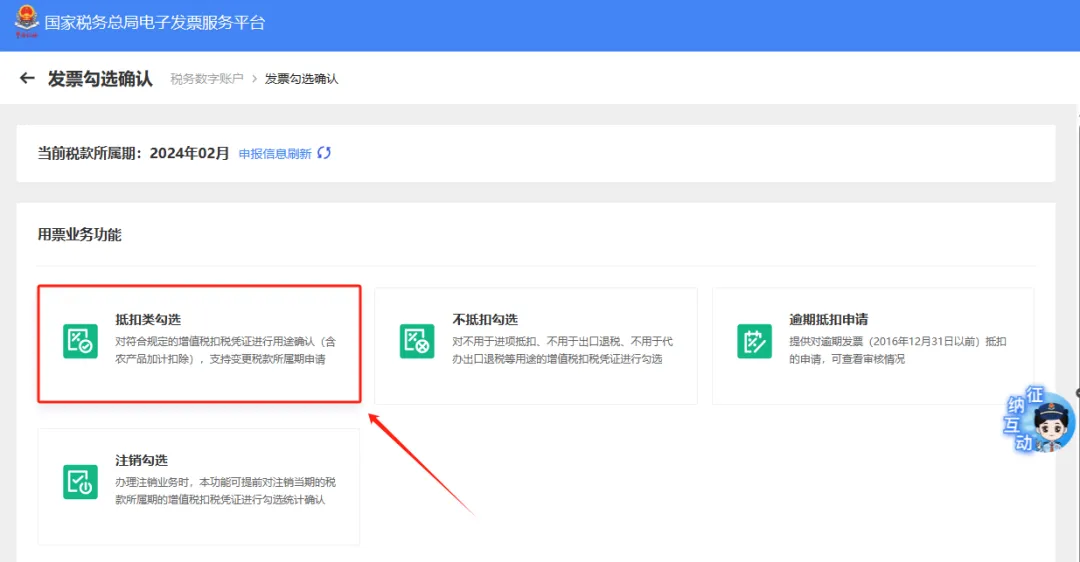
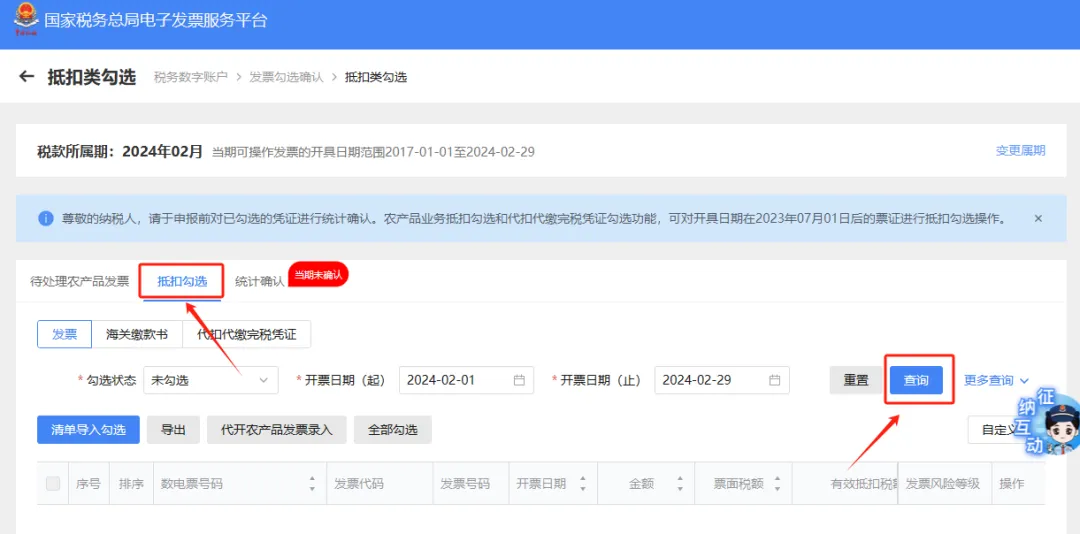
E-Tax Bureau Operation Guide | Excuse me, how to verify input VAT invoices?Published: 2024-06-11 17:00 1.How do I authenticate input VAT invoices on the Electronic Tax Bureau?Answer:Hello, please log in to the Electronic Tax Bureau through the new version login module, then click [I Want to Handle Taxes] — [Tax Digital Account] — [Invoice Check and Confirmation] to enter the [Deduction-Type Check] module; on the "Deduction Check" tab, select query conditions and click [Query]. After finding the data, check the invoices to be authenticated this time in the leftmost check box (you can also click Check All), and click [Submit Check]; after successful submission of the check, enter the [Statistics Confirmation] tab on the right side of the Deduction Check menu. If the current tax period still requires statistics confirmation, you can click the "Apply for Statistics" button to perform statistics. After submitting the application for statistics, the system will perform real-time statistics on the taxpayer's check results. (If the Apply for Statistics button is blue, it means that the application for statistics has not yet been generated, and you need to click the button first to perform statistics.) After verifying that the statistical data is correct, you need to confirm the statistical table, click the [Statistics Confirmation] button, a confirmation statistics pop-up will appear, click [Continue] and the statistics confirmation is successful, and the button below changes to [Revoke Confirmation] (after revocation within the period, you can continue to authenticate invoices and apply for statistics confirmation) Note: After successful confirmation, you can print the deduction-type selection statistics results and download invoice details via the [Print] and [Download Invoice Details] buttons. The illustrated guidance is as follows I. I Want to Handle Taxes—Tax Digital Account.
II. Tax digital account—invoice selection and confirmation.
III. Enter the [Deduction-Type Selection] Module.
IV. On the "Deduction Selection" tab, select query conditions and click [Query]. After finding the data, check the invoice to be authenticated this time in the leftmost checkbox (you can also click Select All), and click [Submit Selection]. After successful submission, enter the [Statistics Confirmation] tab on the right side of the deduction selection menu. If the current tax period still requires statistics confirmation, you can click the "Apply for Statistics" button to perform statistics. After applying for statistics is submitted, the system will perform real-time statistics on the taxpayer's selection results. (If the Apply for Statistics button is blue, it means application statistics have not yet been generated, and you need to click the button first to perform statistics.) After checking that the statistical data is correct, confirm the statistical table and click the [Statistics Confirmation] button. A confirmation statistics pop-up appears. After clicking [Continue], statistics confirmation is successful, and the button below changes to [Revoke Confirmation] (after revocation within the period, you can continue to authenticate invoices and apply for statistics confirmation).
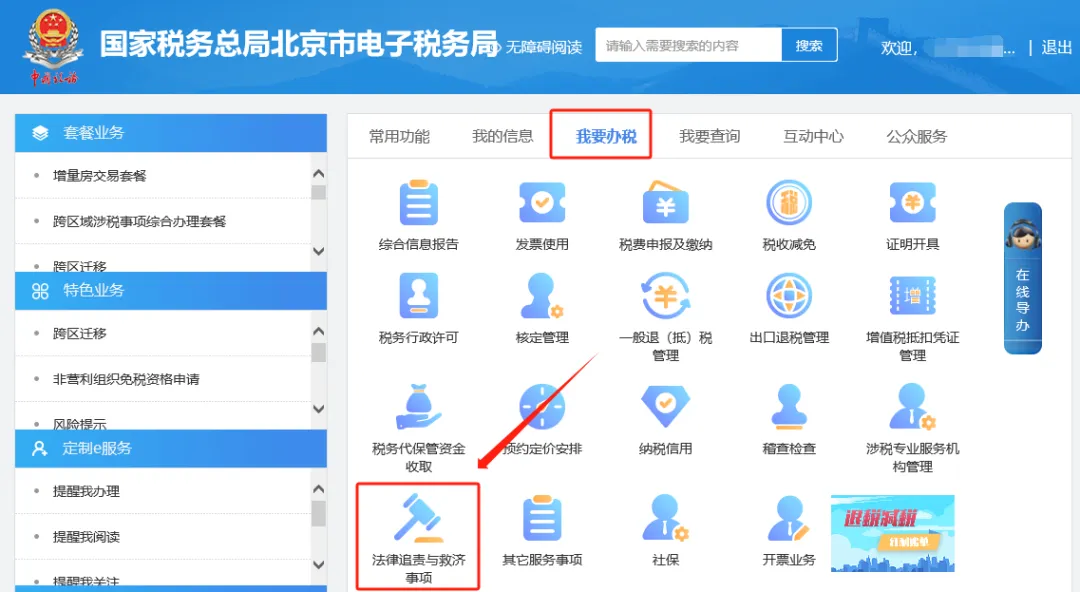
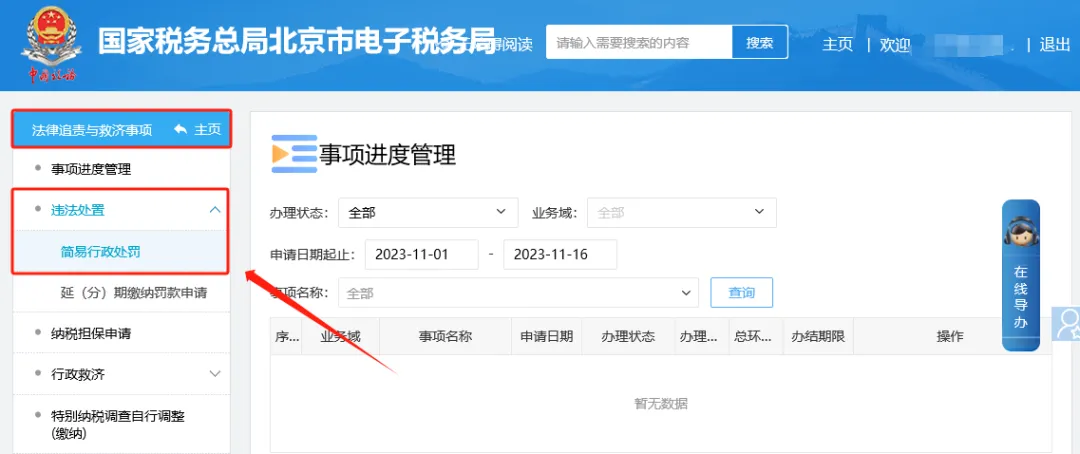
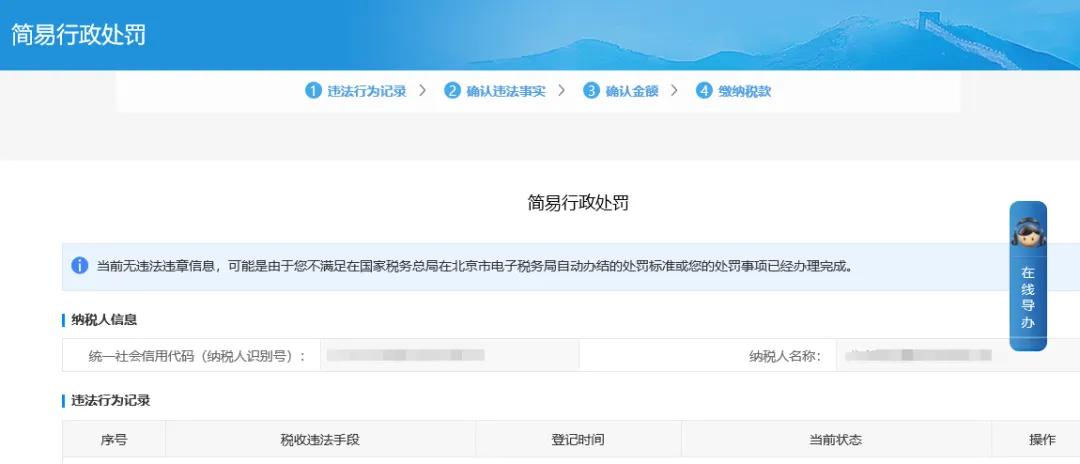
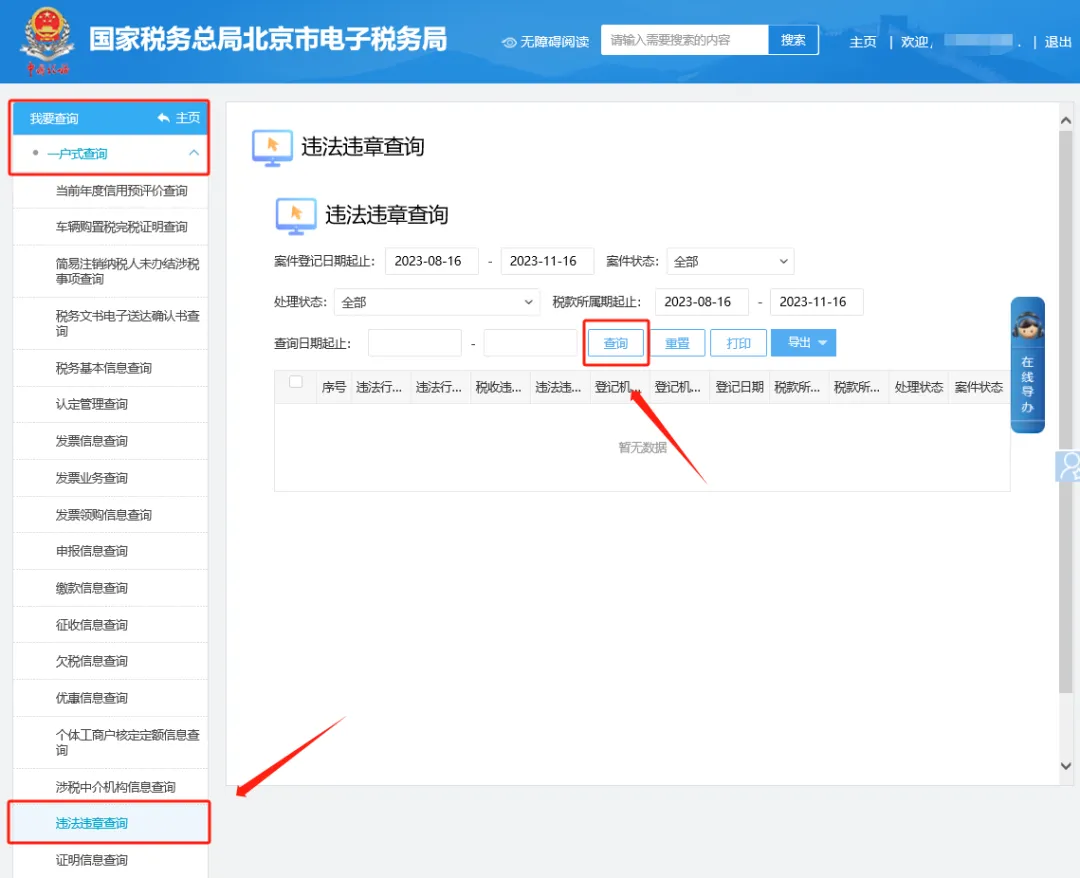
2.If fully digitalized e-invoices are already issued, is monthly tax reporting still required? Answer:Hello, after fully digitalized e-invoices are launched, if the tax control device has not been deregistered, it is necessary to normally perform report submission and card clearing in the tax control device. If the tax control device has been deregistered, there is no need to perform report submission and card clearing work. 3.How do you check whether there is penalty and illegal or irregular information on the electronic tax bureau? Answer:Hello, you can check whether there is penalty information and illegal or violation content through the following two modules; 1. You can click [I Want to Handle Taxes]—[Legal Accountability and Relief Matters]—[Illegal Handling]—[Simplified Administrative Penalty] to check on this interface whether there is penalty information; 2. You can click [I Want to Query]—[One-Household Query]—[Violation Query] to check whether there is violation information. On this interface, adjust the query conditions as needed (case registration date range, case status, handling status, tax period range, query date range) and click the query button to display violation information. The illustrated guidance is as follows Method 1: I. I Want to Handle Taxes—Legal Accountability and Relief Matters.
II. Legal accountability and relief matters—illegal handling—summary administrative penalty.
III. Summary Administrative Penalty page: check on this interface whether there is penalty information.
Method 2: I. I Want to Query—One-Household Query.
II. I Want to Query—One-Household Query—Violation and Offense Query page to check whether there is violation or offense information. On this page, adjust the query conditions as needed (case registration date range, case status, handling status, tax period range, query date range) and click the Query button to display the violation and offense information.
Source: Beijing Tax Beijing Kailing Technology Co., Ltd.——an enterprise business-finance-tax digitalization solution service provider. Kailing Technology provides solutions for sales management systems, procurement management systems, output invoicing systems, input invoice collection systems, imaging management systems, financial posting systems, electronic accounting archives, fully digitalized e-invoice and Leqi interfaces and other businesses according to enterprise needs, professionally and efficiently helping enterprises transform and upgrade their business-finance-tax digital management. If you have any business-finance-tax digital transformation needs, welcome to contact us. Beijing Kailing Technology will serve you wholeheartedly.
|