010-6097 4119Book a Demo


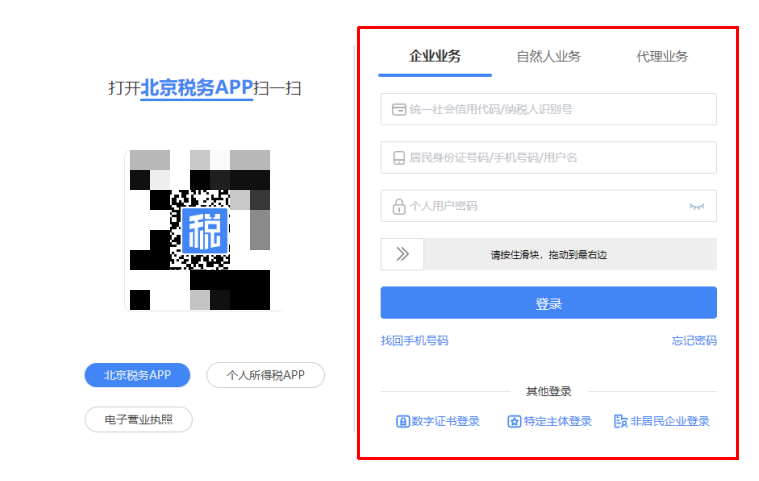
Operation guide for optimization of login authentication-related functions of the Beijing Electronic Tax Bureau (login)Published: 2024-06-05 17:42 1.Account and password loginStep 1 Please enter the enterprise's unified social credit code (taxpayer identification number), resident ID card number (mobile phone number or username), and personal user password (the original Electronic Tax Bureau natural person business login password) in sequence, complete the slider verification, then click[Login]button to log in.
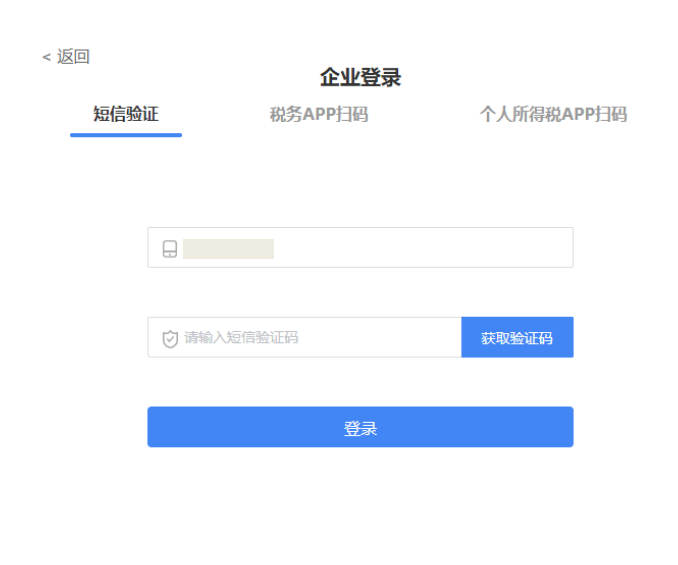
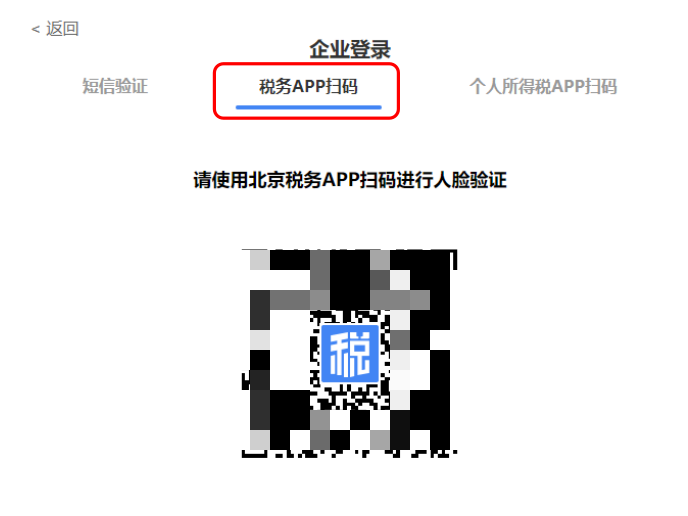
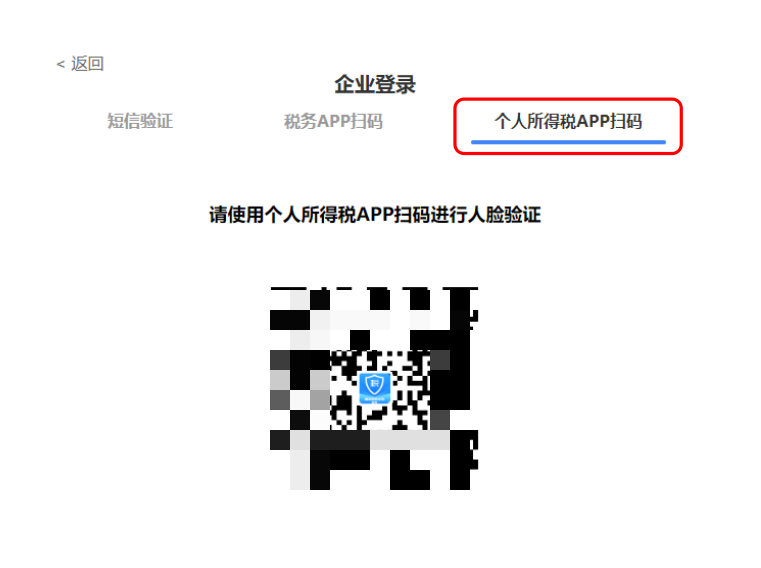
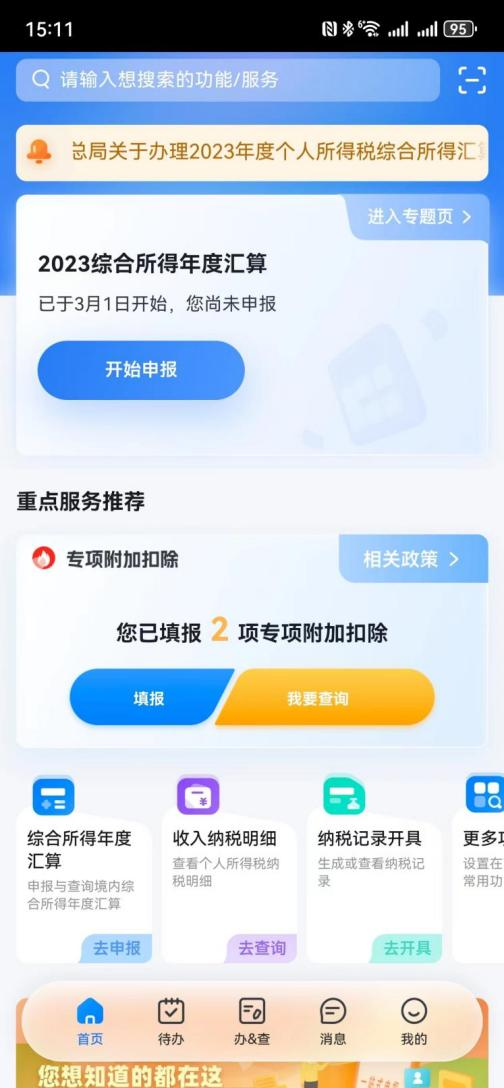
Precautions When logging in with a mobile phone number on the Home page, if the system prompts "The mobile phone number does not exist. You can try logging in with an ID number," it is recommended that you log in with your resident ID card number or username. After successful login, reconfirm the mobile phone number in "Account Center"—"Personal Information Management"—"Mobile Phone Number Modification." Please note that for the security of your own account, do not bind your account to someone else's mobile phone number. Step 2 Choose SMS verification (obtain a verification code via mobile phone number) or QR code verification (you can use the Beijing Tax APP or Individual Income Tax APP to scan the QR code on the screen. If you need to use the Individual Income Tax APP, you must log in first before scanning). After successful verification, login is complete. See the figure below for details:
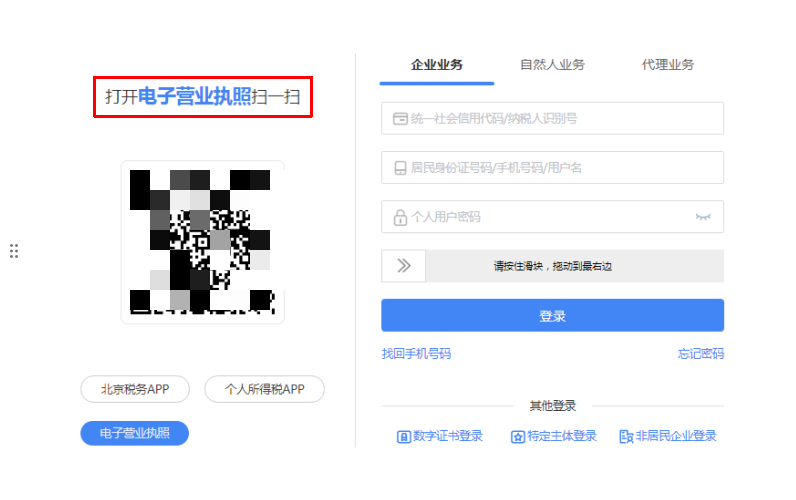
Precautions When you use SMS verification, if the system prompts "Your mobile phone number is empty. Please log in to the system via QR code verification and add a default mobile phone number in the mobile phone number modification menu in the account center," it is recommended that you choose QR code verification when completing the second step of login. After successful login, reconfirm the mobile phone number in the "Account Center" - "Personal Information Management" - "Mobile Phone Number Modification" function. Please note that for the security of your own account, do not bind your account to someone else's mobile phone number. 2.Scan to log in Supports login by scanning QR codes via "electronic business license," "Beijing Tax APP," or "Individual Income Tax APP." 2.1. If you choose to log in by scanning the QR code with the electronic business license, please open the "Electronic Business License" WeChat mini program, click "Scan" in the upper left corner, and scan the QR code on the screen to complete login.
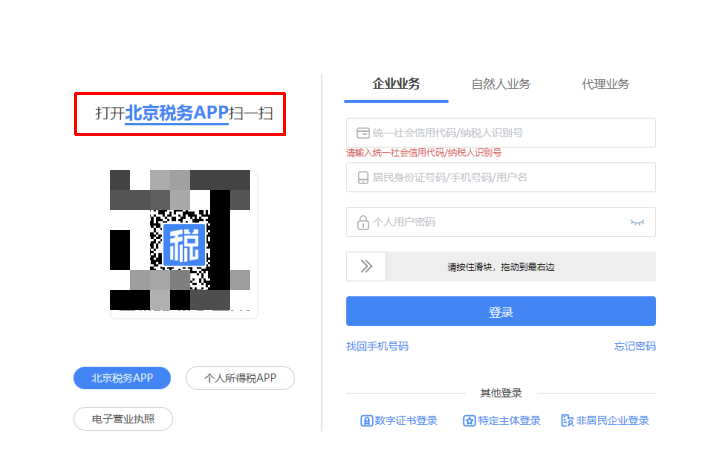
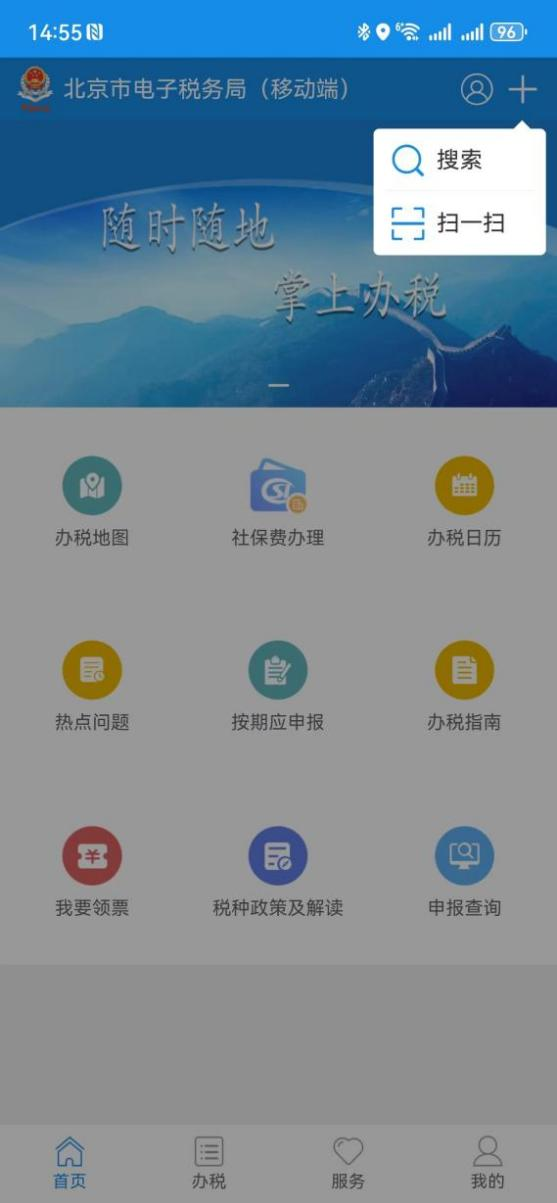
2.2. Beijing Tax APP scan code Step 1:Open the Beijing Tax APP, first log in to the enterprise or individual business, and after "Logged In" status is displayed, return to the APP home page, tap "+" in the upper right corner, and scan the QR code on the screen to complete login.
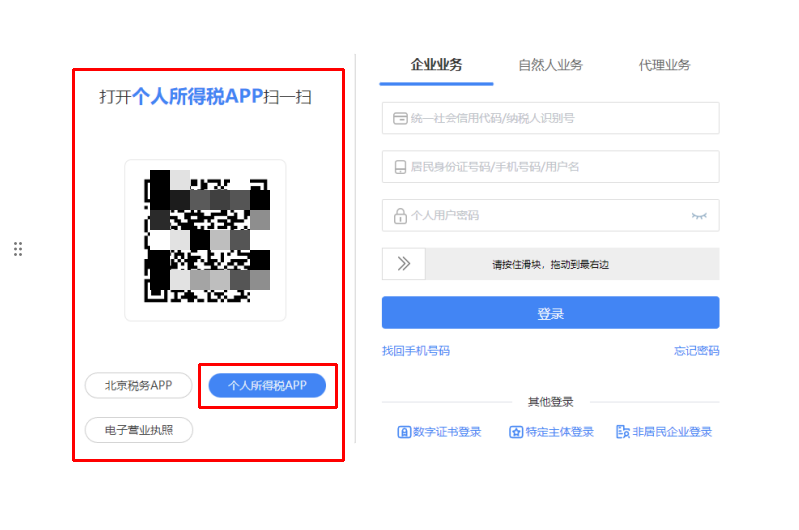
Precautions When logging in to the web version by scanning a QR code, the system will synchronize your APP login status. That is, if you log in to the Beijing Tax APP as an enterprise, then after scanning the code, the web version of the Electronic Tax Bureau will log in to enterprise business; if you log in to the Beijing Tax APP as an individual, then after scanning the code, the web version of the Electronic Tax Bureau will log in to individual business. 2.3. Individual Income Tax APP scan code If you choose to scan the QR code with the Individual Income Tax APP, please open the Individual Income Tax APP, first log in as an individual, and after successful login is displayed, return to the APP homepage, click "Scan" in the upper right corner, and scan the QR code on the screen to complete natural person business login.
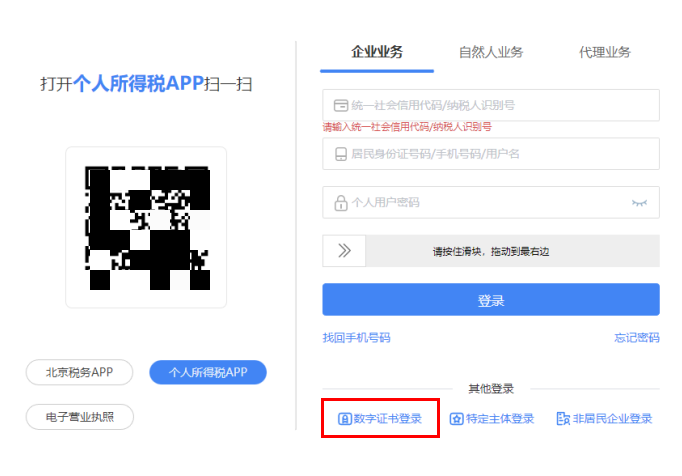
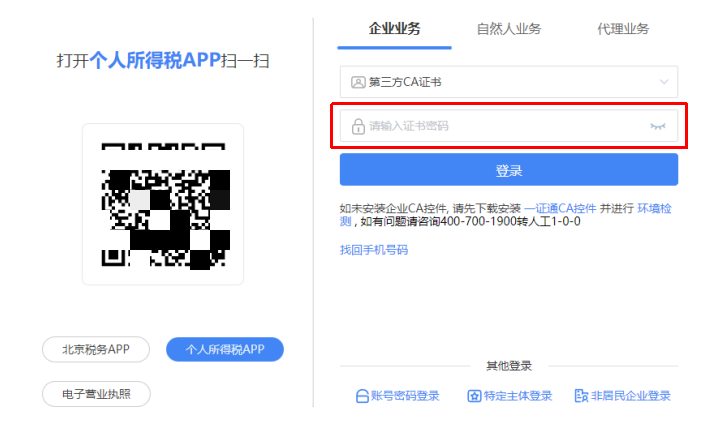
3.Digital certificate login The Beijing Electronic Tax Bureau supports login with third-party CA digital certificates. Enter the new login interface, and in the other login module, click digital certificate login and insert the CA digital certificate, as shown in the figure below:
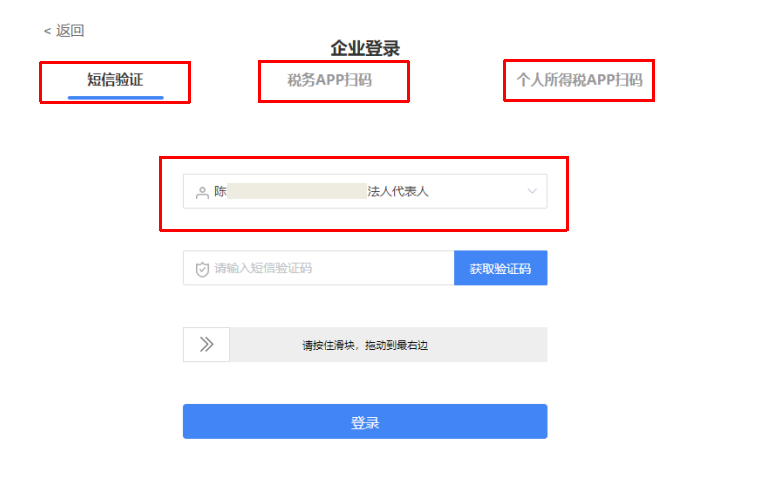
Select the corresponding tax officer identity information, and perform SMS verification (obtain a verification code via mobile phone number) or QR code verification (Beijing Tax APP or Individual Income Tax APP), scanning the QR code on the screen. (If you need to use the Individual Income Tax APP, you must log in first before scanning.) After successful verification, login is complete.
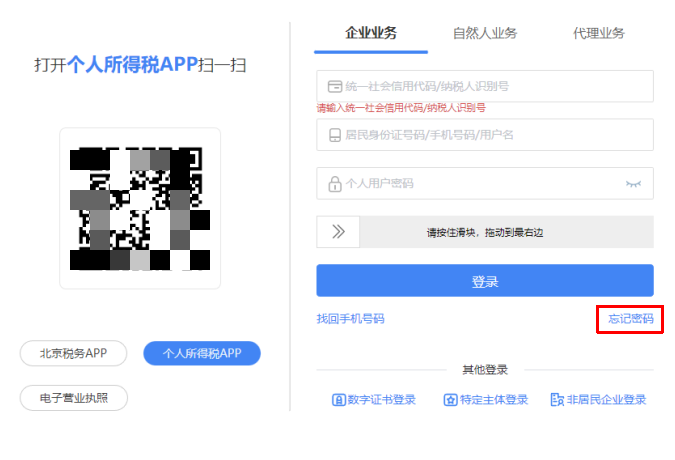
4.Forgot password If you forget your personal user password, you can click [Forgot Password] to reset it, as shown in the figure below:
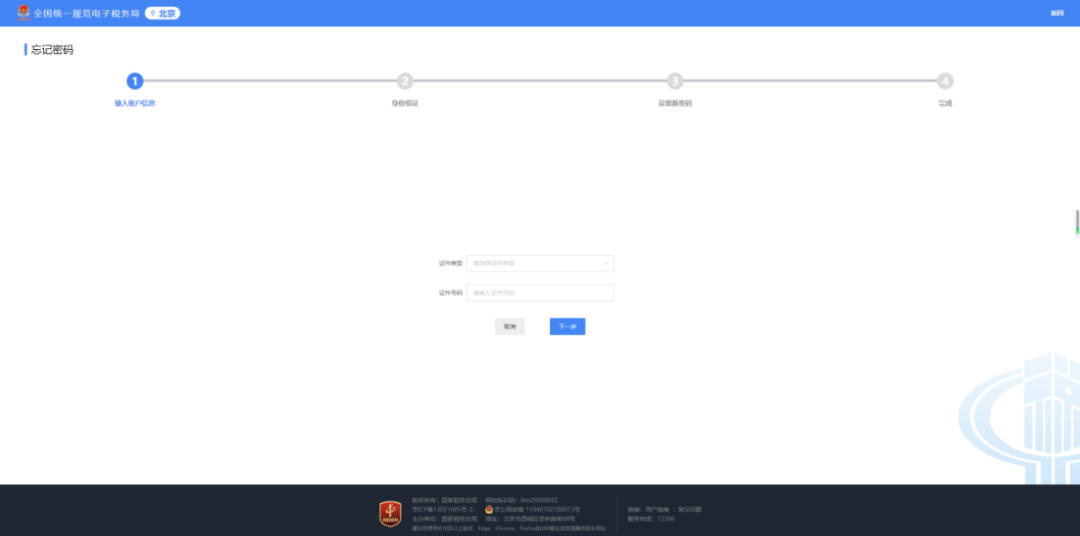
Step 1 After entering account information (resident ID card), proceed to the identity verification module:
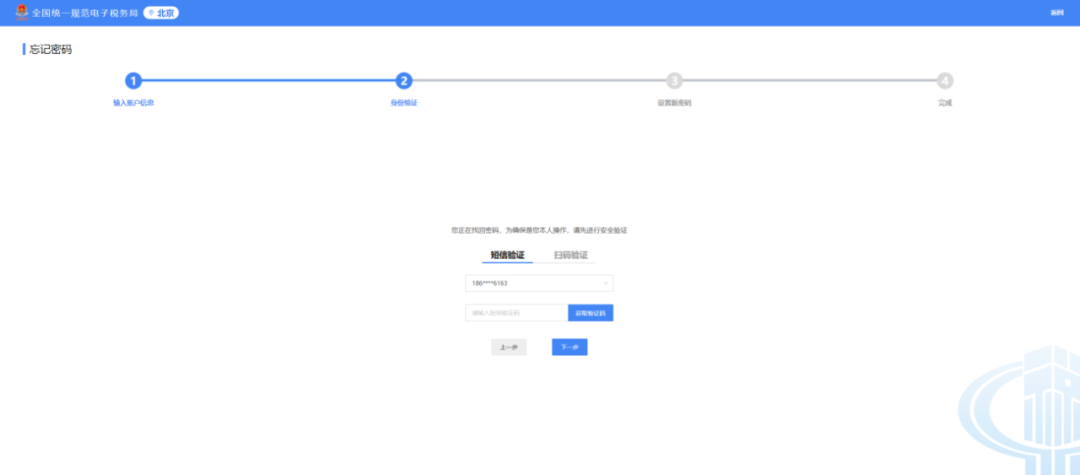
Step 2 Identity verification is carried out via SMS verification or QR code verification. For QR code verification, the Beijing Tax APP can be used to scan the code. SMS verification supports selecting all mobile phone numbers existing in the account, as shown in the figure below:
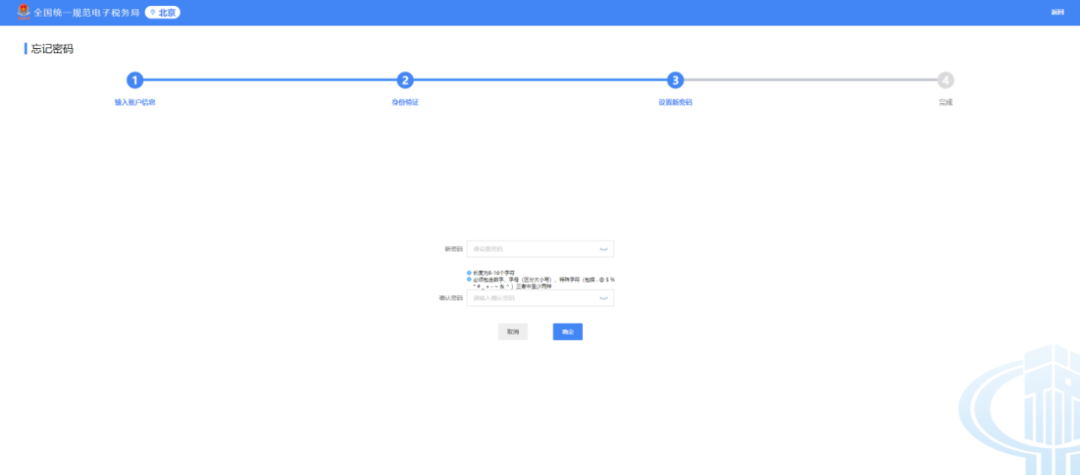
Step 3 After completing identity verification, you can set a new password, as shown below:
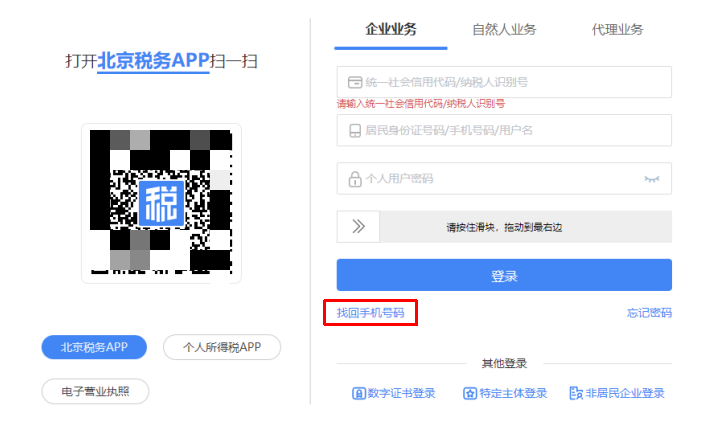
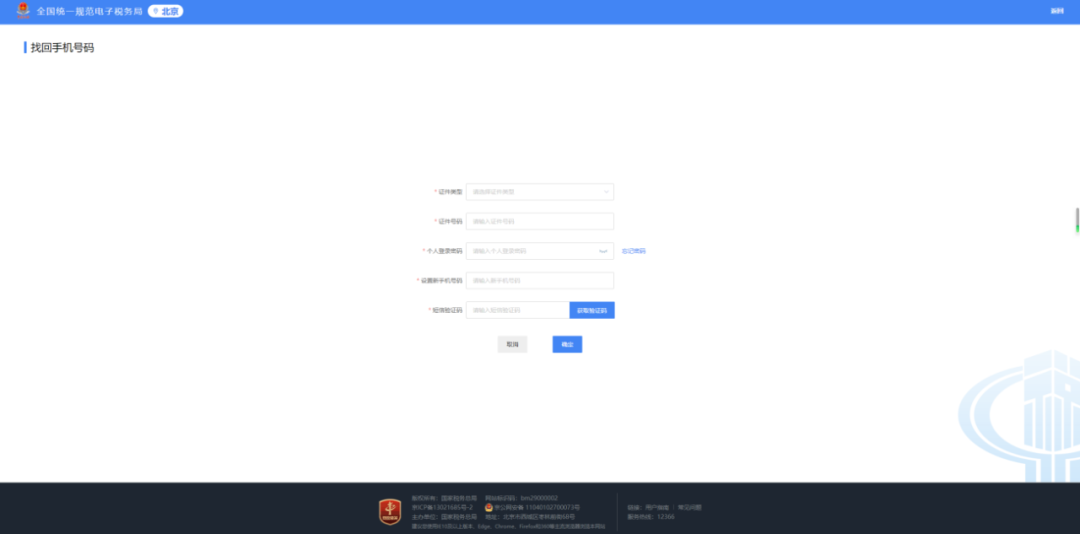
5.Recover mobile phone number If you forget your mobile phone number or the system prompts "mobile phone number does not exist" when logging in with a mobile phone number, you can click the "Retrieve Mobile Phone Number" button to enter the relevant information and set the mobile phone number, as shown in the figure below:
Precautions For the security of your own account, please do not bind your account to someone else's mobile phone number. Source: Beijing Tax Beijing Kailing Technology Co., Ltd.——an enterprise business-finance-tax digitalization solution service provider. Kailing Technology provides solutions for sales management systems, procurement management systems, output invoicing systems, input invoice collection systems, imaging management systems, financial posting systems, electronic accounting archives, fully digitalized e-invoice and Leqi interfaces and other businesses according to enterprise needs, professionally and efficiently helping enterprises transform and upgrade their business-finance-tax digital management. If you have any business-finance-tax digital transformation needs, welcome to contact us. Beijing Kailing Technology will serve you wholeheartedly.
|