010-6097 4119Book a Demo


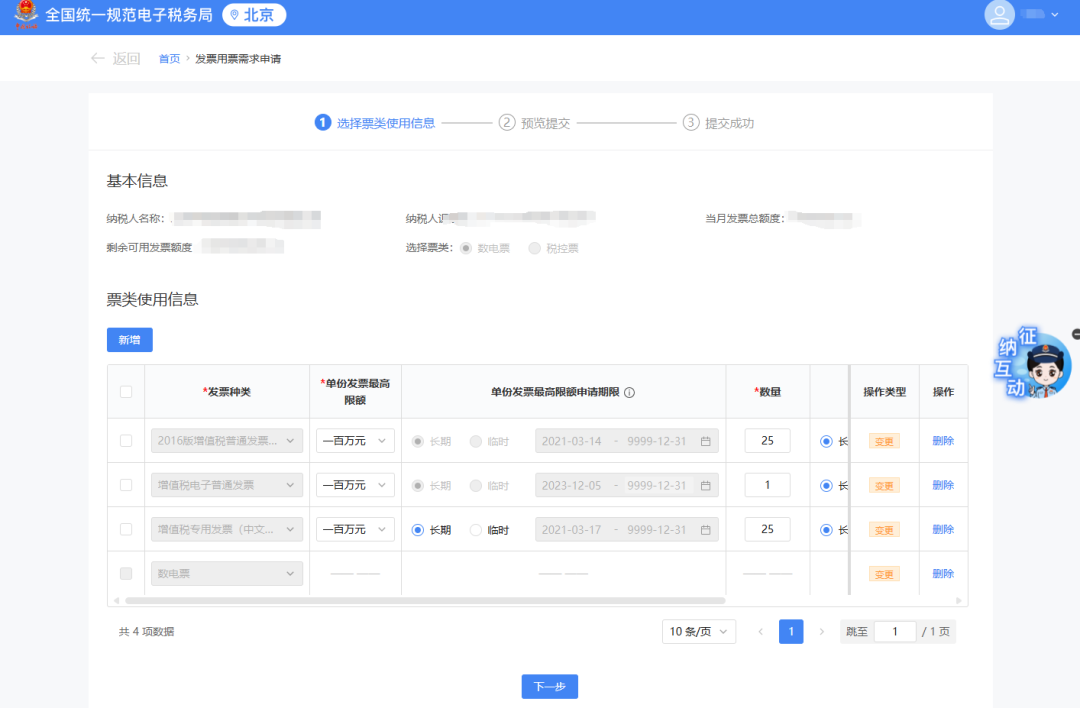
New Electronic Tax Bureau Guide - Invoice SectionPublished: 2024-08-13 16:54 ContentsEntry1.How do you apply for fully digitalized e-invoice types and quota allocation? 2.How do I add a fully digitalized e-invoice issuer in the New Electronic Tax Bureau? 3.How do I authorize a fully digitalized e-invoice issuer in the New Electronic Tax Bureau? 4.How do I use "Invoice E-Delivery" to collect paper invoices in the New Electronic Tax Bureau? 5.How do I perform two-way real-name authentication in the New Electronic Tax Bureau? 6.How to issue a blue-letter invoice in the electronic invoice service platform? 7.How to perform commodity and service tax classification code assignment on the E-invoice Service Platform? 8.How do I select the tax classification code for goods and services? 9.Under what circumstances can a red-letter fully digitalized e-invoice be issued? 10.How to issue a red-letter invoice in the electronic invoice service platform? 11.Is there a time limit for invoice red-letter reversal? 12.How to download and print fully digitalized e-invoices in the electronic invoice service platform? 13.How should invoice selection be operated? 14.How to export selected invoice information from the E-invoice Service Platform? 15.The enterprise's tax control device has already been deregistered, so can invoices still be selected in the new Electronic Tax Bureau? 16.How does the invoice recipient query invoices obtained? 17.How to query invoice collection and invoicing data in the electronic invoice service platform? (1.)Invoice receipt and verification 01.Q:How do you apply for fully digitalized e-invoice types and quota allocation? Answer: Hello, both invoice type approval and fully digitalized e-invoice quota allocation are handled through the [Tax Digital Account] - [Invoice Business] - [Invoice Usage Demand Application] function module.
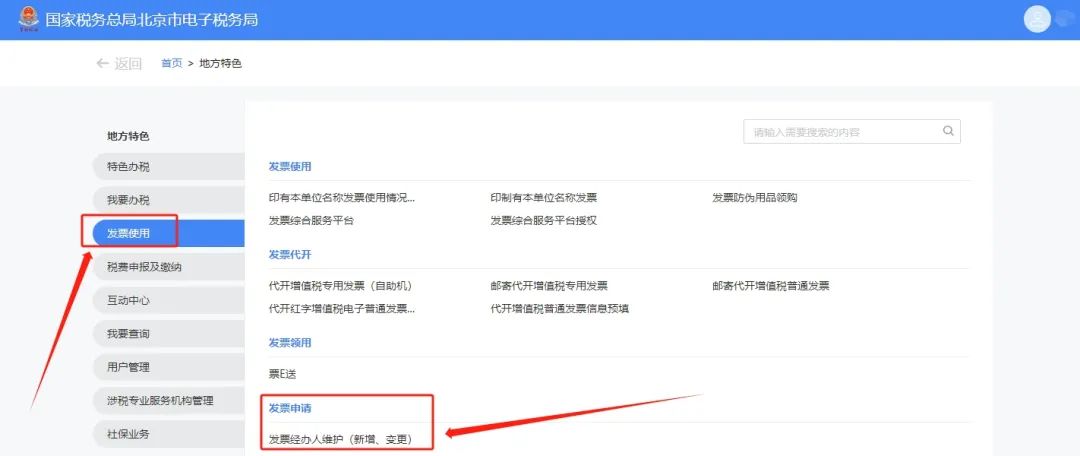
02.Q:How do I add a fully digitalized e-invoice issuer in the New Electronic Tax Bureau? Answer: Hello, the paths for adding and changing invoice purchasers are both: [Local Features] - [Invoice Use] - [Invoice Application] - [Invoice Handler Maintenance].
03.Q:How do I authorize a fully digitalized e-invoice issuer in the New Electronic Tax Bureau? Answer: Hello, an invoicing clerk must obtain authorization from the legal representative or financial officer before using the relevant functions of the "Tax Digital Account." The specific authorization operations are as follows: after the enterprise's legal representative or financial officer logs in to the new Electronic Tax Bureau with the enterprise business identity, click the avatar in the upper right corner → "Account Center" to enter the "Account Center," click "Personnel Permission Management" → "Existing Tax Handlers," click [Manage] in the operation column of the tax handler whose permissions need to be modified; the system pops up the "Personnel Permission Management" dialog box, click [Modify] after "Personnel Permissions"; in the "Select Personnel Permissions" dialog box, check "Invoice Business" and click [Confirm] below; click [OK] on the "Personnel Permission Management" dialog box, and the fully digitalized e-invoice business permissions are successfully granted to the tax handler (invoicing clerk). 04.Q:How do I use "Invoice E-Delivery" to collect paper invoices in the New Electronic Tax Bureau? Answer: On the homepage of the Electronic Tax Bureau, [Local Features] - [Invoice Use] - [Invoice Collection] - [Ticket E-Delivery].
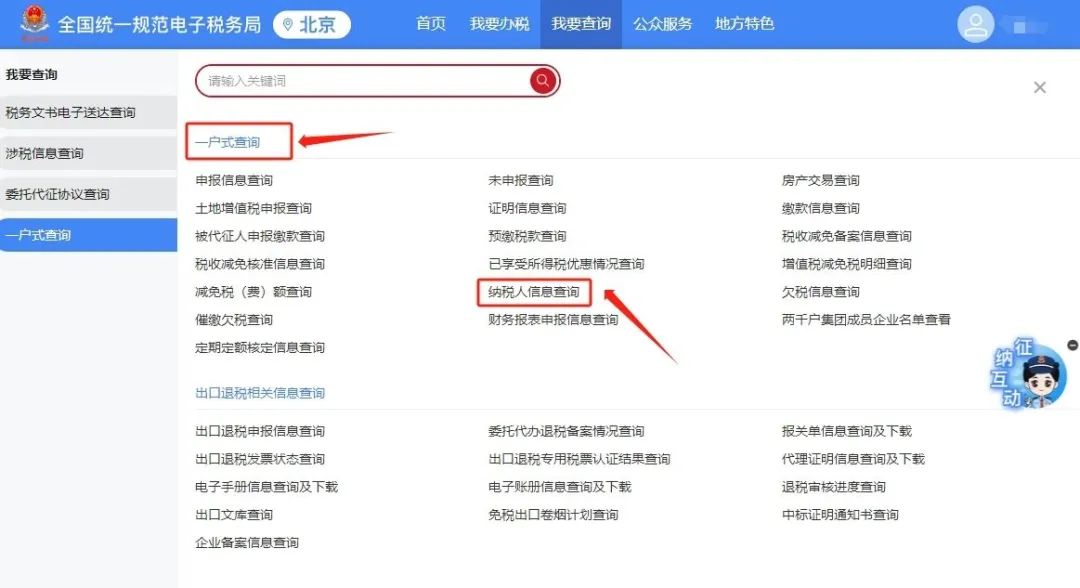
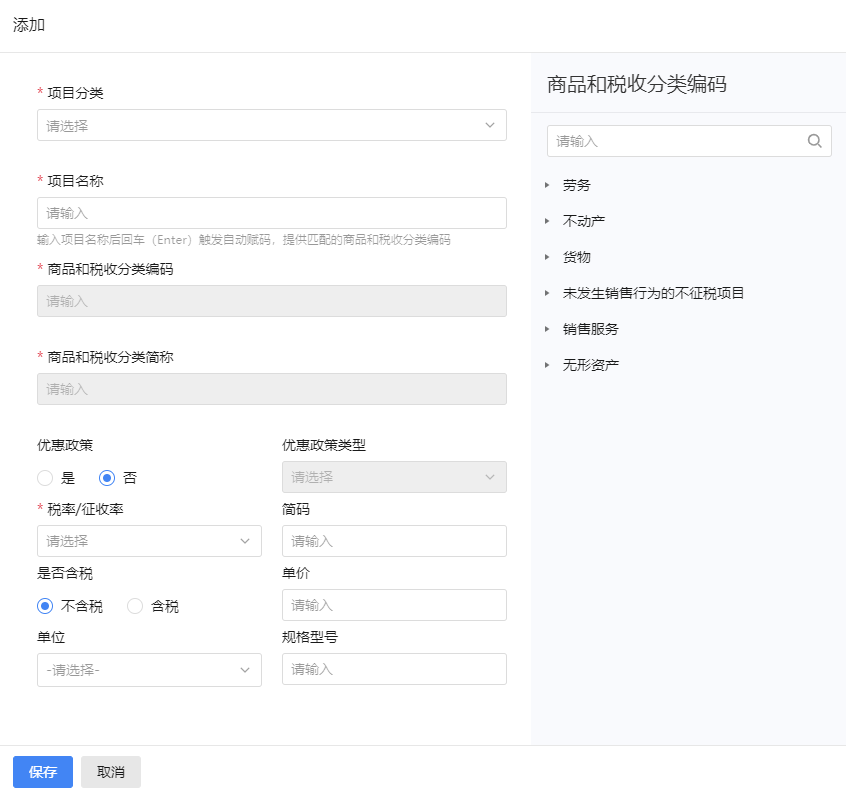
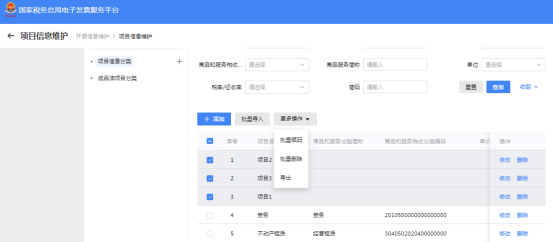
05.Q:How do I perform two-way real-name authentication in the New Electronic Tax Bureau? Answer: For taxpayers who have already used the new Electronic Tax Bureau, they can query through the tax handler information query in the unified identity authentication platform. If the result is "confirmed" and the real-name level is Level 4 or Level 5, it is deemed that two-way real-name authentication has been completed. If the taxpayer has not completed person-enterprise association verification, it can be associated through the new electronic tax bureau. The specific operations are as follows: (1) Initiated by the enterprise, pending confirmation of the relationship by the individual: The enterprise legal person or finance officer logs in to the new electronic tax bureau and enters the account center. [Step 1] Click "Personnel Permission Management" - "Add Tax Handler" in the menu bar to enter the interface for adding tax handler information. [Step 2] Enter the name of the tax handler to be added, select the ID type and enter the ID number, select the identity type, and set the function set and expiration date. The function set displays by default all functions of the selected identity type according to the selected identity type; select according to actual needs, and click "Select All" to select all functions at once. [Step 3] Click the [Confirm] button to display the detailed information of the added tax handler, as shown in the figure below; [Step 4] After confirming the information is correct, click the [OK] button to submit, and the message "Tax handler successfully added" will pop up. [Step 5] Click the [View Details] button. After the relevant information is verified successfully, the tax handler information changes to the pending confirmation status, which can be viewed in the "Tax Handlers Pending Confirmation" list. [Step 6] The person pending confirmation logs in as a natural person, enters the account center, and confirms the authorization in the "Enterprise Authorization Management" - "Pending Authorization Confirmation" function menu. After confirmation, the association is successful, and the natural person can log in to the enterprise through the new electronic tax bureau. (2) Initiated by an individual, pending enterprise confirmation of the relationship: Individuals log in to the new electronic tax bureau and enter the account center. Click the menu bar "Enterprise Authorization Management" - "Apply for Enterprise Authorization" to enter the enterprise authorization application information interface. Enter the corresponding enterprise information, select the identity for which authorization is applied, and click confirm. Pending confirmation information can be viewed in the "Pending Authorization Confirmation" list. The enterprise pending confirmation logs in as the enterprise legal person or finance identity, enters the account center, and performs authorization confirmation in the "Personnel Permission Management - Tax Handlers Pending Confirmation" function menu. After confirmation, the association is successful, and the natural person can log in to the enterprise through the new electronic tax bureau. (2)Invoice issuance and printing 06.Q:How to issue a blue-letter invoice in the electronic invoice service platform? Answer: Hello, a person with invoicing permissions logs in to the Electronic Tax Bureau, enters the [Tax Digital Account] - [Invoice Business] - [Blue-letter Invoice Issuance] module, clicks the "Issue Invoice Now" button, and in the pop-up box selects (1) invoice type: electronic invoice/paper invoice; (2) select invoice category: ordinary invoice/special invoice; (3) if a specific business invoice needs to be issued, the corresponding specific business label needs to be selected; (4) if a differential taxation invoice needs to be issued, the differential taxation label also needs to be selected; (5) if a reduced-rate taxation invoice needs to be issued, the reduced-rate taxation label also needs to be selected. After selection, enter the invoicing interface: (1) supplement the seller information not brought out; (2) fill in the buyer information; (3) fill in the invoicing information: after entering the item name, select the corresponding commodity code, preferential policy, tax rate, and other information; (4) fill in remarks information, handler information, etc. as needed, and after completing the filling, click "Issue Invoice." 07.Q:How to perform commodity and service tax classification code assignment on the E-invoice Service Platform? Answer: Hello, you can assign commodity and service tax classification codes to items through the "Item Information Maintenance" module of the electronic invoice service platform. After logging in to the Electronic Tax Bureau, under [Tax Digital Account] - [Invoice Business], select [Invoicing Business] - [Invoicing Information Maintenance] in sequence to jump to the electronic invoice service platform, and select [Item Information Maintenance] to enter this module. After selecting a project information category on the left, click "Add" on the right side of the main page.
As shown in the figure above, after the taxpayer fills in the "project name," (1) pressing Enter triggers automatic coding and provides matching goods and tax classification codes; (2) they may also choose to manually code by entering keywords in the search box of the tree menu on the right for quick search, or select the corresponding goods and tax classification code according to the product type for coding. After selection, the information is automatically filled into the "goods and tax classification code" and "goods and tax classification abbreviation" in the project information, completing the coding. This module also supports the [Batch Coding] operation. After selecting the project data to be coded, click "More Operations" - "Batch Coding" on the right side of the main page to enter the batch coding page.
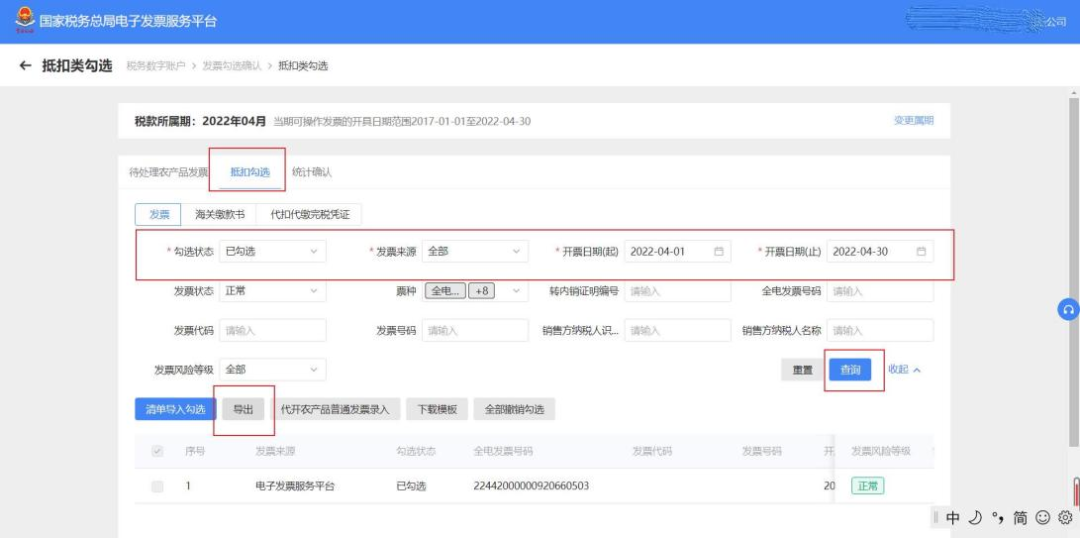
After selecting the data of items to be coded, select the corresponding goods and tax classification codes for coding according to the goods type, click "Batch Manual Coding," and the information is automatically filled into the "Goods and Tax Classification Code" column of the item information, completing batch coding. 08.Q:How do I select the tax classification code for goods and services? Answer: Hello, please refer to the "Commodity and Service Tax Classification Code Table" attached to the Announcement of the State Taxation Administration on Several Matters Concerning VAT Invoice Management (State Taxation Administration [2017] No. 45), and determine and select the corresponding tax classification code and abbreviation according to the actual situation. Because the State Taxation Administration has updated the "Commodity and Service Tax Classification Code Table" in the invoicing system, please issue VAT invoices according to the updated tax classification codes. You can query the corresponding commodity and service tax classification codes through channels such as the [Electronic Invoice Service Platform]. 09.Q:Under what circumstances can a red-letter fully digitalized e-invoice be issued? Answer: Hello, under normal circumstances, pilot taxpayers may issue red-letter fully digitalized e-invoices as required when sales returns, incorrect invoicing, service suspension, sales discounts, etc. occur. However, red-letter fully digitalized e-invoices are not allowed to be issued under the following circumstances: (1) Blue-letter invoiceVoided, fully red-flushed, identified as abnormal tax deduction voucher, locked(when a red-letter confirmation form or information table has been initiated but no red-letter invoice has been issued and the red-letter confirmation form or information table has not been revoked),Not allowed.InitiateRed-letter reversal; (2) The VAT purpose of the blue invoice is"Pending tax refund," "Tax refunded," "Deducted (changed to refund)," "Refund processed on behalf," "No refund and no deduction"when,Not allowed.InitiateRed-letter reversal; (3) Among the tax preference tags of the blue invoice,The "Winter Olympics tax refund tag" is "Winter Olympics tax refund applied"when,Not allowed.InitiateRed-flush reversal; (4) When initiating a red-letter reversal, if the counterparty taxpayer is"Abnormal" "Deregistered"and other statuses, and cannot log in to the system to perform related operations,Not allowed.InitiateRed-letter reversal。 10.Q:How to issue a red-letter invoice in the electronic invoice service platform? Answer: Hello, log in to the Electronic Tax Bureau, enter the [Tax Digital Account] - [Invoice Business] - [Invoicing Business] - [Red-letter Invoice Issuance] module, and click the [Red-letter Information Confirmation Form Entry] function. (1) Select invoice: enter query conditions, find the blue-letter invoice to be reversed, and then click the blue "Select" button on the right; (2) Information confirmation: check the invoice information, select the invoice type of the red invoice, select the reason for issuing the red invoice, and if partial reversal is needed, enter the corresponding quantity/amount. After confirming the information is correct, click Submit to successfully initiate the red-letter information confirmation form. If the other party's confirmation is not required, the seller can directly issue the red invoice in the [Red-letter Invoice Issuance] function module; if the other party's confirmation is required, it is necessary to wait for the other party to confirm in the [Red-letter Information Confirmation Form Processing] module, and then the seller issues the red invoice in the [Red-letter Invoice Issuance] function module. 11.Q:Is there a time limit for invoice red-letter reversal? Answer: Hello, there is no time limit for issuing red-letter invoices. If you initiate the VAT special invoice red-letter reversal process through the Electronic Invoice Service Platform, the invoicing party or invoiced party must confirm within 72 hours. If not confirmed within the specified time, the process is automatically voided, and if a red-letter invoice is still required, the process must be re-initiated. 12.Q:How to download and print fully digitalized e-invoices in the electronic invoice service platform? Answer: Hello, after logging in to the Electronic Tax Bureau, under [Tax Digital Account] - [Invoice Business], you can download and print fully digitalized electronic invoices through the following methods (direct download of invoices issued by other tax control platforms is not supported): Method 1:After the seller successfully issues the invoice, on the pop-up page click the [Download Invoice PDF], [Download Invoice OFD], [Download as XML] buttons, select the file format, and the invoice can be downloaded to the local computer; you can also click the [Print Invoice] button to print the invoice directly. Method 2:For invoices issued by the enterprise, you can click in sequence [Invoice queryEnter Statistics】-【Full invoice query】to access the invoice query page. Select "Issued invoices" as the query type, choose the corresponding query conditions as needed, and click 【Query】. In the results display column, select a record and click 【Deliver】to the right of that record. On the pop-up page, click the 【Download invoice PDF】, 【Download invoice OFD】, or 【Download as XML】buttons to download the invoice to your computer locally. This page also supports clicking 【Print invoice】to print the invoice directly; Method 3:For invoices obtained by the enterprise, click [Invoice Query Statistics] - [Full Invoice Query] in sequence to enter the invoice query page. Select "Obtained Invoices" as the query type, choose the corresponding query conditions as needed, and click [Query]. In the result display column, select a piece of data and click [Download] to the right of that data. On the pop-up page, you can choose [QR Code Download], [Invoice Download PDF], [Invoice Download OFD], or [Download as XML] to download the invoice. This page also supports clicking [Invoice Print] to print the invoice directly. Method 4:Supports batch invoice download. Click [Invoice Query Statistics] - [Full Invoice Query] to enter the invoice query page, enter query conditions, check the invoice data to download in the results display column, click [Batch Download], select the file download type, and click [Confirm] to batch download invoices. You can check the progress of this batch invoice download via the [Batch Import/Export Progress Query] function. (III)Invoice Selection 13.Q:How should invoice selection be operated? Answer: The operation path for invoice deduction selection is to click [Tax Digital Account] - [Invoice Business] - [Invoice Usage Business Handling] - [Invoice Selection Confirmation], select [Deduction-type Selection] to handle the deduction selection of input VAT invoices. 14.Q:How to export selected invoice information from the E-invoice Service Platform? Answer: After logging in to the Electronic Tax Bureau, go to [Tax Digital Account] - [Invoice Business], select [Invoice Selection Confirmation] - [Deduction-Type Selection], and select the "Deduction Selection" tab. Select "Selected" for the selection status, enter or select other relevant query conditions as needed, and click [Query]. Based on the query conditions, the system will display eligible invoice information in a list in the operation area. Select the invoice information to be exported and click the [Export] button to download the detailed information document to the local computer.
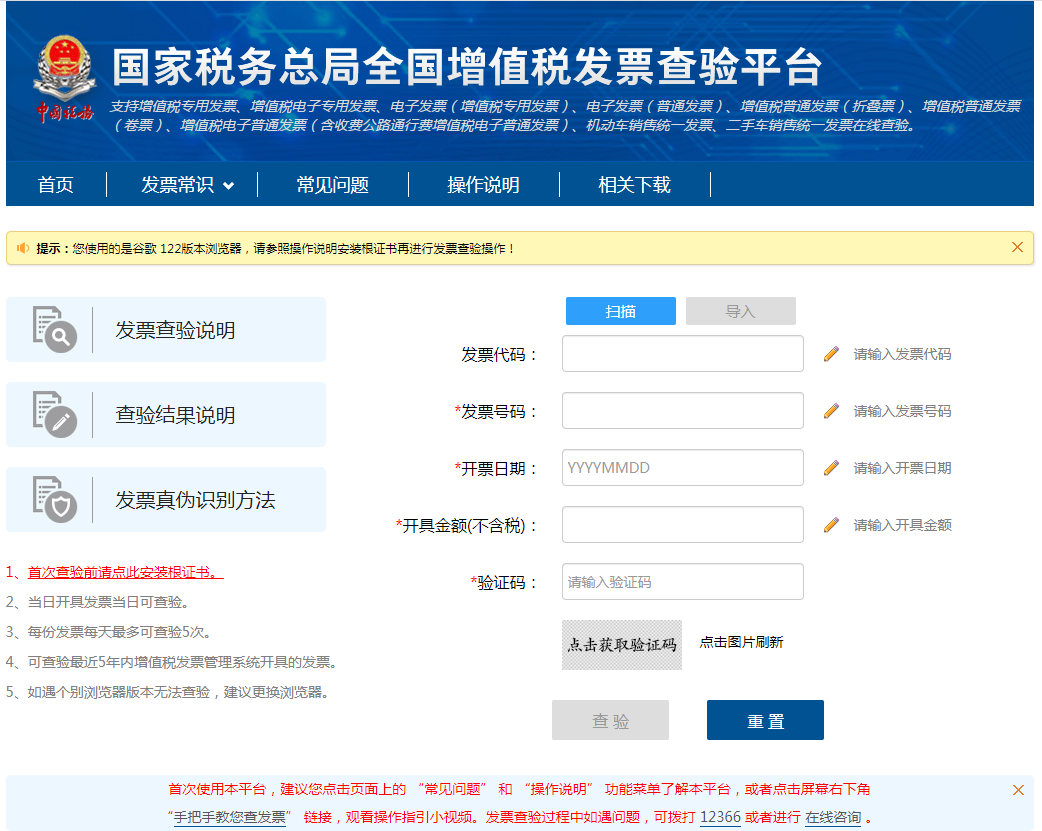
15.Q:The enterprise's tax control device has already been deregistered, so can invoices still be selected in the new Electronic Tax Bureau? Answer: On the homepage of the new Electronic Tax Bureau, click [Local Features] - [Invoice Use] - [Comprehensive Invoice Service Platform] to jump to the Comprehensive Invoice Service Platform without a disk and complete the relevant operations. (IV)Invoice query 16.Q:How does the invoice recipient query invoices obtained? Answer: Hello, after logging in to the Electronic Tax Bureau, under [Tax Digital Account] - [Invoice Business], click [Invoice Query Statistics] - [Full Invoice Query] in sequence to enter this module, select the corresponding query conditions, and click [Query]; the system can display the current status information of the invoice. You can also useNational VAT Invoice Verification Platform. When querying electronic invoices (VAT special invoices) and electronic invoices (general invoices), you need to enter the "invoice number (20 digits), invoicing date, and total amount including tax" information; when querying paper VAT special invoices issued by the electronic invoice service platform, you need to enter the "invoice code, invoice number, invoicing date, and issued amount (excluding tax)" information; when querying paper VAT general invoices issued by the electronic invoice service platform, you need to enter the "invoice code, invoice number, issuance date, and verification code (the last six digits of the invoice number in the password area)" information.
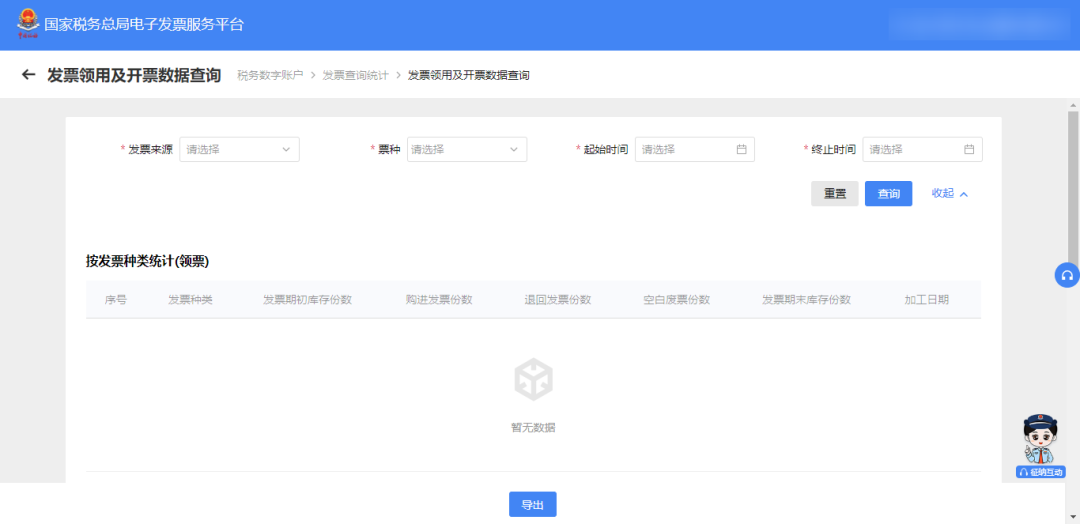
17.Q:How to query invoice collection and invoicing data in the electronic invoice service platform? Answer: Hello, you can query invoice collection and invoicing data through the electronic invoice service platform. The process is as follows: After logging in to the Electronic Tax Bureau, go to [Tax Digital Account] - [Invoice Business] and click [Invoice Query Statistics] — [Invoice Collection and Invoicing Data Query] in sequence.
Enter the required query conditions: invoice source, invoice type, and start/end of "invoice period," to query the corresponding data.
Precautions 1. For electronic invoices, only "number of positive invoices" and "number of negative invoices" are counted, and other fields are left blank. For paper invoices, all data needs to be counted. 2. When counting electronic invoices, statistics can be generated based on the operator's unified social credit code and the invoice period in the query conditions associated with invoice information. When counting paper invoices, statistics can be generated based on the operator's unified social credit code and the invoice period in the query conditions associated with issuance records generated by paper invoice business. 3. When querying the invoice quantity for multiple months, "invoice opening inventory quantity" shows the quantity for the starting month, and "invoice closing inventory quantity" shows the quantity for the ending month. 4. Click [Export] on the interface to export all queried results locally. Supports txt and excel file formats. Source: Beijing Chaoyang Tax Kailing Technology provides enterprise business-finance-tax digital product lines according to enterprise needs: Solutions for businesses including sales contract management system, procurement contract management system, fully digitalized Leqi interface project, output automatic invoicing system, employee expense control and reimbursement system, input VAT invoice management system, supply chain collaborative reconciliation system, image OCR recognition system, automatic financial bookkeeping system, and electronic accounting archives system, professionally and efficiently supporting the transformation and upgrading of enterprise business-finance-tax digital management. If you have any business-finance-tax digital transformation needs, welcome to contact us. Beijing Kailing Technology will serve you wholeheartedly.
|