News Details

Self-filing process for fixed-amount households in the new electronic tax bureau

Published: 2024-04-10 15:47

01Filing

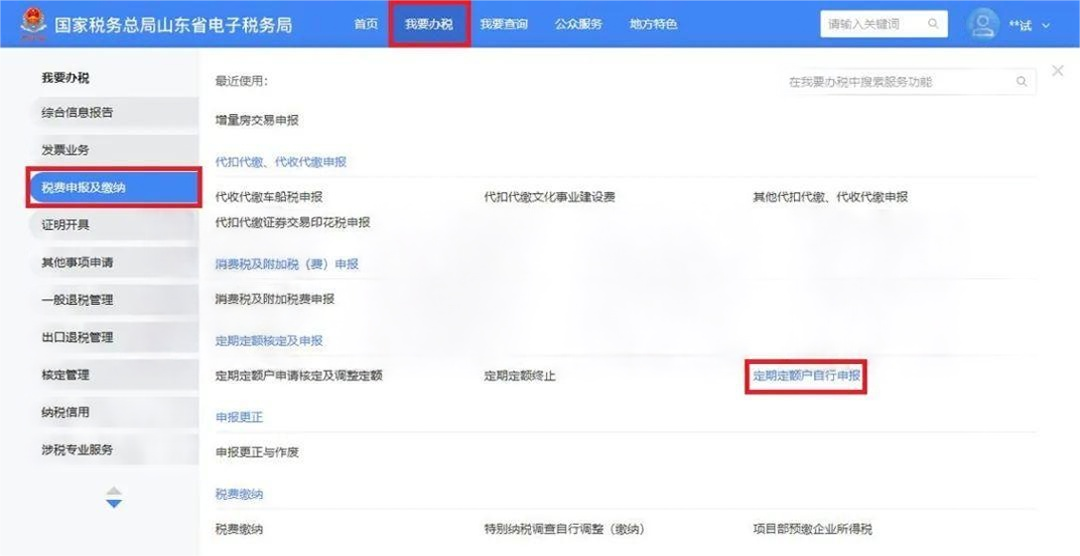
After logging in to the Electronic Tax Bureau,Click [I Want to Handle Taxes] → [Tax and Fee Filing and Payment] → [Self-Filing by Fixed-Amount Households];

01 Filing


To simplify taxpayer operations, the new version of the electronic tax bureau provides two declaration modes: confirmation mode and form-filling mode, which taxpayers can choose according to their actual situation. The operating steps for the two declaration modes are as follows:


Confirm-style filing mode


01
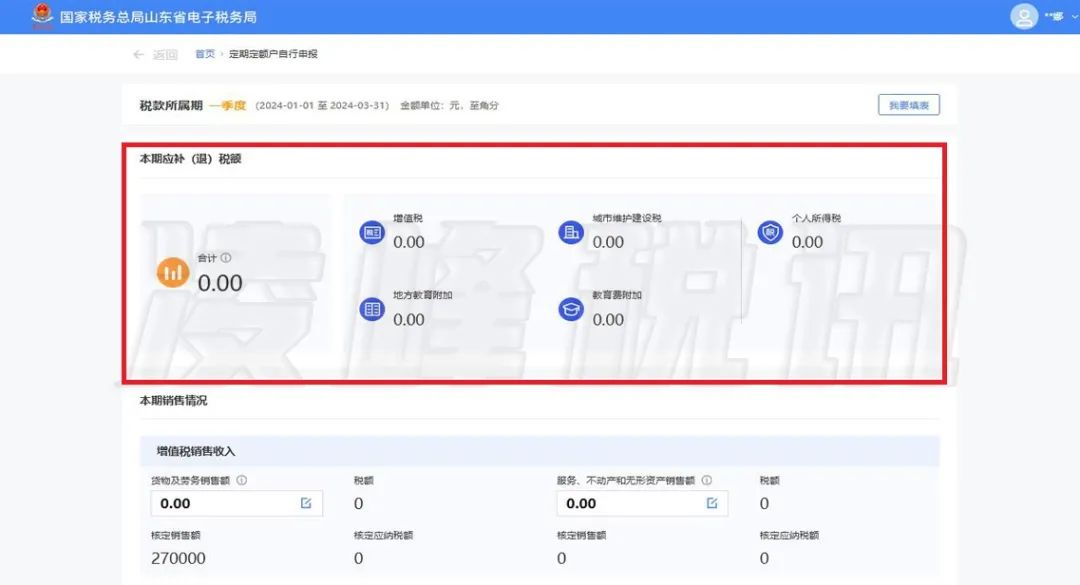
The system's default filing method isConfirm-style filing. The system automatically determines and calculates and displays the current period's tax amount to be supplemented (refunded) based on the assessed sales amount and actual sales amount.

If a fixed-rate periodic household has not yet filed VAT and its surcharges for the current period, they are automatically calculated and displayed together.

01 Filing


02
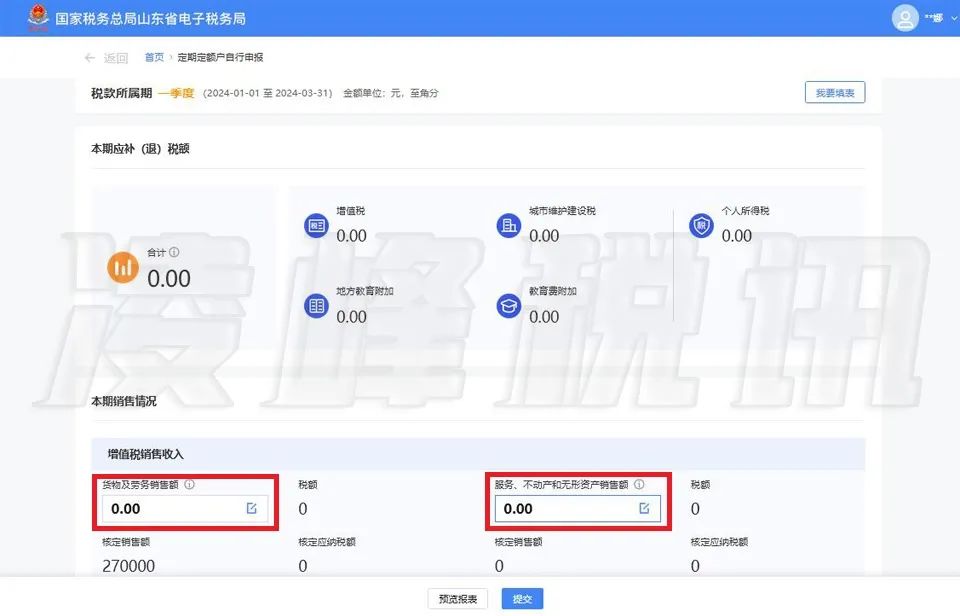
The taxpayer confirms the "tax amount to be paid (refunded) for the current period" and the pre-filled "VAT sales revenue". If there is uninvoiced revenue, the taxpayer may click the sales amount column of "VAT sales revenue" or "sales of services, real estate, and intangible assets" to supplement it; after completion, the system automatically recalculates and displays the "tax amount to be paid (refunded) for the current period".

01 Filing


03
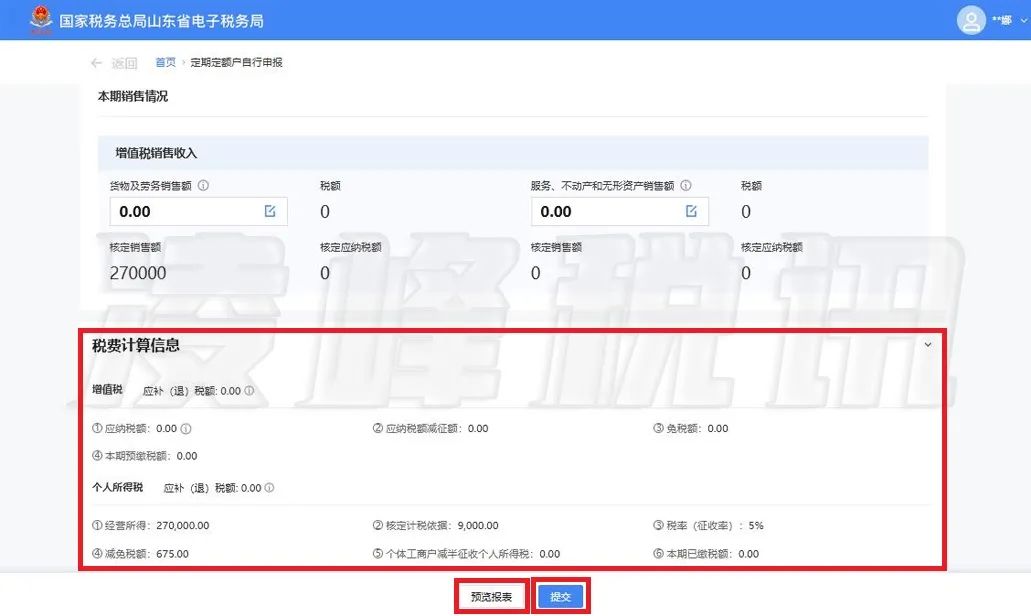
Click the ">" to view detailed calculation data, and click [Preview Report] to view filing details. After confirming the data is correct, click [Submit];

01 Filing


04
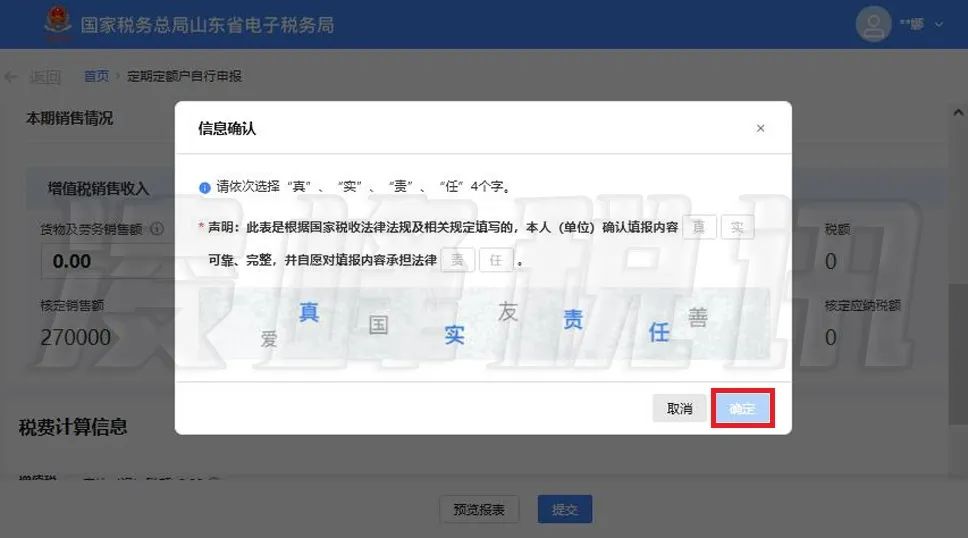
The system pops up the "Information Confirmation" dialog box. The taxpayer needs to confirm and declare the results of this filing. After the taxpayer completes the declaration information as prompted, click [Confirm] to submit the filing;

01 Filing


05
After successful filing, if there is tax payable, you can click [Pay Now] to make the payment. To download the filing form, you can click [View] to download.


Form-based filing mode


01
Taxpayers may switch to form-based filing according to usage habits, and click [I Want to Fill in the Form] at the upper right of the page;


02
Enter the traditional form filling page, click the corresponding form under "Report List" on the left side of the page to enter and fill it in, and after completing it, click [Submit].


03
The system pops up the "Information Confirmation" dialog box. The taxpayer needs to confirm and declare the results of this filing. After the taxpayer completes the declaration information as prompted, click [Confirm] to submit the filing;


04
After successful filing, if there is tax payable, you can click [Pay Now] to make the payment. To download the filing form, you can click [View] to download.


02 Tax payment

If tax payment is required after filing, and it was not paid during the filing step, you can click "I Want to Handle Taxes" → "Tax and Fee Filing and Payment" → "Tax Payment" in sequence to make the payment. If payment has already been made when the filing was successful, this step can be ignored.


03 Filing correction and voiding

Filing correction:

After a taxpayer files a tax return, if it finds that the return is incorrect and needs correction or voiding, it may use return correction and voiding to complete the correction or voiding of the return. When correcting or voiding a return, only full correction or return voiding is allowed; differential correction or supplementary filing is not allowed; for returns for which payment has been successfully made, only the return may be corrected, and it cannot be voided.

Click in sequence "I want to handle taxes" → "Tax and fee filing and payment" → "Filing correction" → "Filing correction and voiding";

Select the filing date or tax period, click [Expand] to select the type of filing form, click [Query], and click [Correct] or [Void] after the corresponding filing record to perform the corresponding correction or void operation.


Source: internet


Beijing Kailing Technology Co., Ltd.——an enterprise business-finance-tax digitalization solution service provider.

Kailing Technology provides solutions for sales management systems, procurement management systems, output invoicing systems, input invoice collection systems, imaging management systems, financial posting systems, electronic accounting archives, fully digitalized e-invoice and Leqi interfaces and other businesses according to enterprise needs, professionally and efficiently helping enterprises transform and upgrade their business-finance-tax digital management.

If you have any business-finance-tax digital transformation needs, welcome to contact us. Beijing Kailing Technology will serve you wholeheartedly.


Share to:
Contact Us

Contact: 010-60974119

VIP Dedicated Consultant: 185-1389-5936

Address: Room 410, 4th Floor, Jianjin Center, No. Jia 1 Yongtaiyuan, Qinghe, Haidian District, Beijing
Scan to add customer service on WeChat
Industry Websites
Scan to follow our WeChat official account
Scan to view our video account
Scan to follow our Douyin account
Common Questions
How do fixed-amount periodic quota households file via the electronic tax bureau?
After logging in to the Electronic Tax Bureau, click [I Want to Handle Taxes] → [Tax Filing and Payment] → [Self-Filing for Fixed-Amount Households]. The system defaults to confirmation-based filing and automatically calculates the tax to be paid or refunded; you can also switch to form-based filing. Confirm the data and submit; if there is tax due, you can pay immediately.
What is the difference between confirm-style filing and form-based filing?
In confirm-style filing, the system automatically calculates the tax payable or refundable, and taxpayers only need to confirm or supplement uninvoiced revenue; form-based filing requires manually filling in traditional forms. Both modes can be switched via the top-right corner of the page.
How to pay taxes after filing?
After successful filing, if there is tax payable, you can click [Pay Now] to pay directly; if not paid, you can later complete payment through [I Want to Handle Taxes] → [Tax and Fee Filing and Payment] → [Tax Payment].
How do you correct or void an incorrect declaration?
Click in sequence [I want to handle taxes] → [Tax and fee filing and payment] → [Filing correction] → [Filing correction and voiding], select the filing date or tax period, and after querying click [Correct] or [Void]. Note: only full correction or voiding is allowed; paid taxes can only be corrected, not voided.
Related solutions
Output Invoicing Management Platform
As soon as business occurs, invoices are automatically issued, automatically delivered, and automatically returned →
Leqi Direct Connection solution
Direct connection to the tax bureau's Leqi channel, connecting the last mile of ERP →
Electronic Accounting Archive Management
Electronic voucher archiving, single-set system, compliant and auditable →
Further Reading
E-Tax Bureau Tax Digital Account Operation Guide: Invoice posting
Invoice posting means that after a taxpayer obtains an invoice, the electronic invoice service platform system... →
How to download and print issued or obtained fully digitalized e-invoices in the new electronic tax bureau…
After logging in to the new Electronic Tax Bureau, click [Tax Digital Account] under [I Want to Handle Taxes] to jump to… →
E-Tax Bureau Operation Guide | How to query invoices already selected?
1. On the electronic tax bureau, through [Tax Digital Account] — [Deduction Category Check] certified… →