010-6097 4119Book a Demo


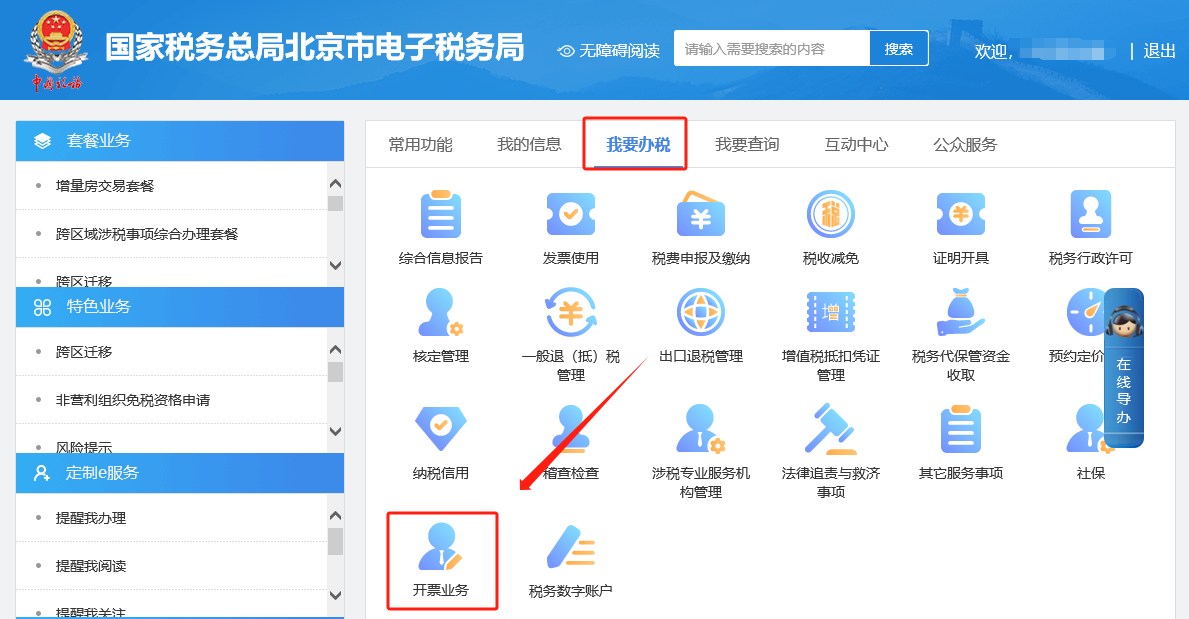
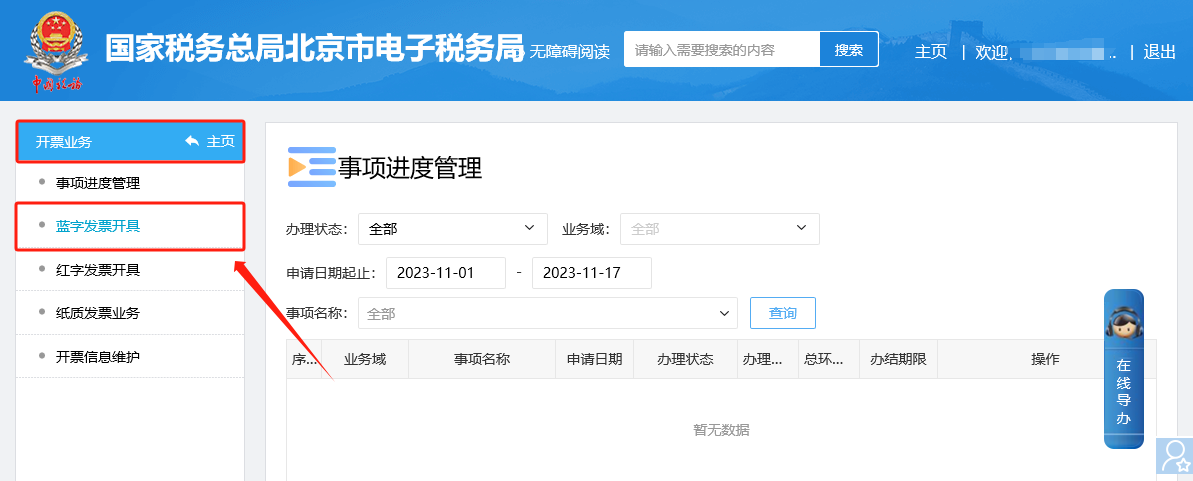
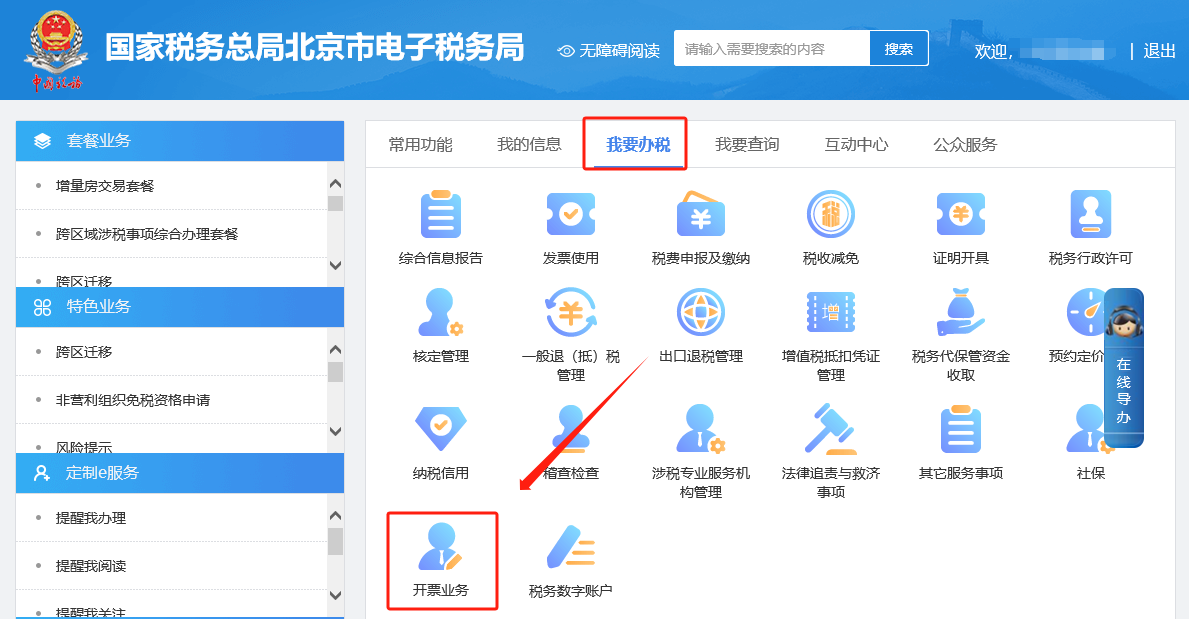
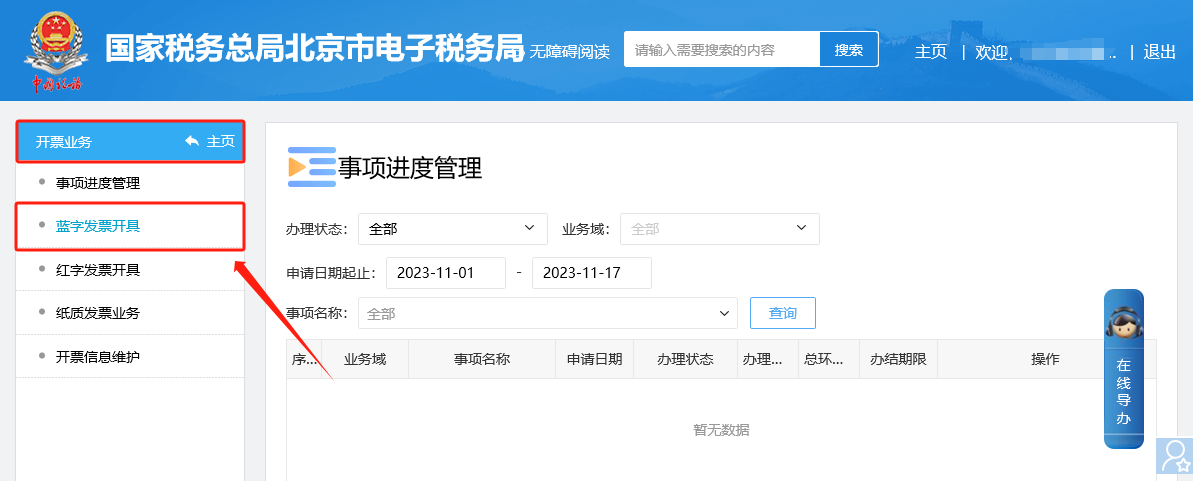
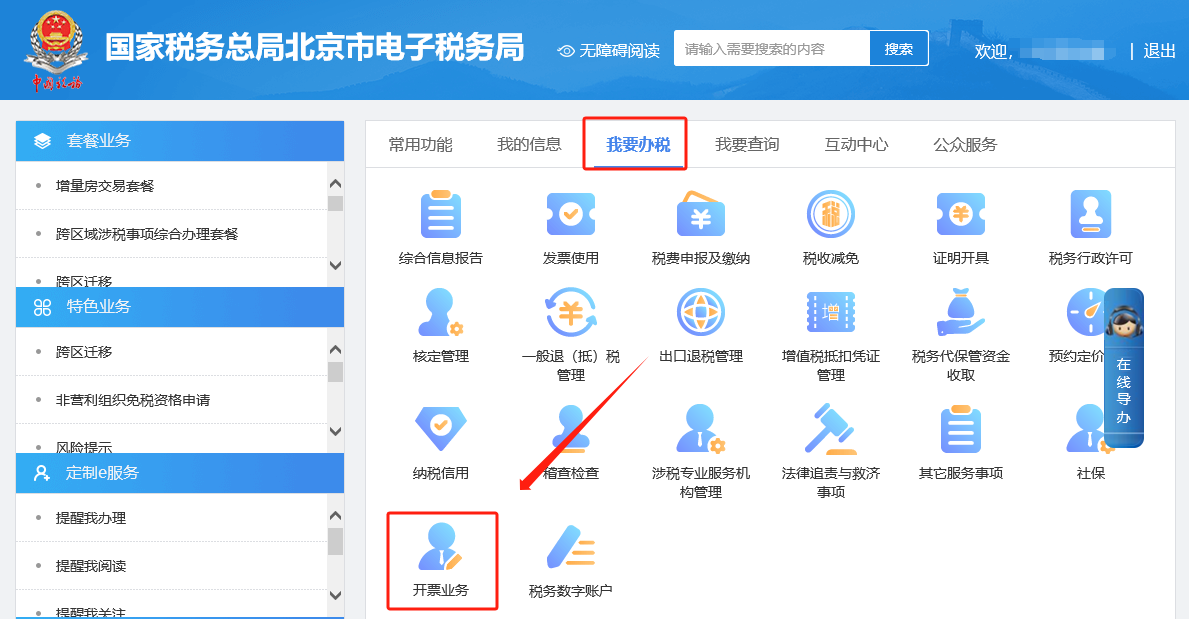
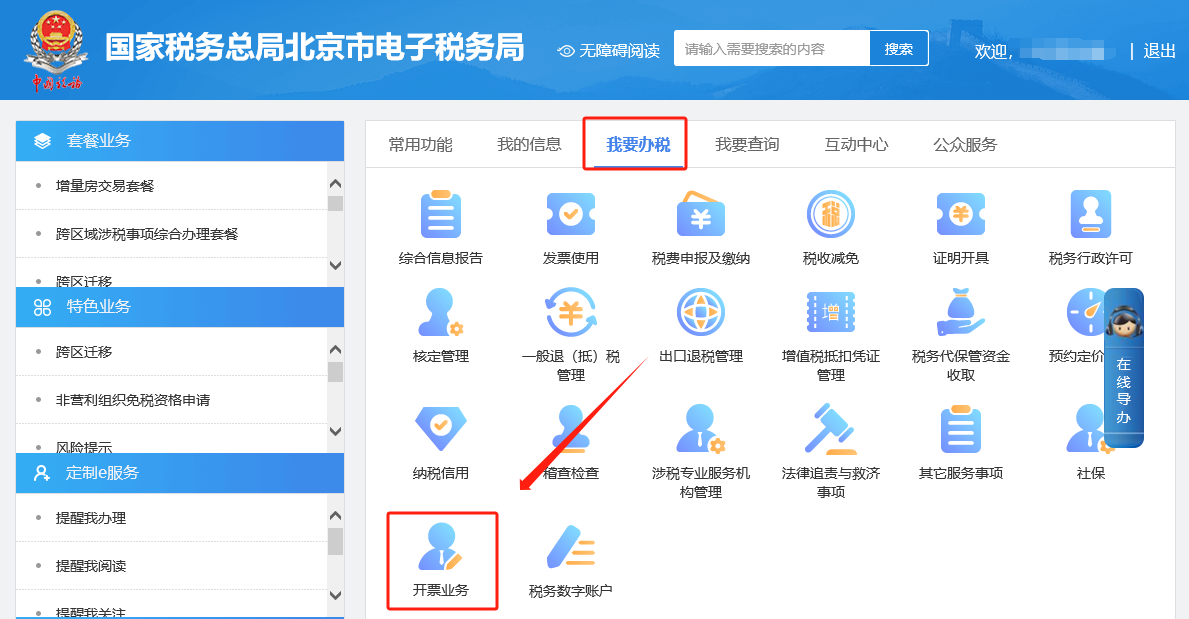
E-Tax Bureau Operation Guide | When issuing a fully digitalized paper invoice, how to print it after successful issuance?Published: 2023-12-11 12:02 1.After successfully issuing a fully digitalized paper invoice on the Electronic Tax Bureau, how do I print it? After a taxpayer successfully issues a fully digitalized paper invoice in the [Blue-Letter Invoice Issuance] module, it may click the "Invoice Print" button on the pop-up page and connect a printer to print the invoice. If printing fails at that time, the taxpayer may subsequently use the "Recent Invoicing" function in the [Blue-Letter Invoice Issuance] module or the [Full VolumeInvoice query] Find the corresponding invoice in the module, click the "Preview" button to enter the invoice preview interface, and click "Print Invoice". (Please test with blank paper before printing for the first time)The specific operations are as follows: Step 1 I. I Want to Handle Taxes—Invoicing Business.
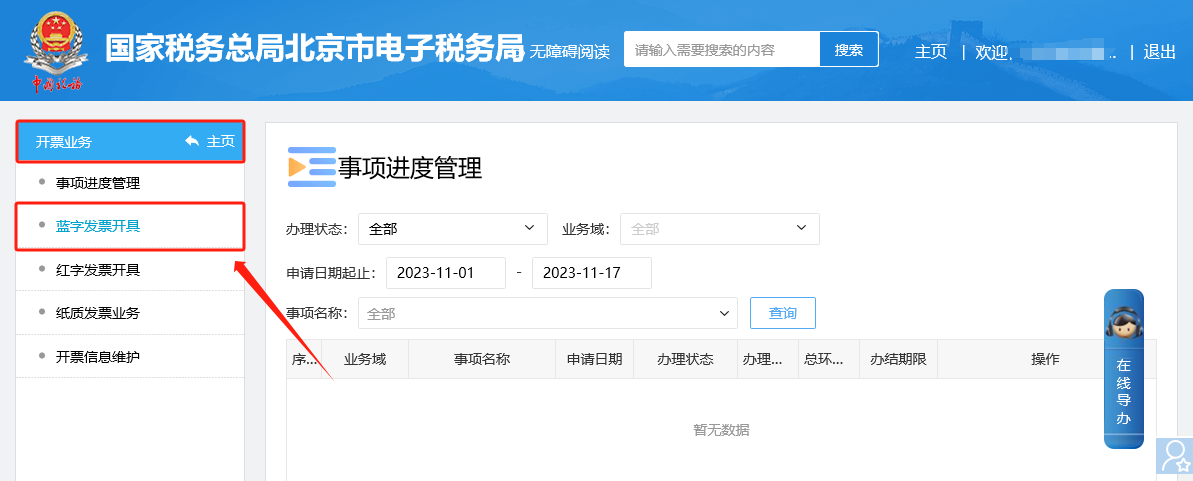
II. In the Invoicing Business - Blue-letter Invoice Issuance module, after successfully issuing a fully digitalized e-paper invoice, you can click the "Invoice Print" button on the pop-up page and connect a printer to print the invoice.
Step 2 I. I Want to Handle Taxes—Invoicing Business.
II. The "Recent Invoicing" function in the Invoicing Business - Blue-letter Invoice Issuance module.
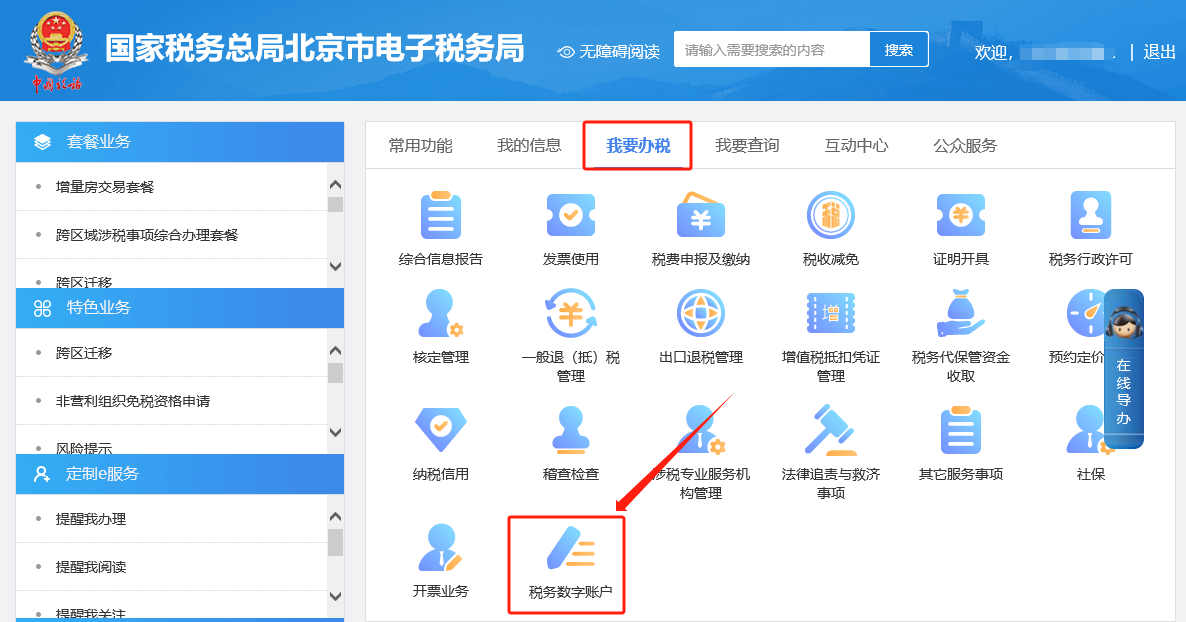
III. I Want to Handle Tax—Tax Digital Account.
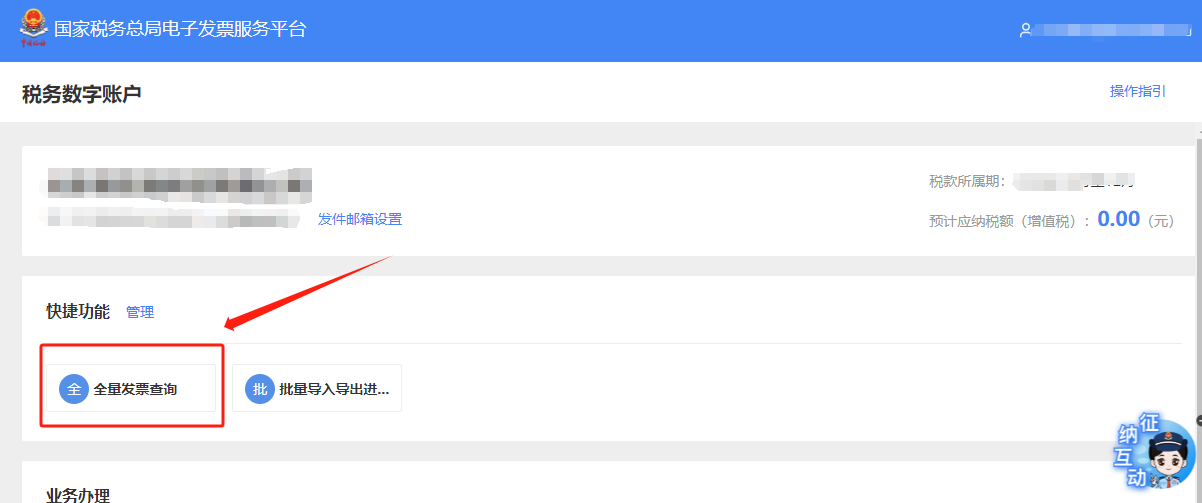
IV. Tax digital account — full invoice query.
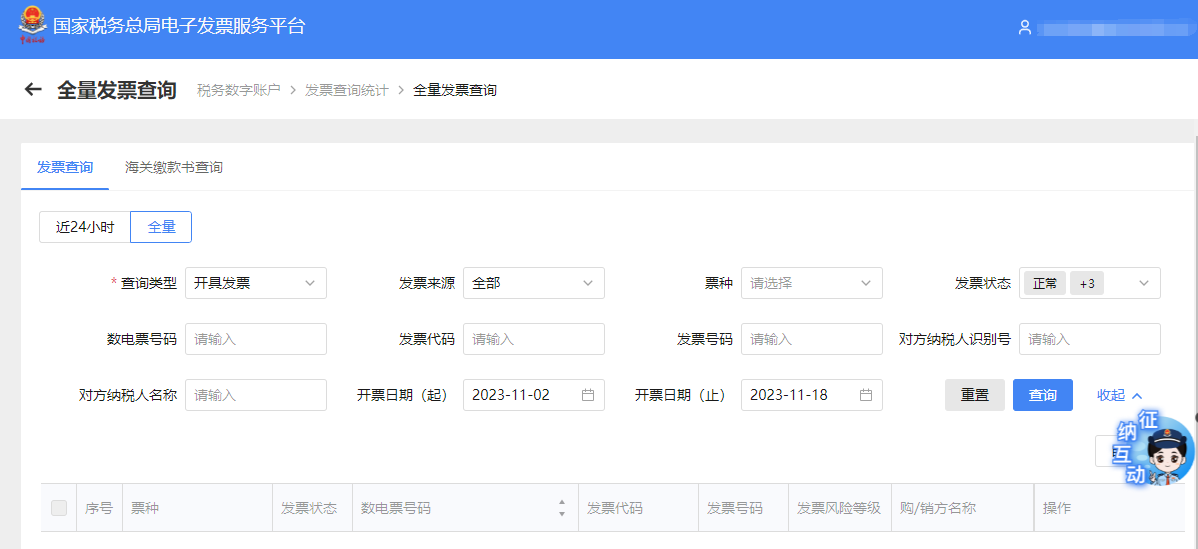
V. Find the corresponding invoice in the Full Invoice Query module, click the "Preview" button to enter the invoice preview interface, and click "Print Invoice". (Before printing for the first time, please test with blank paper first.)
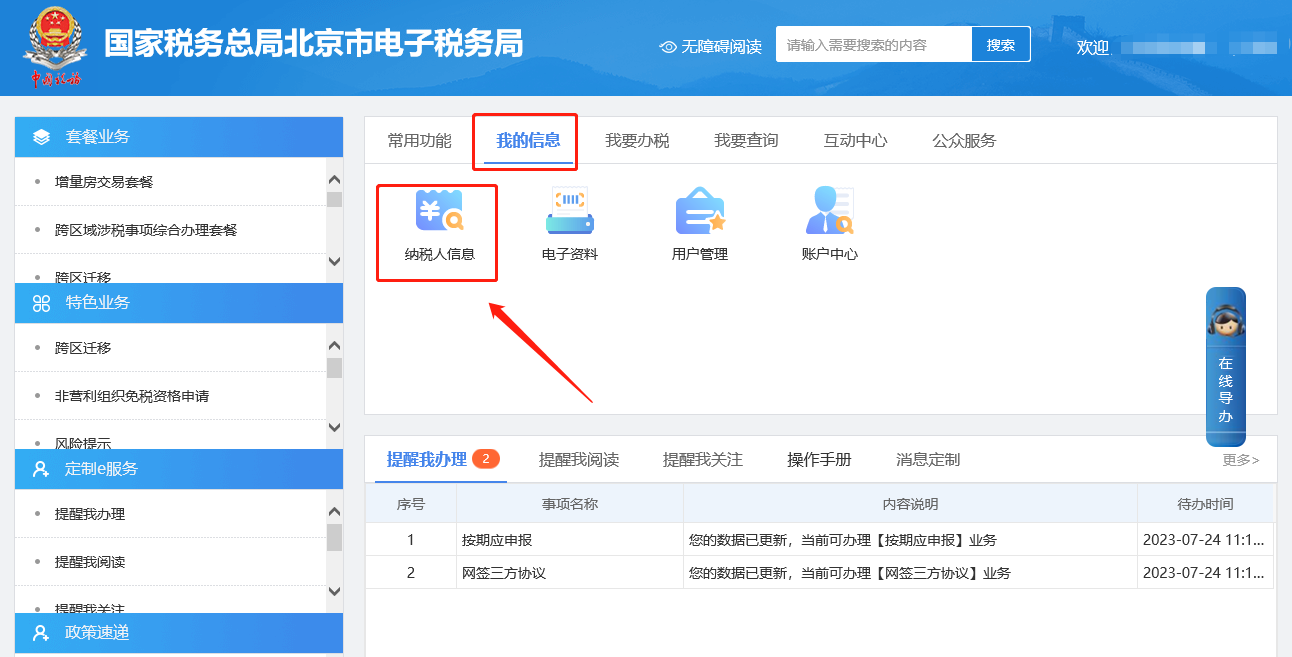
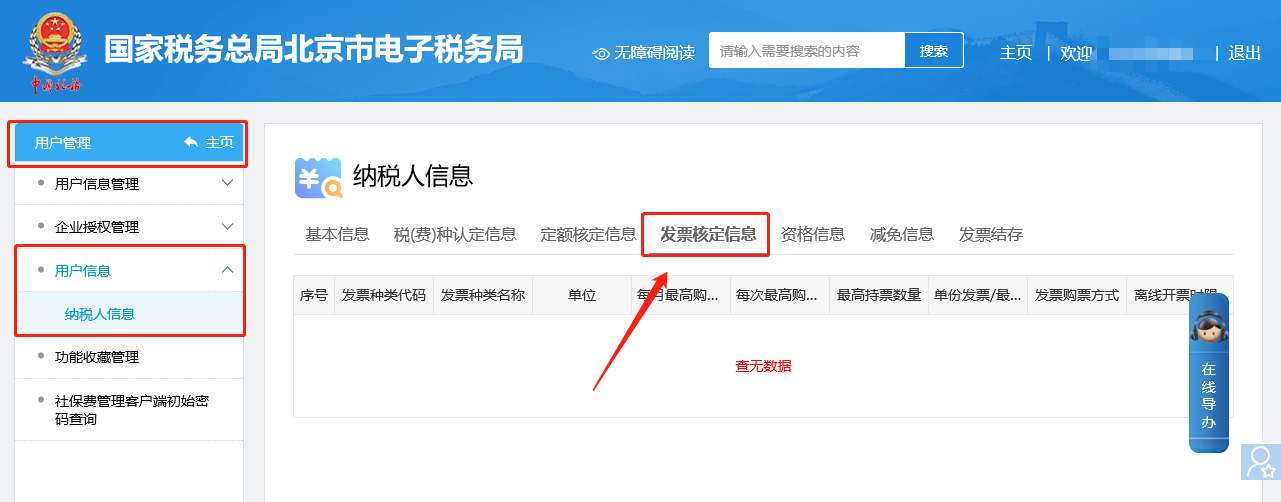
2. How can the monthly invoice quota be queried on the electronic tax bureau? Click [My Information] — [Taxpayer Information] — [User Information] — "Invoice Verification Information" under [Taxpayer Information] to query. You can also view it through the [I Want to Query] — [One-Household-Style Query] — [Invoice Business Query] — [Invoice Type Verification Query] page.The specific operations are as follows: Method 1 I. My Information—Taxpayer Information.
II. User Management—User Information—Taxpayer Information—Invoice Approval Information Query.
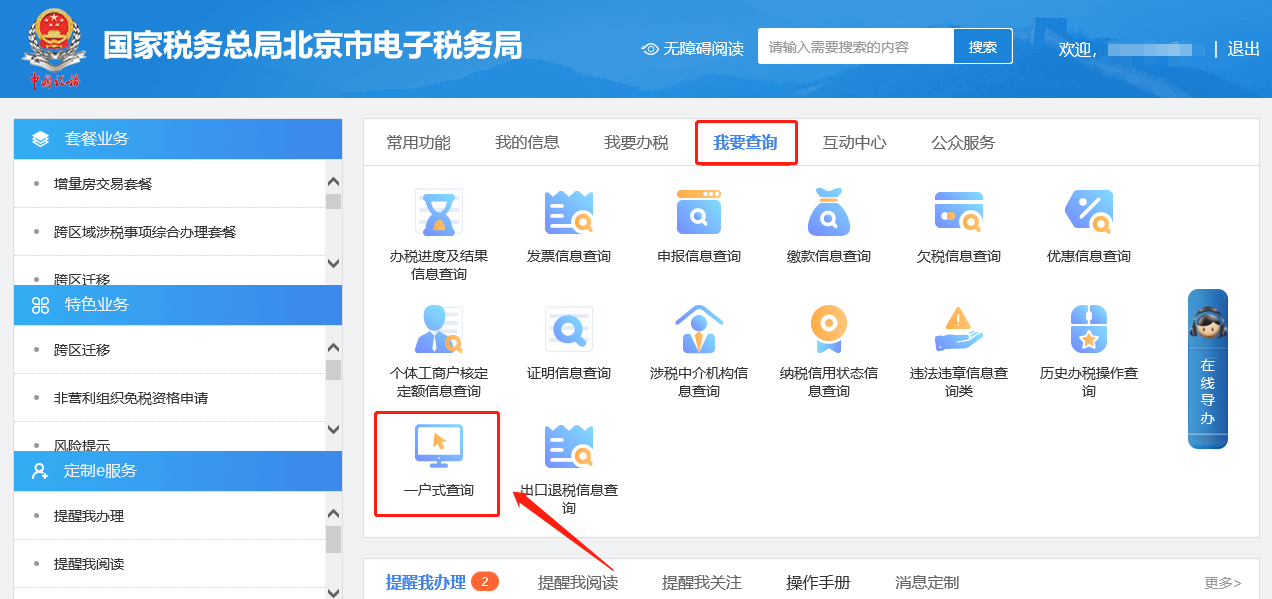
Method 2 I. I Want to Query—One-Household Query.
II. I Want to Query—One-Household Query—Invoice Business Query—Invoice Type Approval Query page.
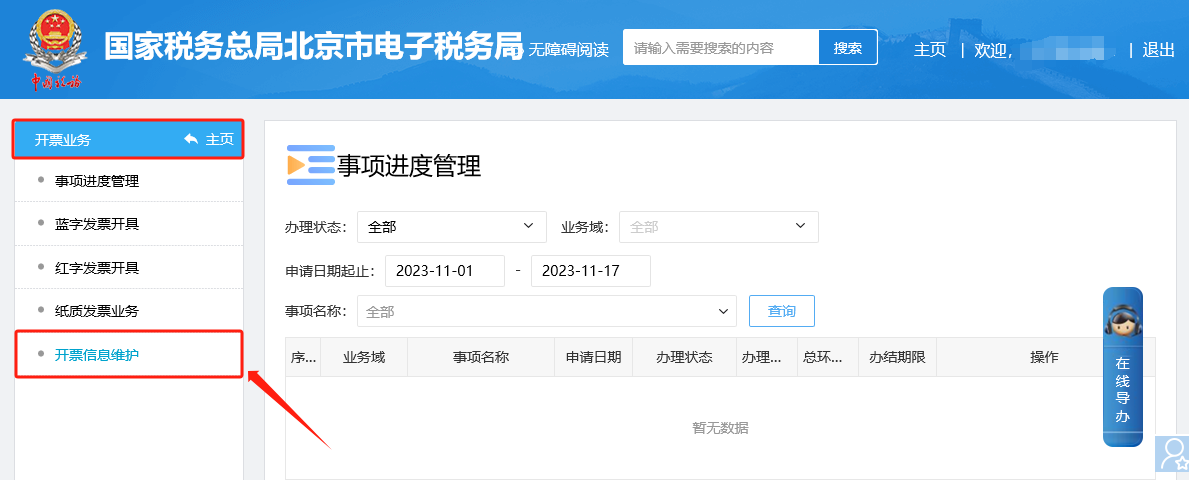
3.When issuing a tax-exempt fully digitalized e-invoice on the Electronic Tax Bureau, the tax-exempt option cannot be selected. How should this be handled? Click [I Want to Handle Taxes] — [Invoicing Business] — [Blue-Letter Invoice Issuance], and in the invoicing interface at the "Project Name" smart matching column, click [Select Commodity Code Yourself], or maintain it in advance in the [I Want to Handle Taxes] — [Invoicing Business] — [Invoicing Information Maintenance] — [Project Information Maintenance] module; after successful saving, you can select it yourself when issuing invoices. After entering this interface, enter and select the item name and code normally. In the "Preferential Policies and Simplified Taxation" module, select "Yes", and then in the following "Preferential Policy and Simplified Taxation Type" and "Tax Rate/Collection Rate" fields, you can select "Tax Exempt". After selecting according to the actual situation, click [Save and Bring In] to bring in the tax exemption information.The specific operations are as follows: Method 1 I. I Want to Handle Taxes—Invoicing Business.
II. Invoicing business—issuing blue-letter invoices. On the invoicing interface, under the smart matching field at "Item Name", click [Select Commodity Code Manually].
Method 2 I. I Want to Handle Taxes—Invoicing Business.
II. Invoicing Business - Invoice Information Maintenance - Item Information Maintenance module for advance maintenance. After successful saving, simply select it when issuing an invoice. After entering this interface, enter and select the item name and code normally. In the "Preferential Policies and Simplified Taxation" module, select "Yes", and then in the following "Preferential Policy and Simplified Taxation Type" and "Tax Rate/Collection Rate" fields, you can select "Tax Exempt". After selecting according to the actual situation, click [Save and Bring In] to bring in the tax exemption information.
Source: Beijing Tax official account Beijing Kailing Technology Co., Ltd.——an enterprise business-finance-tax digitalization solution service provider. Kailing Technology provides solutions for sales management systems, procurement management systems, output invoicing systems, input invoice collection systems, imaging management systems, financial posting systems, electronic accounting archives and other businesses according to enterprise needs, professionally and efficiently helping enterprises transform and upgrade their business-finance-tax digital management. If you have any business-finance-tax digital transformation needs, welcome to contact us. Beijing Kailing Technology will serve you wholeheartedly.
|