News Details

Operation Guide|How to Issue a "Scrapped Product Purchase" Invoice in Reverse in the Electronic Tax Bureau?

Published: 2024-05-31 17:19

Recently, the State Taxation Administration issued the Announcement on Matters Concerning "Reverse Invoicing" by Resource Recycling Enterprises to Individual Sellers of Scrap Products (State Taxation Administration Announcement No. 5 of 2024), clarifying that starting from April 29, 2024, when individual sellers of scrap products (hereinafter referred to as sellers) sell scrap products to resource recycling enterprises, qualifying resource recycling enterprises may issue invoices to the sellers.

So how, in the electronic tax bureauReverse issuance of "scrap product purchase" invoices? What are the specific steps? Today let's take fully digitalized e-invoices as an example and take a look!


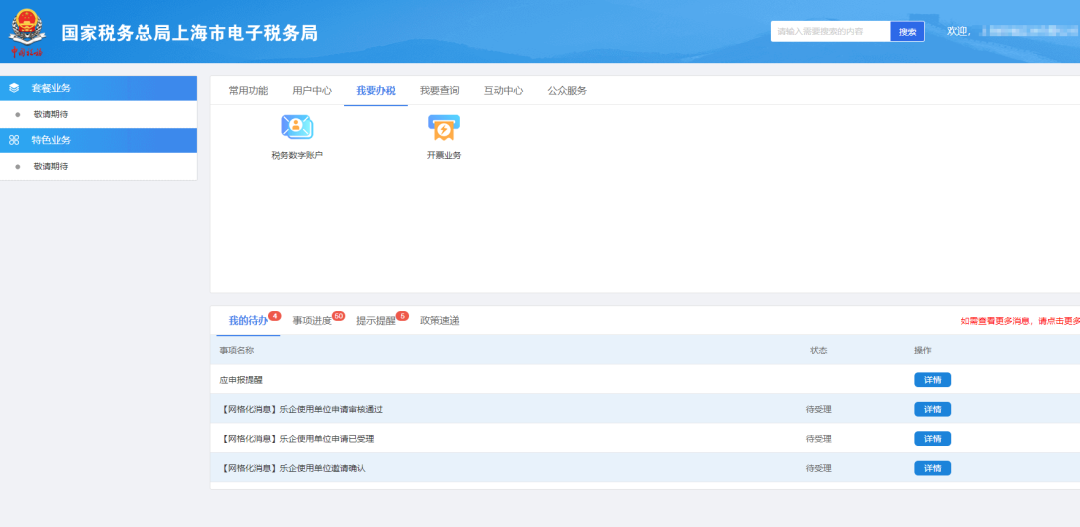
01Log in to [Electronic Tax Bureau] — [I Want to Handle Taxes] — [Invoicing Business]

Operation Guide|How to Issue a "Scrapped Product Purchase" Invoice in Reverse in the Electronic Tax Bureau?

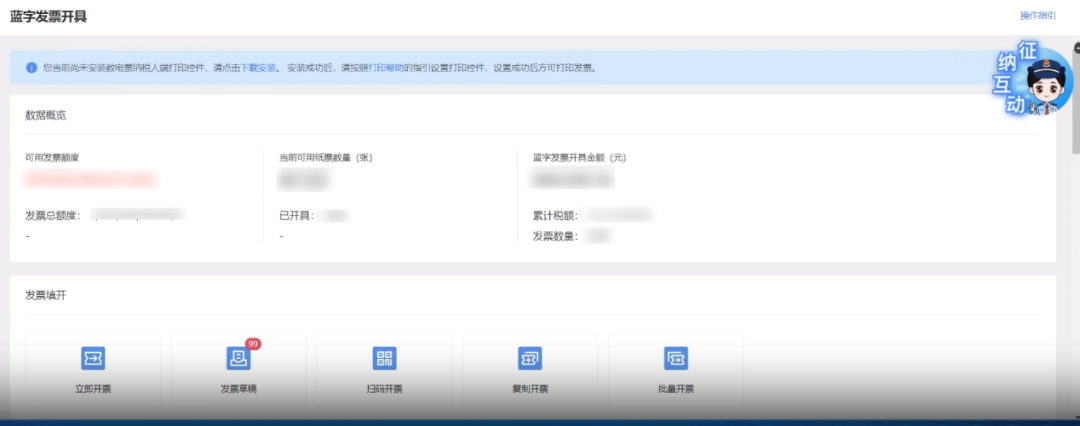
02Click [Blue-Letter Invoice Issuance] — [Issue Invoice Immediately]

Operation Guide|How to Issue a "Scrapped Product Purchase" Invoice in Reverse in the Electronic Tax Bureau?

Operation Guide|How to Issue a "Scrapped Product Purchase" Invoice in Reverse in the Electronic Tax Bureau?

03Select [Invoice Type], and in the [Specific Business] drop-down box, select "Scrap Product Purchase".

Operation Guide|How to Issue a "Scrapped Product Purchase" Invoice in Reverse in the Electronic Tax Bureau?

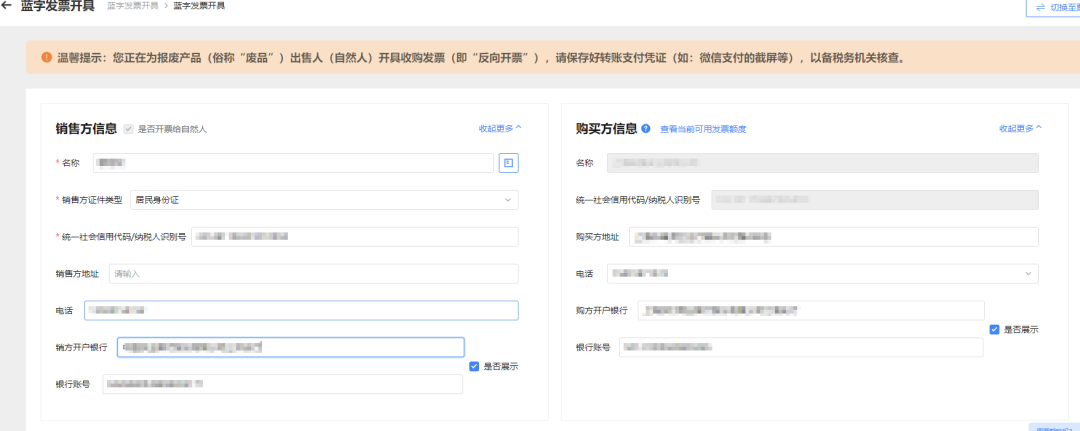
04Enter the invoicing page and, in the seller information section, fill in the individual's name, ID type, and unified social credit code (for an individual, enter their ID card number).

Warm reminder:Save the transfer payment voucher for future reference.

Operation Guide|How to Issue a "Scrapped Product Purchase" Invoice in Reverse in the Electronic Tax Bureau?

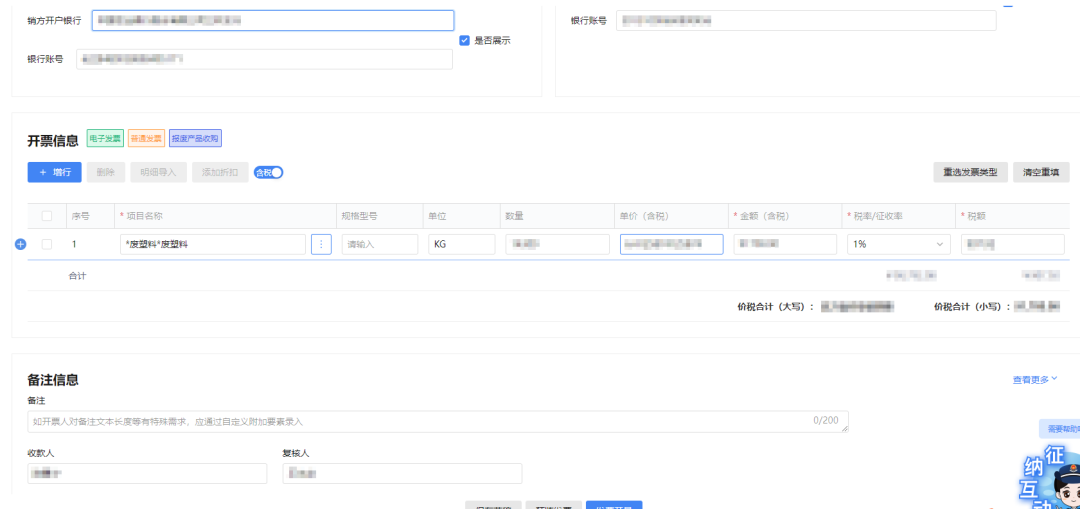
In the item name field, enter the specific name, unit, and amount of the recycled scrapped product, select the applicable tax rate, and click issue invoice.

Operation Guide|How to Issue a "Scrapped Product Purchase" Invoice in Reverse in the Electronic Tax Bureau?

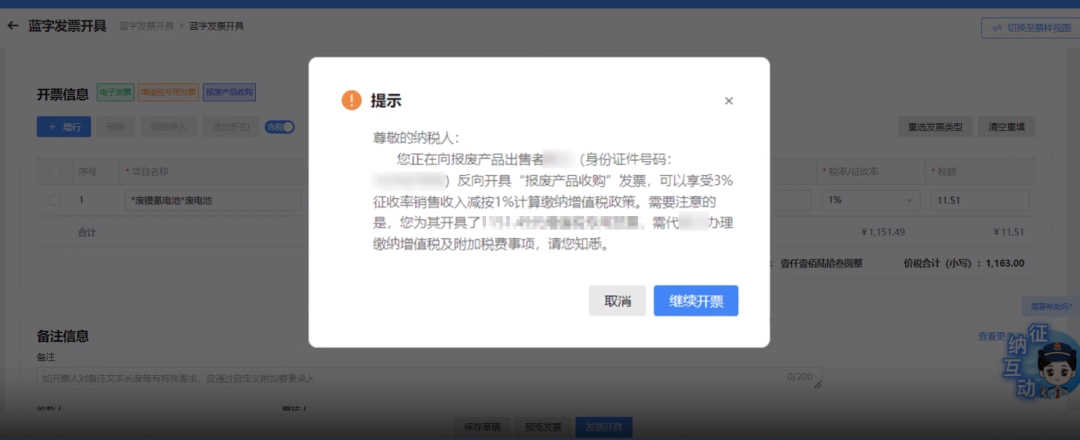
05Click Invoice Issuance, review the prompt, and after confirming it is correct, click Continue Invoicing.

Operation Guide|How to Issue a "Scrapped Product Purchase" Invoice in Reverse in the Electronic Tax Bureau?

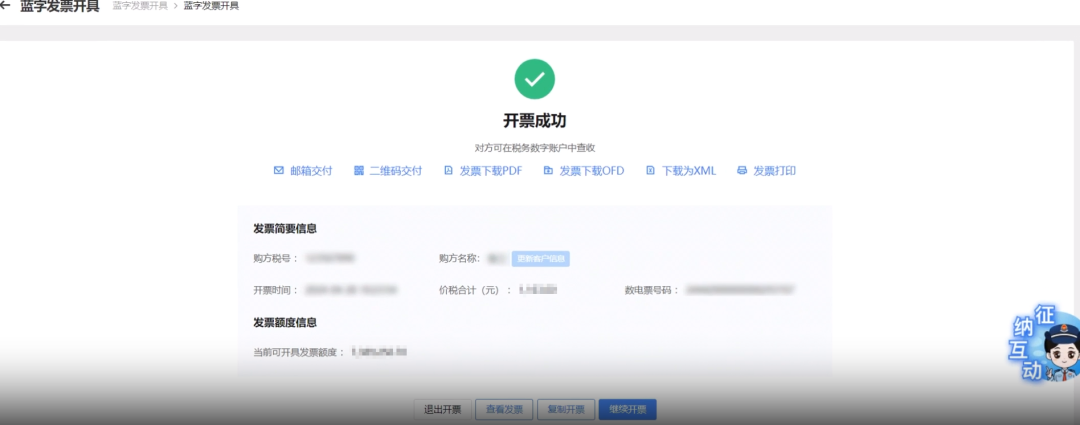
06"Invoicing successful" is displayed, indicating invoicing is complete.

Operation Guide|How to Issue a "Scrapped Product Purchase" Invoice in Reverse in the Electronic Tax Bureau?


Source: Shanghai Tax


Beijing Kailing Technology Co., Ltd.——an enterprise business-finance-tax digitalization solution service provider.

Kailing Technology provides solutions for sales management systems, procurement management systems, output invoicing systems, input invoice collection systems, imaging management systems, financial posting systems, electronic accounting archives, fully digitalized e-invoice and Leqi interfaces and other businesses according to enterprise needs, professionally and efficiently helping enterprises transform and upgrade their business-finance-tax digital management.

If you have any business-finance-tax digital transformation needs, welcome to contact us. Beijing Kailing Technology will serve you wholeheartedly.

Operation Guide|How to Issue a "Scrapped Product Purchase" Invoice in Reverse in the Electronic Tax Bureau?


Share to:
Contact Us

Contact: 010-60974119

VIP Dedicated Consultant: 185-1389-5936

Address: Room 410, 4th Floor, Jianjin Center, No. Jia 1 Yongtaiyuan, Qinghe, Haidian District, Beijing
Scan to add customer service on WeChat
Industry Websites
Scan to follow our WeChat official account
Scan to view our video account
Scan to follow our Douyin account
Common Questions
When issuing a scrapped product acquisition invoice in reverse on the electronic tax bureau, what is the first step?
Log in to the Electronic Tax Bureau and click [I Want to Handle Taxes] — [Invoicing Business], then enter [Blue Invoice Issuance] — [Issue Invoice Now].
During reverse invoicing, how are specific businesses selected?
After selecting the invoice type on the invoicing page, you must select "Scrapped Product Procurement" in the [Specific Business] drop-down box; otherwise, the reverse invoice cannot be issued correctly.
The seller is an individual; how should the information be filled in when invoicing?
In the seller information field, fill in the individual's name and ID type, and enter their ID number in the Unified Social Credit Code field. It is also recommended to keep the transfer payment voucher for future reference.
What needs to be done after reverse invoicing succeeds?
After successful invoicing, the system displays "Invoicing Successful," indicating the operation is complete. It is recommended to save the transfer payment voucher for future reference to ensure business compliance.
Related solutions
Reverse invoicing for scrap resource recycling
Compliant reverse issuance for renewable resources, with full-process traces in five-flow-in-one →
Leqi Direct Connection solution
Direct connection to the tax bureau's Leqi channel, connecting the last mile of ERP →
Output Invoicing Management Platform
As soon as business occurs, invoices are automatically issued, automatically delivered, and automatically returned →
Further Reading
E-Tax Bureau Operation Guide | How to query invoices already selected?
1. On the electronic tax bureau, through [Tax Digital Account] — [Deduction Category Check] certified… →
Save it! A summary of fully digitalized e-invoice operation guides is here!
1. When issuing fully digitalized e-invoices on the electronic tax bureau, how to add payee and reviewer?… →
E-Tax Bureau Operation Guide | How to query the summary of issued invoice data...
1. How to query and export the summary data of issued invoice materials on the electronic tax bureau? Answer: You… →