010-6097 4119Book a Demo


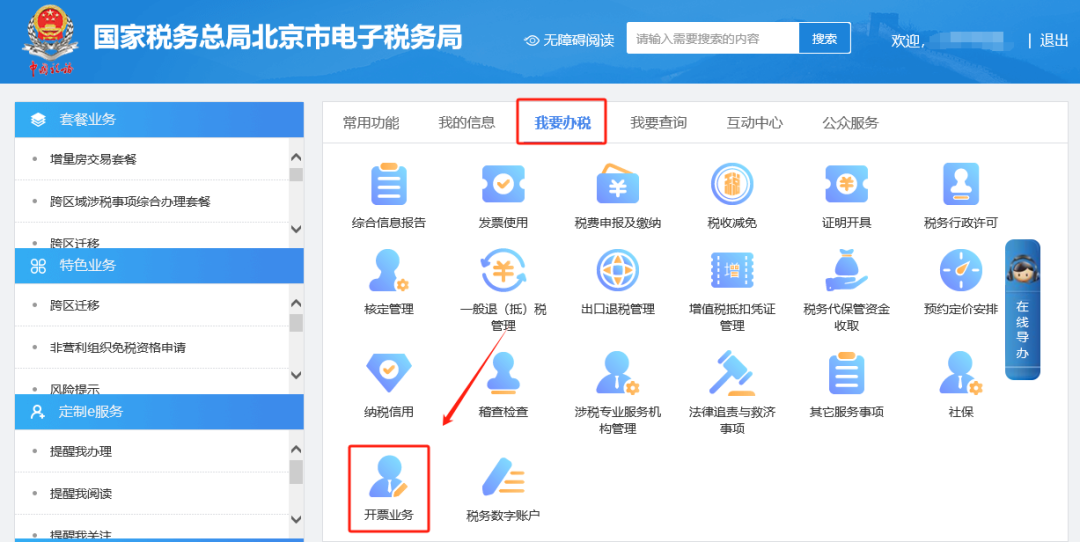
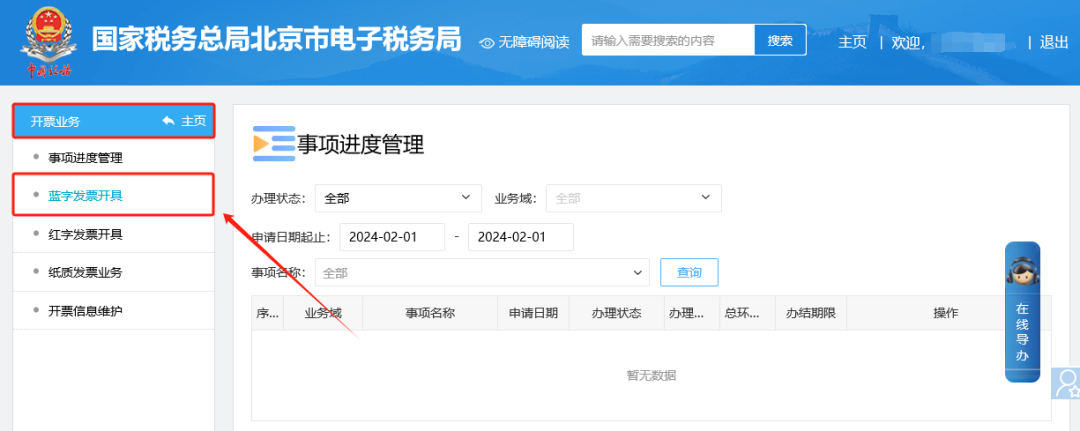
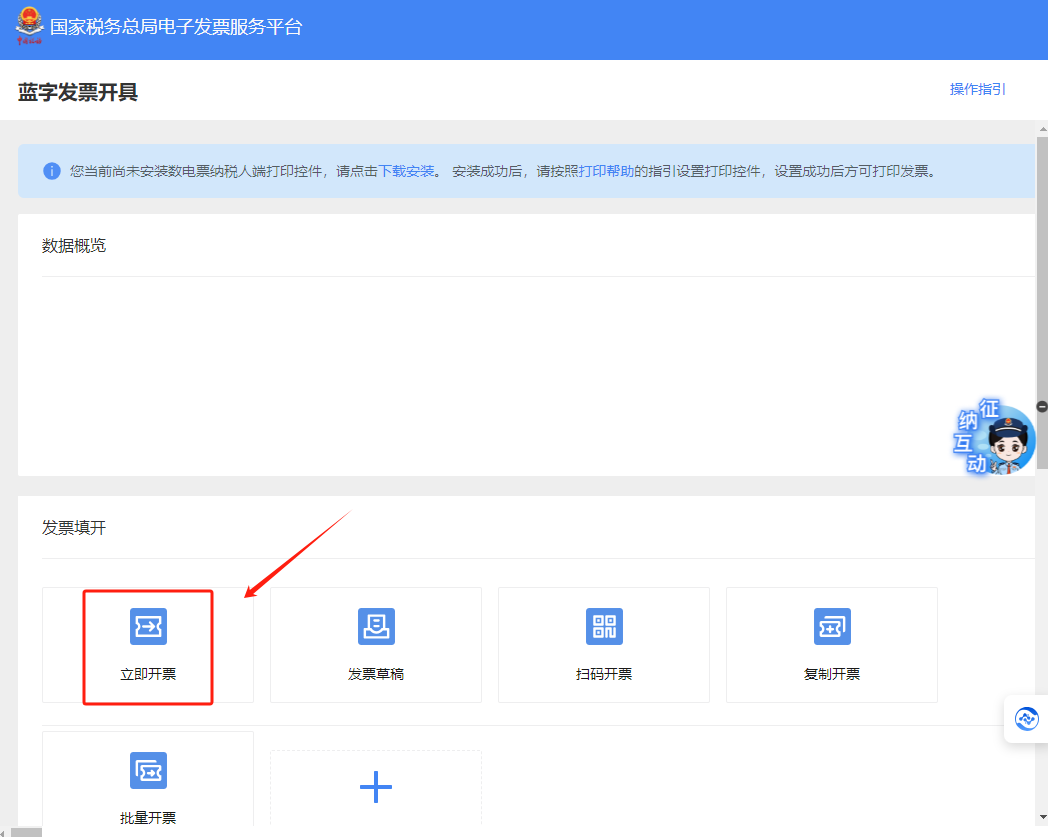
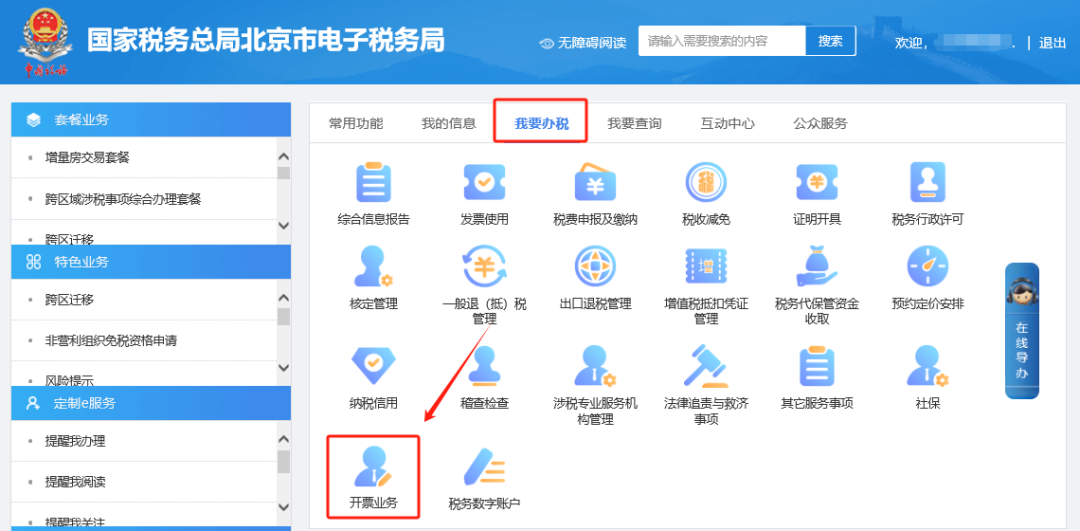
Save it! A summary of fully digitalized e-invoice operation guides is here!Published: 2024-02-02 16:19 1.AtWhen issuing a fully digitalized e-invoice on the Electronic Tax Bureau, how do I add the payee and reviewer?Answer:Hello, for VAT ordinary invoices and VAT special invoices issued in the electronic invoice service platform, the "Payee" and "Reviewer" are not required fields. If there is a need to fill them in, taxpayers can enter the "Payee" and "Reviewer" information themselves in the "Remarks Information" column on the [Blue-Letter Invoice Issuance] function page. 2.When issuing a fully digitalized e-invoice on the electronic tax bureau, how do you assign a code on the immediate invoicing interface? Answer:①Please click in sequence [I Want to Handle Taxes]—[Invoicing Business]—[Blue-Letter Invoice Issuance]—[Issue Invoice Now] to enter the invoicing interface, enter information in the "Item Name" field, and the system will provide similar options for selection through intelligent matching. ②If there is no matching item, you can click "Select Commodity Code Yourself" at the bottom of the smart matching box. The "Select Commodity Code Yourself" interface will automatically appear on the right. After supplementing the relevant information, click "Save and Bring into Current Line" to bring the self-added information into the "Item Name" field. ③Click the dot icon to the right of "Project Name," and "Project Information Query" will pop up. On this page, you can select maintained project information; if you need to add new project information, you need to enter the [I Want to Handle Taxes] — [Invoicing Business] — [Invoicing Information Maintenance] — [Project Information Maintenance] module to add it. Step 1: I. I Want to Handle Taxes—Invoicing Business.
II. Invoicing Business - Blue-letter Invoice Issuance.
III. In the Blue-Letter Invoice Issuance module, click "Issue Now", enter information in the "Project Name" field, and the system will provide similar options for selection through intelligent matching.
Step 2: If there is no matching item, you can click "Select Commodity Code Yourself" at the bottom of the smart matching box. The "Select Commodity Code Yourself" interface will automatically appear on the right. After supplementing the relevant information, click "Save and Bring into Current Line" to bring the self-added information into the "Item Name" field. Step 3: Click the dot icon to the right of "Project Name," and "Project Information Query" will pop up. On this page, you can select maintained project information; if you need to add new project information, you need to enter: I. I Want to Handle Taxes—Invoicing Business.
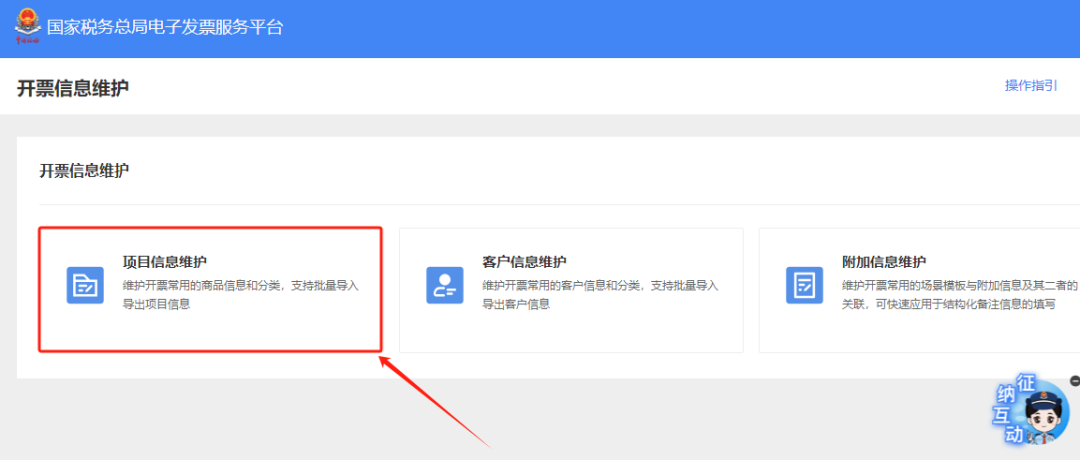
II. Invoicing Business - Invoice Information Maintenance.
III. Invoicing Information Maintenance—Add via the Project Information Maintenance Module.
3.When issuing a fully digitalized e-invoice on the electronic tax bureau, how do you set email delivery information? Answer:Hello, there are two methods for setting it up, as follows: 1. You can click the "Sender Email Settings" link in the company name column on the homepage of [I Want to Handle Taxes] — [Tax Digital Account]. The system will pop up the "Sender Email Settings" page. On this page, the taxpayer enters the "sender email account," "sender email authorization code," "sender server address," and "SSL port" information in sequence, then clicks "Save." 2. After an invoice is successfully issued, when email delivery is selected, if the relevant information has not been set, the system will prompt that the sender email has not been maintained and enter the "Sender Email Settings" screen. On this page, the taxpayer enters the "Sender Email Account", "Sender Email Authorization Code", "Sender Server Address" and "SSL Port" information in sequence, then clicks "Save". Source: Beijing Tax Beijing Kailing Technology Co., Ltd.——enterprise business-finance-tax digitalization solutionsService provider. Kailing Technology provides solutions for sales management systems, procurement management systems, output invoicing systems, input invoice collection systems, imaging management systems, financial posting systems, electronic accounting archives, fully digitalized e-invoice and Leqi interfaces and other businesses according to enterprise needs, professionally and efficiently helping enterprises transform and upgrade their business-finance-tax digital management. If you have any business-finance-tax digital transformation needs, welcome to contact us. Beijing Kailing Technology will serve you wholeheartedly.
|