010-6097 4119Book a Demo


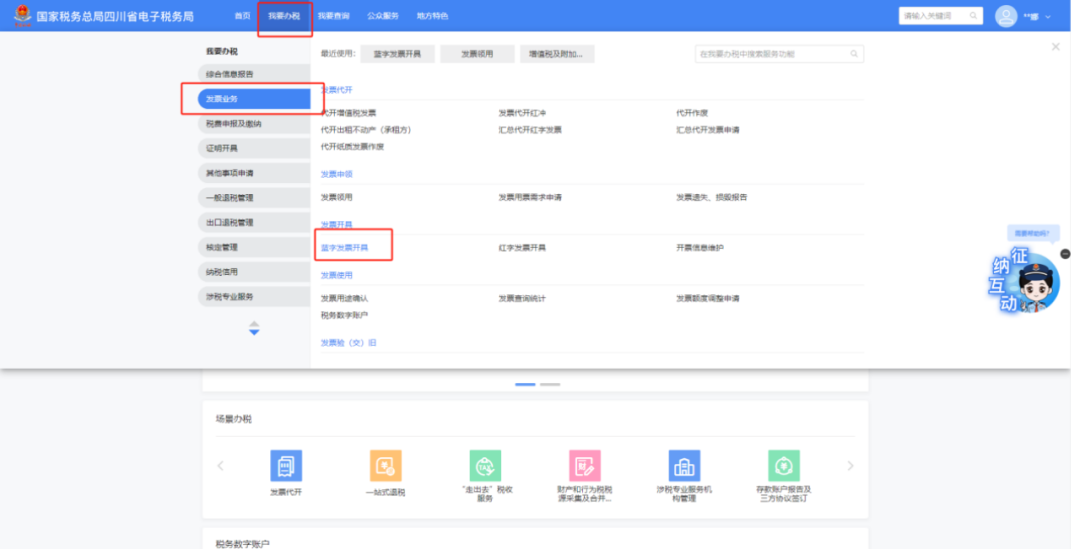
Operation Guide for Issuing the Unified Invoice for Motor Vehicle Sales on the E-invoice Service PlatformPublished: 2025-07-25 17:04 When a motor vehicle enterprise retails motor vehicles externally and needs to issue a unified motor vehicle sales invoice to the buyer for handling vehicle transfer registration, after applying to the tax authority to obtain the unified motor vehicle sales invoice, it can be issued on the electronic invoice service platform. The specific steps are as follows: Pre-invoicing prerequisite: taxpayers must be classified as one of the following: domestic motor vehicle manufacturing enterprises, offices or general authorized agency institutions in China of imported motor vehicle manufacturing enterprises, other traders engaged in motor vehicle imports, authorized motor vehicle dealership enterprises, or other motor vehicle traders. 1. Operation Process:① The taxpayer logs in to the Sichuan Provincial Electronic Tax Bureau and selects [I Want to Handle Taxes] - [Invoice Business] - [Blue-Letter Invoice Issuance] in sequence, as shown in Figure 1.
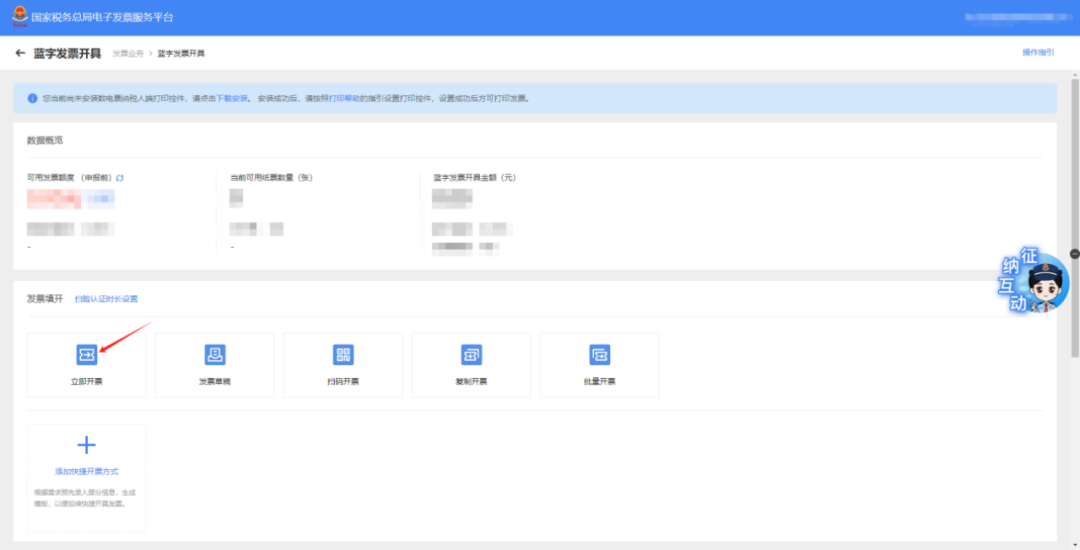
Figure 1 ② Enter the blue-letter invoice issuance function. The interface displays areas such as data overview, invoice filling, and recent invoicing. Click [Issue Now] in invoice filling, as shown in Figure 2.
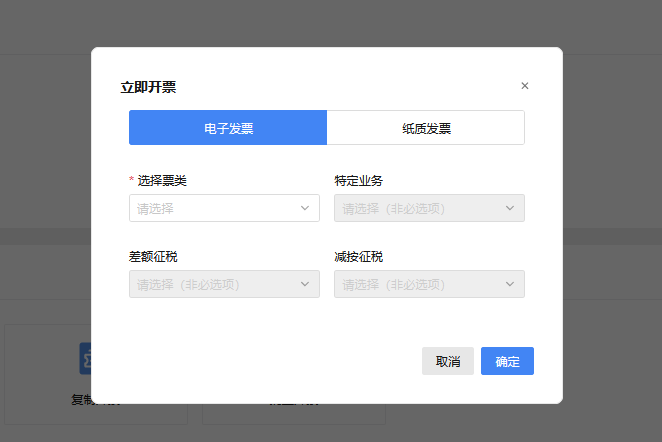
Figure 2 ③ The issue-now window pops up, defaulting to electronic invoice, as shown in Figure 3.
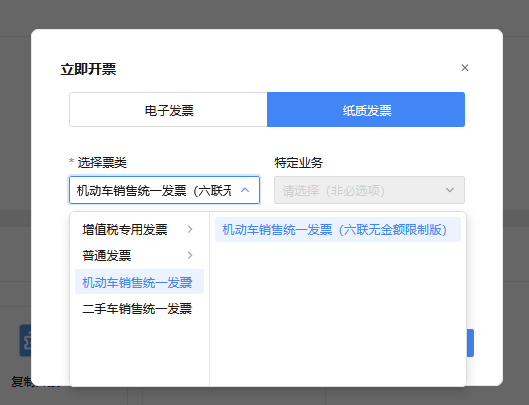
Figure 3 ④ First change the invoice type, select "paper invoice", then click the drop-down list in "Select Invoice Category" and select "Motor Vehicle Sales Unified Invoice". A secondary menu for the Motor Vehicle Sales Unified Invoice will pop up; select "Motor Vehicle Sales Unified Invoice (six-copy version with no amount limit)", as shown in Figure 4. After selecting the invoice type and invoice category, click "Confirm", as shown in Figure 5.
Figure 4
Figure 5 ⑤ By default, you enter the invoice issuance form view. The seller information will be automatically filled with the already filed seller information, and "Remarks" defaults to "one vehicle, one invoice" and cannot be changed. As shown in Figures 6 and 7.
Figure 6
Figure 7 ⑥ The taxpayer correctly and truthfully fills in the buyer information, seller information, and invoicing information according to the actual situation. Among them, when the purchaser is a natural person, the "whether to issue an invoice to a natural person" checkbox must be checked, and the system will automatically pop up a prompt. Click "I understand," and fill in the natural person's name and ID number according to the actual business, as shown in Figure 8; when the purchaser is not a natural person, the "whether to issue an invoice to a natural person" checkbox cannot be checked, and the purchaser information should be filled in according to the actual situation, as shown in Figure 9.
Figure 8
Figure 9 ⑦ In the "Vehicle Identification Number/Chassis Number" field of the invoicing information section, enter the Vehicle Identification Number/Chassis Number to be invoiced and click Query. The corresponding content on the vehicle certificate, such as make and model, place of origin, certificate number, and import certificate number, will be automatically populated, as shown in Figure 10. Information not automatically populated may be filled in accordingly based on the actual situation, as shown in Figure 11.
Figure 10
Figure 11 ⑧ The taxpayer manually supplements information such as vehicle type, total price and tax, and VAT rate or levy rate according to the actual situation, as shown in Figure 12.
Figure 12 ⑨ Click "Invoice Issuance". The system performs automatic verification. If verification is correct, the invoice is issued successfully and automatically delivered to the counterparty's digital account, as shown in Figures 13 and 14. It should be explained that if the counterparty is a natural person and the checkbox "Whether to issue an invoice to a natural person" is checked, after a correct ID number is entered, the system will automatically deliver it to the purchaser's [My Ticket Folder] in the Individual Income Tax App.
Figure 13
Figure 14 2. Precautions:For vehicle type, only motor vehicle commodity codes can be selected. After querying the vehicle identification number/chassis number, some fields in the invoicing information will be automatically filled based on the vehicle certificate of conformity information, with no need for manual entry. It is recommended that taxpayers use the Firefox browser to log in to the Electronic Tax Bureau. When a taxpayer uses the printing function on the e-invoice platform for the first time, the webpage will prompt that a printing program needs to be downloaded. The taxpayer must download print control V1.5 or above (from the Electronic Tax Bureau download area) and complete the installation, and also refer to the [Print Help] document in the webpage prompt, selecting the corresponding configuration link based on the installed print control version to properly configure the printer. Source: Sichuan Tax As a comprehensive business-finance-tax digitalization solution service provider, Kailing Technology provides business-finance-tax management digital transformation products and operational services for various government agencies, institutions, and large, medium, and small enterprises. The product line includes: Solutions for sales contract management system, procurement contract management system, fully digitalized Leqi interface project, automatic output VAT invoicing system, invoice issuance for individuals system, employee expense control and reimbursement system, input VAT invoice management system, supply chain collaborative reconciliation system, imaging OCR recognition system, automatic financial bookkeeping system, electronic accounting archives system and other businesses, comprehensively advancing the digitalization process across various fields. If you have any business-finance-tax digital transformation needs, welcome to contact us. Beijing Kailing Technology will serve you wholeheartedly.
|