010-6097 4119Book a Demo


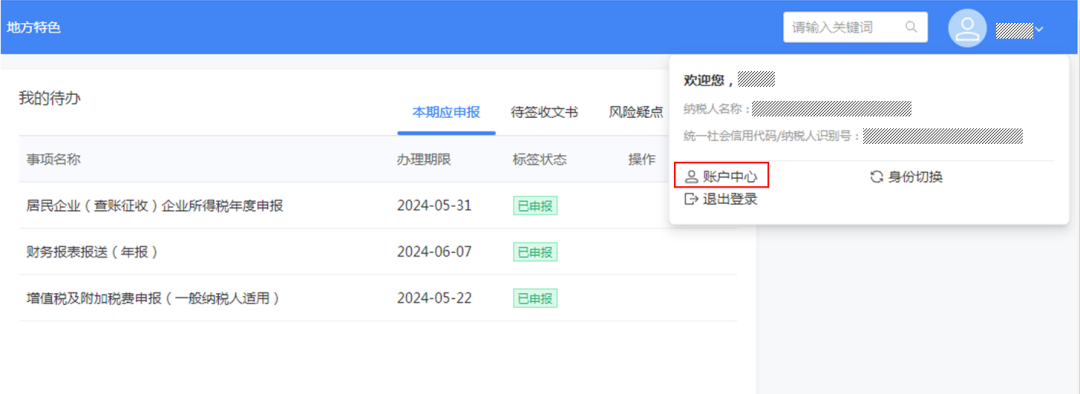
In the New Electronic Tax Bureau, how do I maintain tax officer information?Published: 2024-07-09 16:50 Q: Our company's tax officer has recently been replaced. Is there anything I need to do on my end? A:After the New Electronic Tax Bureau went live, operations differ from before. Let's take a look together. I. Add tax handlerThe legal representative or financial officer logs in to the new electronic tax bureau and clicks "Account Center" in the upper right corner.
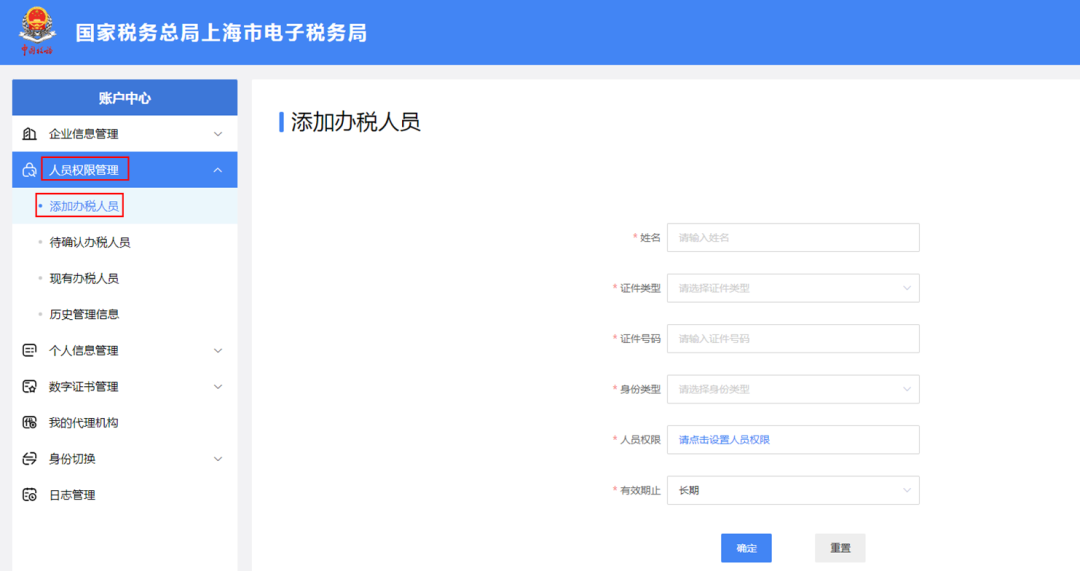
On the left side of the pop-up page, select "Personnel Permission Management," click "Add Tax Handler," and on the right side of the page, enter the relevant information to add a tax handler.
After completing the information, click "Confirm," a prompt box will pop up, click "Confirm," and "Tax handler successfully added" will be displayed.
Precautions: After being added, the tax handler information will appear in "Tax Handling Personnel Pending Confirmation" on the left, and the newly added tax handler needs to confirm. Before confirmation, the operator can still click "Withdraw" on the right to delete the added tax handler.
Newly added tax handlers need to log in to the electronic tax bureau for confirmation.
After confirmation, the tax officer information will be displayed in "Existing Tax Officers."
II. Change tax officerThe legal representative or financial officer logs in to the new electronic tax bureau, clicks "I Want to Handle Taxes," clicks "Comprehensive Information Report," and clicks "Tax-related Market Entity Identity Information Change" under "Identity Information Report."
Click "Add" under "Identity Information Change Confirmation."
In "Change Item," you can select the item to be changed. For example, to change the tax officer's name, you can select "Tax Officer Name" in the drop-down box.
The system pops up a prompt: whether to change the "tax handler ID document type," "tax handler ID number," "tax handler landline telephone," "tax handler mobile phone," and "tax handler email." Click "Cancel" here, and the change items need to be added manually; click "Confirm," and the system will automatically add the above change items.
Click "Delete" on the right to delete rows that do not need to be changed.
Select the item to change, and fill in the latest information in the "Content After Change" field on the right. After completing, click "Confirm", and "Saved successfully" will be displayed.
Note: To change or add multiple tax officers at the same time, select Tax Officer (Additional), then click "Add" and add or delete as needed.
Tips: After adding or changing information, the new tax handler must log in to the new Electronic Tax Bureau to confirm! Source: Shanghai Tax Kailing Technology provides enterprise business-finance-tax digital product lines according to enterprise needs: Solutions for businesses including sales contract management system, procurement contract management system, fully digitalized Leqi interface project, output automatic invoicing system, employee expense control and reimbursement system, input VAT invoice management system, supply chain collaborative reconciliation system, image OCR recognition system, automatic financial bookkeeping system, and electronic accounting archives system, professionally and efficiently supporting the transformation and upgrading of enterprise business-finance-tax digital management. If you have any business-finance-tax digital transformation needs, welcome to contact us. Beijing Kailing Technology will serve you wholeheartedly.
|