010-6097 4119Book a Demo


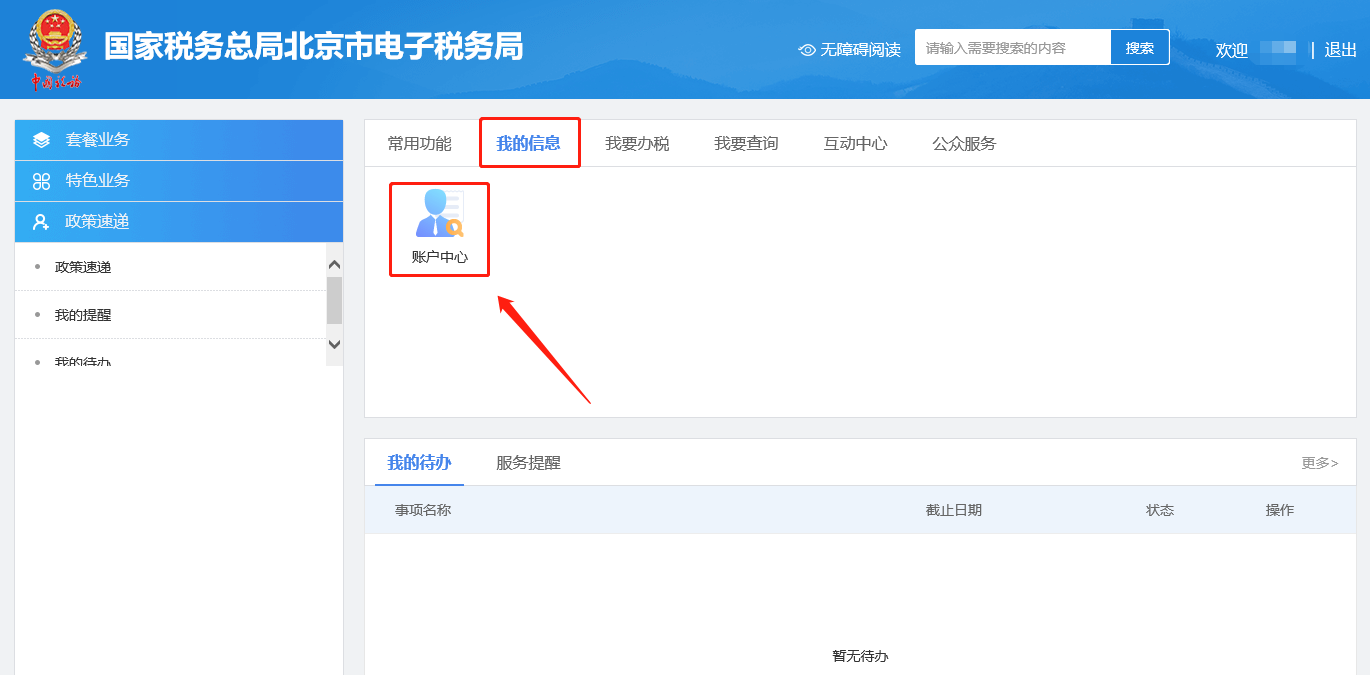
Electronic Tax Bureau operation guide | How do I remove the authorization of a tax handling officer on the Electronic Tax Bureau?Published: 2023-12-25 16:46 1.How do you remove the authorization of tax handlers on the electronic tax bureau? Answer: Hello, there are two ways to cancel authorization. Please choose one of them according to your needs. The following are the authorization cancellation methods: Deauthorization on the individual side: please click Natural Person Business and enter the individual account information to be canceled, click [My Information] - [Account Center] - [Enterprise Authorization Management] - [Authorized Enterprises], and click [Delete] after the enterprise for which authorization is to be removed; after successful deletion, the authorization is removed; Hello, to remove authorization on the enterprise side, please click Enterprise Business and first log in to the enterprise account using the information of the legal representative/financial officer, click [My Information] - [Account Center] - [Personnel Permission Management] - [Existing Tax Handlers], and click [Delete] after the person whose authorization needs to be removed. After successful deletion, the authorization is removed. Deauthorization on the individual side I. My Information—Account Center.
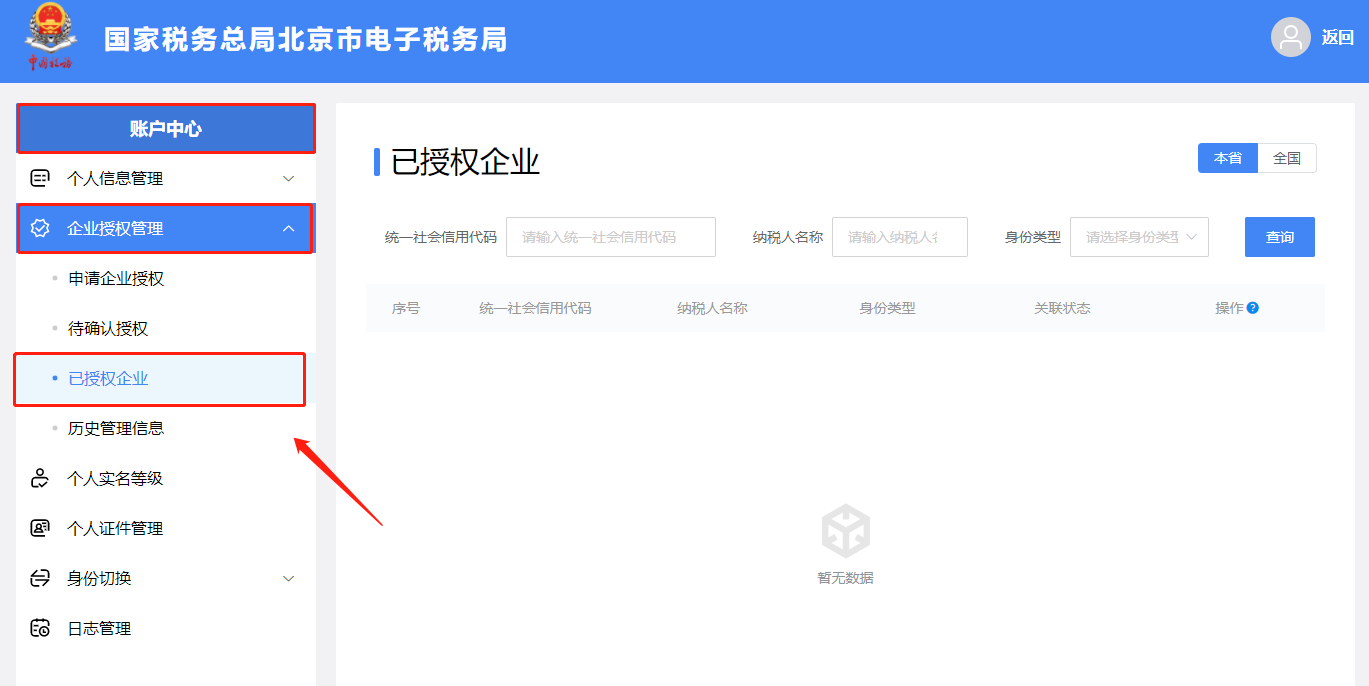
II. Account Center—Enterprise Authorization Management—Authorized Enterprises. Click [Delete] after the enterprise whose authorization needs to be removed. After successful deletion, the authorization is removed.
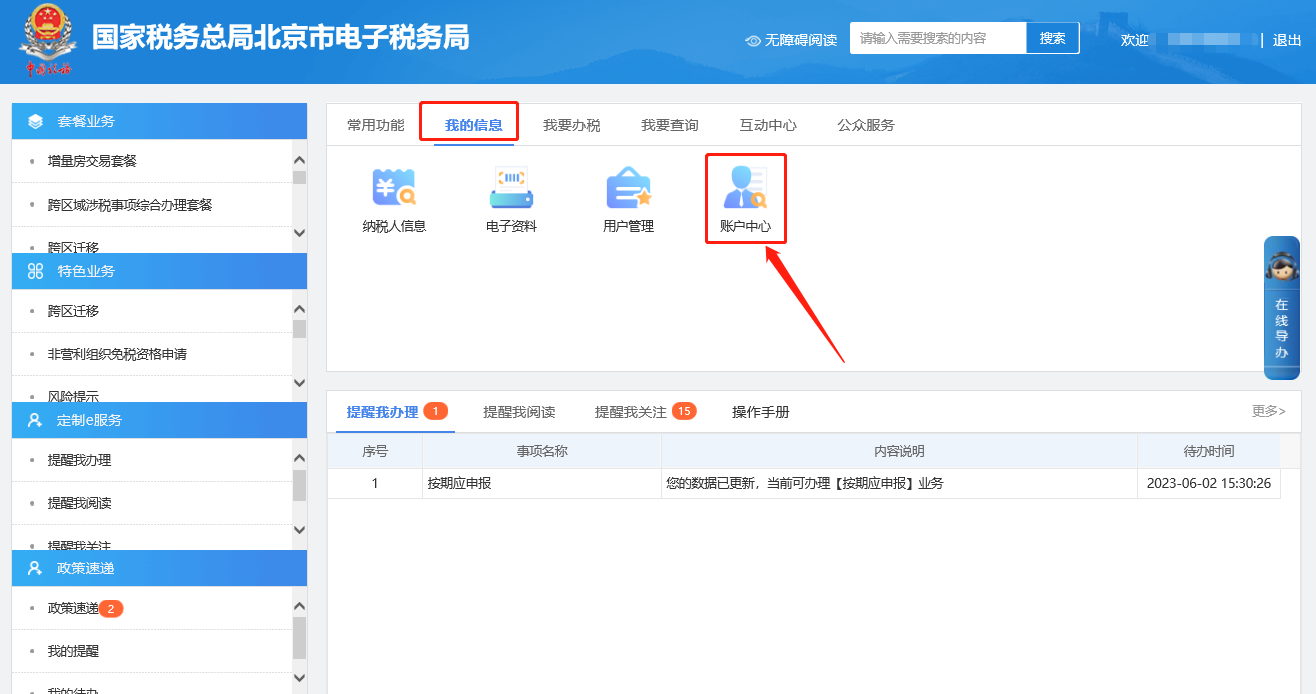
Enterprise-side authorization revocation I. My Information—Account Center.
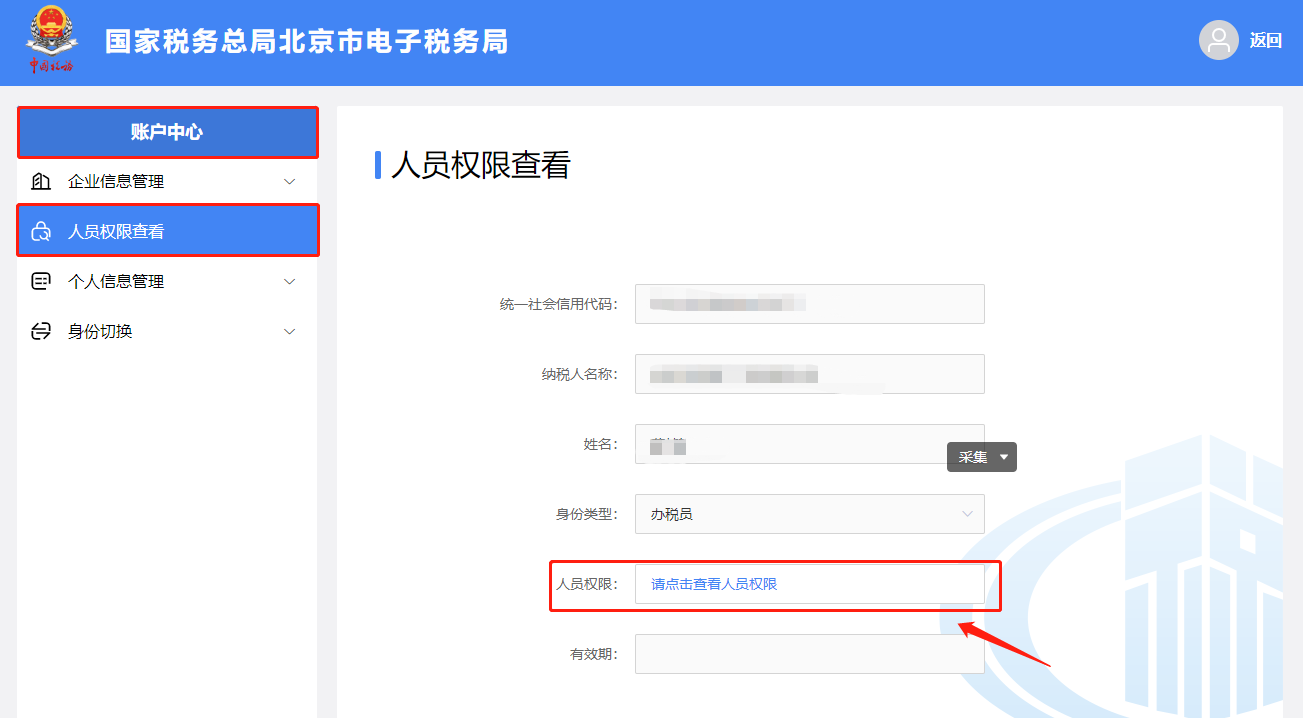
II. Account Center—Personnel Permission Management—Existing Tax Handlers. Click [Delete] after the person whose authorization needs to be removed. After successful deletion, the authorization is removed.
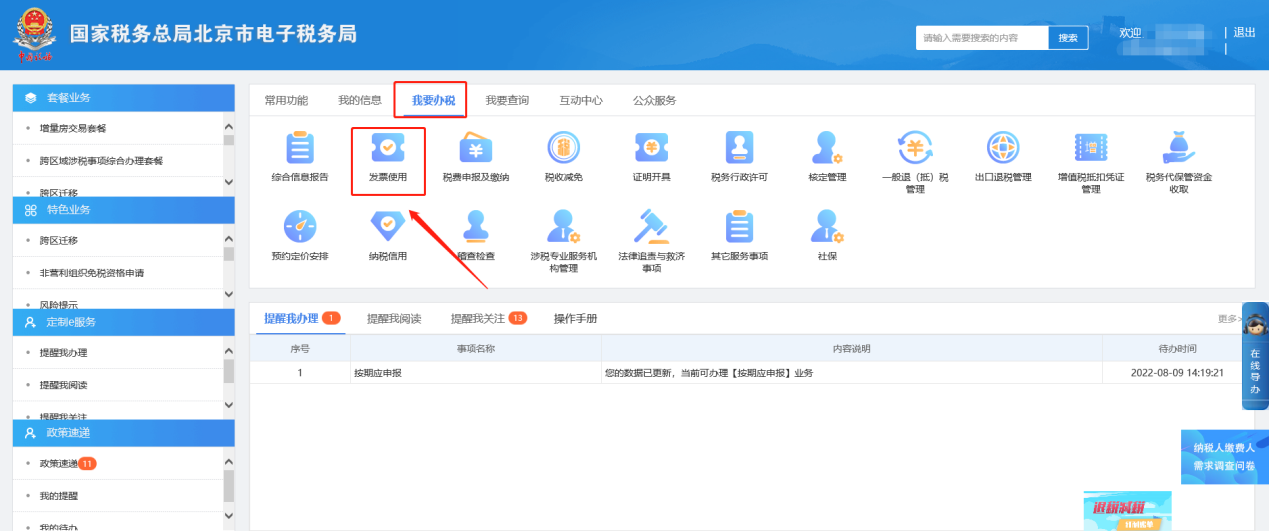
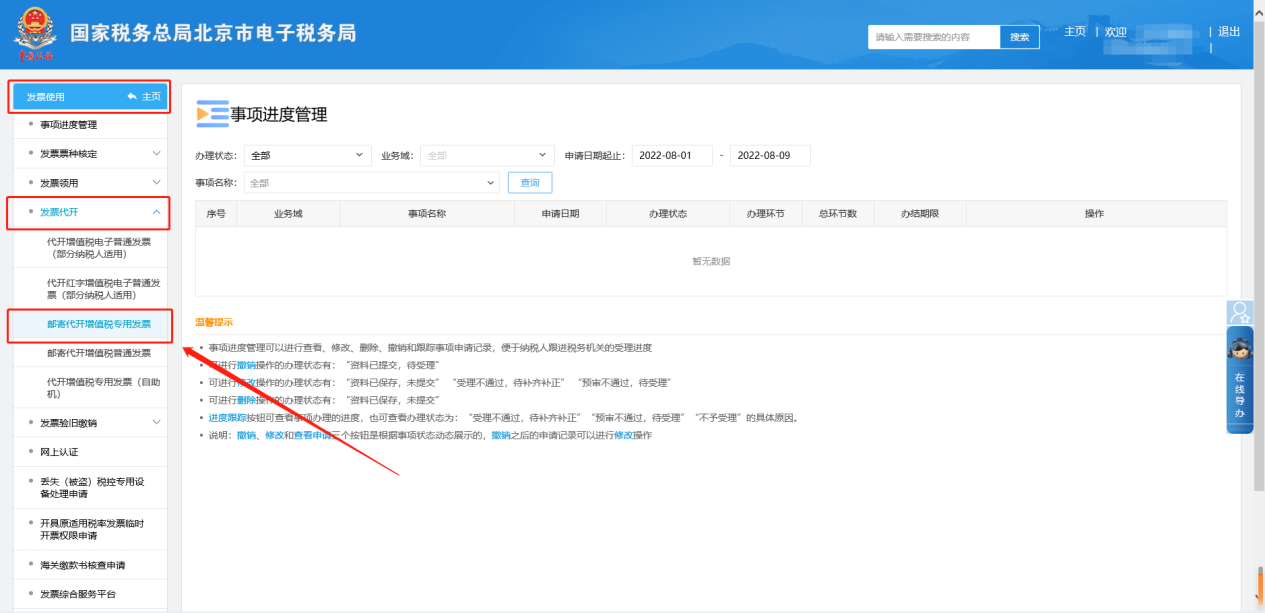
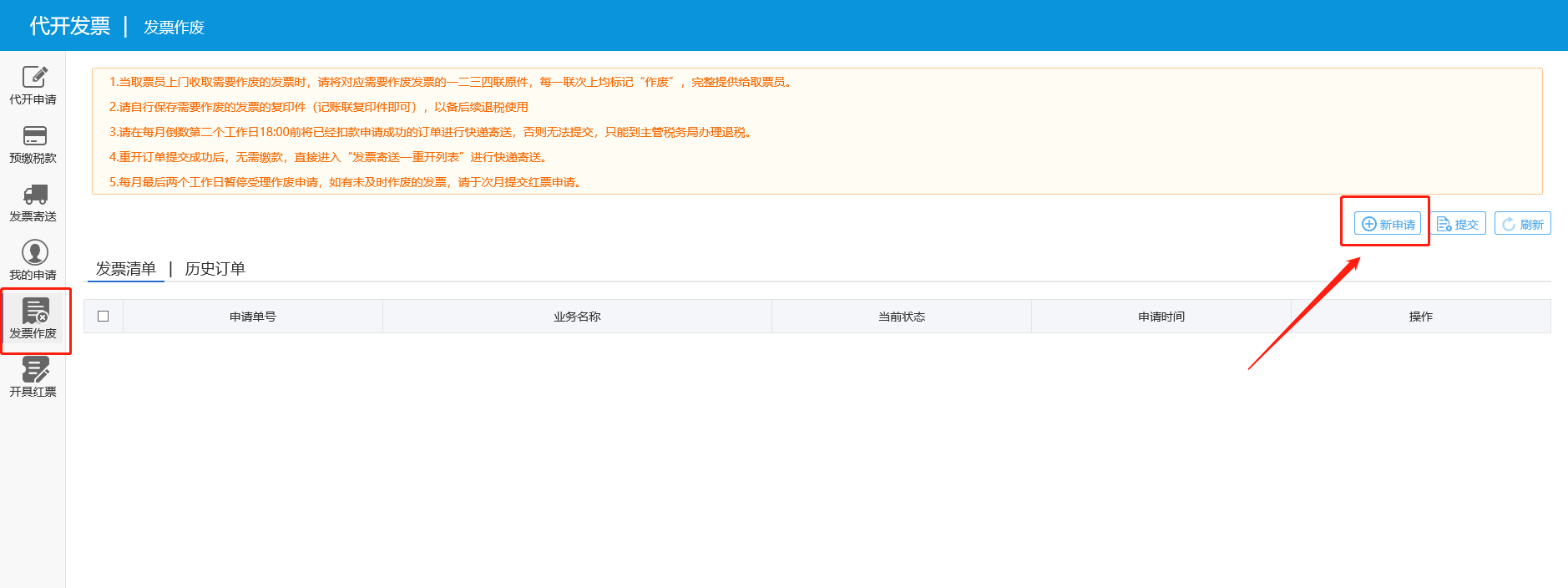
2.How do you void a mailed invoice issuance VAT special invoice on the electronic tax bureau? Answer: Hello, please click [I Want to Handle Taxes] — [Invoice Use] — [Invoice Issuance on Behalf] — [Mailed Issuance on Behalf of VAT Special Invoices], click the invoice voiding module, and click the "New Application" button; Please fill in the invoice information to be voided, select the reason for invoice voiding, and click Next; jump to the invoice voiding application form, verify the information is correct, and click the Save button; after successful saving, select the voiding application form to be submitted and click the Submit button in the upper right corner; After submission, you will be redirected to the interface for entering the invoice collection address information. After verifying that the information is correct, click the Confirm button; a prompt box will pop up, select "Yes" to complete the entire operation of mailing the voided invoice issuance; in the historical order list of the invoice voiding module, you can view the status of the invoice for which voiding was requested. I. I Want to Handle Taxes—Invoice Use.
II. Invoice Use - Invoice Issuance for Others - Mailed Issuance of Special VAT Invoices.
III. Invoice voiding — new application page, please fill in the invoice information to be voided, select the reason for invoice voiding, and click Next; jump to the invoice voiding application form, and after checking that the information is correct, click the Save button; after successful saving, select the voiding application form to be submitted and click the Submit button in the upper right corner; After submission, you will be redirected to the interface for entering the invoice collection address information. After verifying that the information is correct, click the Confirm button; a prompt box will pop up, select "Yes" to complete the entire operation of mailing the voided invoice issuance; in the historical order list of the invoice voiding module, you can view the status of the invoice for which voiding was requested.
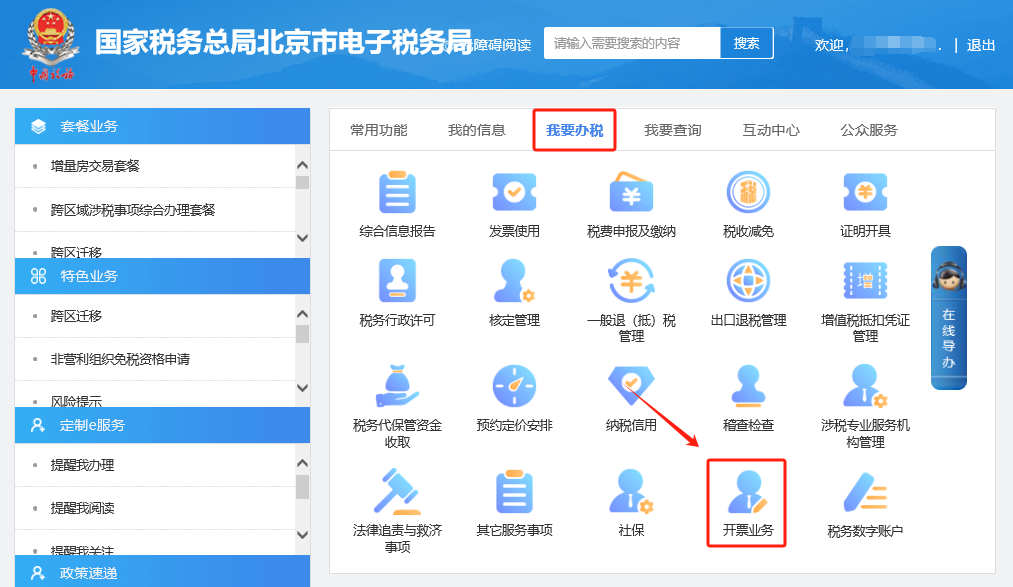
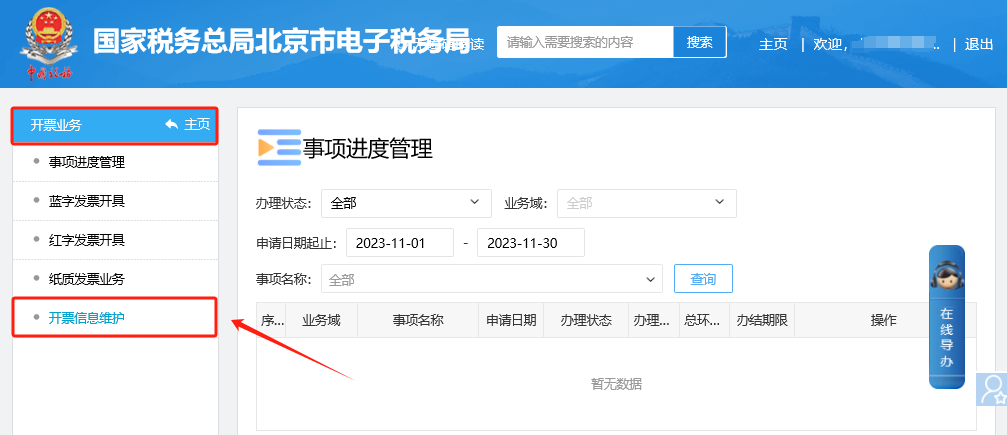
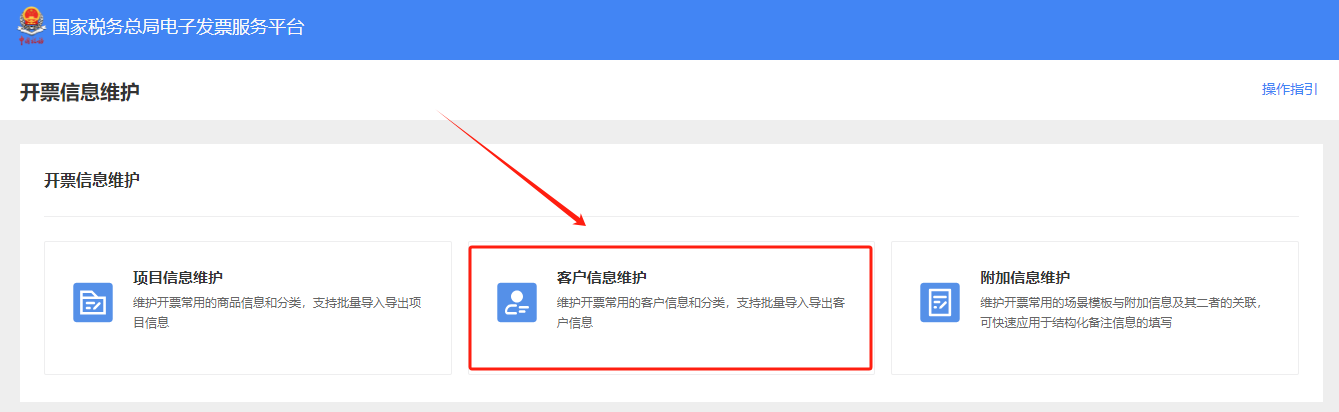
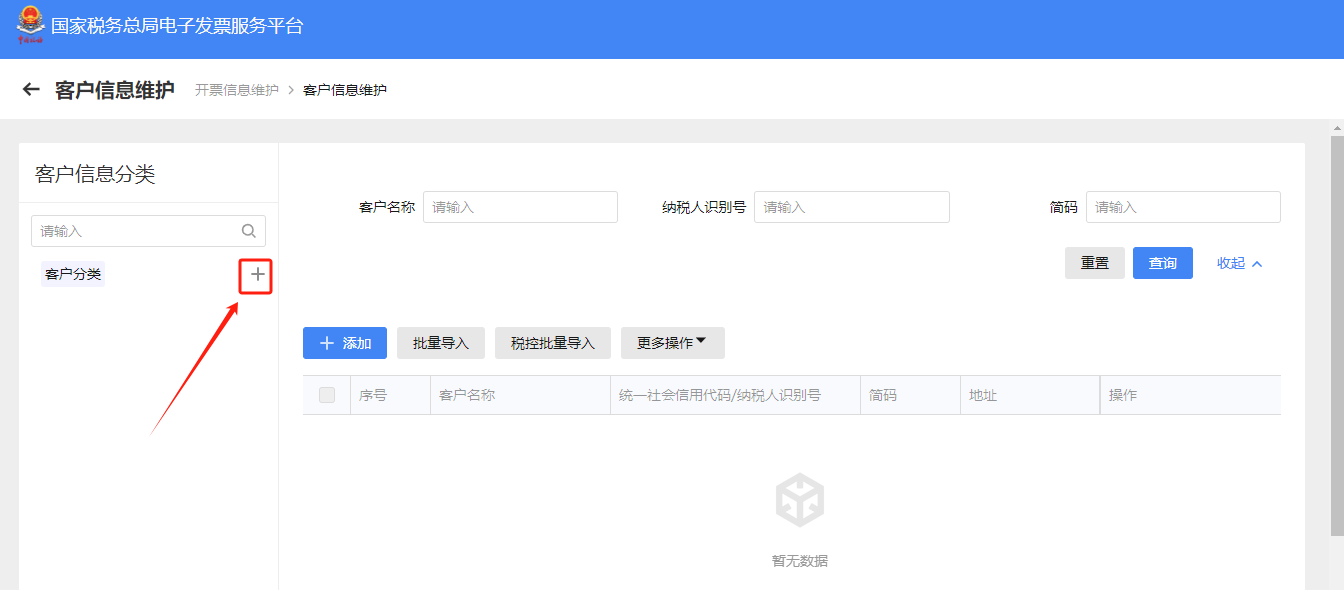
3.How do I add buyer information in the invoicing business on the Electronic Tax Bureau? Answer: Hello, please click [I Want to Handle Taxes] — [Invoicing Business] — [Invoicing Information Maintenance] — [Customer Information Maintenance]; After selecting a customer information category on the left side of the main page, click "Add" on the right side of the main page to enter the add customer information page. After completing the customer information, click the "Save" button to complete the addition. I. I Want to Handle Taxes—Invoicing Business.
II. Invoicing Business - Invoice Information Maintenance.
III. Invoicing Information Maintenance—Customer Information Maintenance.
IV. On the customer information maintenance page, after selecting a customer information category on the left side of the main page, click "Add" on the right side of the main page to enter the add customer information page. After completing the customer information, click the "Save" button to complete the addition.
Source: Beijing Tax official account Beijing Kailing Technology Co., Ltd.——an enterprise business-finance-tax digitalization solution service provider. Kailing Technology provides solutions for sales management systems, procurement management systems, output invoicing systems, input invoice collection systems, imaging management systems, financial posting systems, electronic accounting archives and other businesses according to enterprise needs, professionally and efficiently helping enterprises transform and upgrade their business-finance-tax digital management. If you have any business-finance-tax digital transformation needs, welcome to contact us. Beijing Kailing Technology will serve you wholeheartedly.
|